TL;DR

Turn quiet afternoons into listening time
- Thousands of audiobooks, podcasts and originals
- Listen on your phone, tablet or Echo — also offline
- Cancel anytime
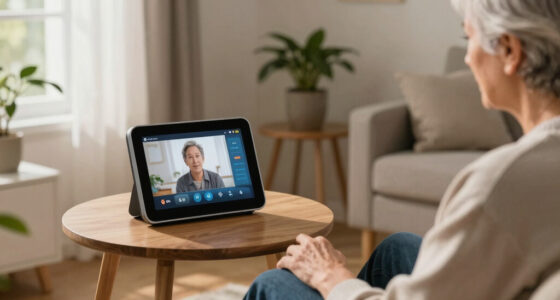
Video calling devices that answer automatically can make family check-ins easier for a parent who struggles with buttons, but the feature varies by model, app, and settings. Choose a device your parent can control, agree on who may call and when, then test the camera, sound, internet connection, and a backup plan together.
A call can be only a few taps away for you and still feel like a small obstacle course for your parent. A ringing phone, tiny answer button, and hurried search for the right screen can turn a warm hello into a stressful task.
Video calling devices that answer automatically may reduce that friction, but “auto-answer” means different things on different products. Some accept calls from selected contacts; others simply offer a bigger answer button or voice control. This guide helps you understand the difference, choose a setup around your parent’s routines, and test it without treating the camera like a watchful eye.
You’ll also find a practical setup sequence, a privacy conversation you can have together, and a backup plan for Wi-Fi or power failures. The goal is simple: make it easier for your parent to connect while keeping them in charge of when the device is used.
Confirm whether the exact model supports true auto-answer, video, and approved-contact limits; a large answer button is a different feature.
Choose placement and controls around your parent’s real routine, sight, hearing, reach, and comfort—not around a feature list.
Agree on callers, call times, camera use, and a clear way to reject or stop calls before enabling automatic answering.
Test the actual room, including Wi-Fi, lighting, speaker volume, power, call controls, and behavior after a restart.
Keep an ordinary phone or another agreed contact method available; a video device is not an emergency monitor or substitute for care.
Video Calling Devices That Answer Automatically A setup that keeps your parent in control
Auto-answer features differ by device, app, and settings. Choose controls that fit your parent’s routine, agree on privacy boundaries, and test the setup together.
Know what “auto-answer” means
A large button or voice command makes answering easier, but it is not the same as a call connecting automatically.
- May connect after a short delay
- May enable video or audio only
- May be limited to approved contacts
- A large button still needs a tap
- Voice control still needs a command
- May suit someone who can answer but struggles with menus
Choose for everyday routines
The right device is one your parent can comfortably see, hear, reach, and keep powered.
Check the controls
Try the screen and a practice call. Adjust text size, brightness, volume, and captions as needed.
Use a familiar spot
Place it at a comfortable viewing angle near dependable Wi-Fi and power.
Compare device types
A dedicated calling device may be simpler; a tablet may offer more flexibility and extra menus.
Set it up together
Follow a shared setup sequence before relying on the device for family check-ins.
Discuss who may call, when calls are welcome, and how your parent can refuse or stop one.
Check the current model and app instructions for video behavior, approved contacts, and any account or subscription requirements.
Use a strong, unique password and two-factor authentication if available. Add only trusted contacts and adjust the controls together.
Try incoming and outgoing calls, camera, sound, Wi-Fi, call-ending controls, and what happens after a restart.
Protect privacy and plan for problems
Make boundaries clear, and do not depend on a video device as the only way to reach your parent.
- Agree on when the camera may be used, including during sleep, dressing, or visits.
- Show your parent how to decline a call, stop video, disable auto-answer, or unplug the device.
- Keep an ordinary phone or another agreed contact method available if power or internet fails.
- Discuss what family should do if a call goes unanswered; the device is not an emergency monitor or substitute for care.
Know what “auto-answer” actually does before you set it up
Video calling devices that answer automatically accept some incoming calls without the person tapping an answer button, but the details depend on the exact device, app, and settings. A call may connect with audio only, turn on video, or work only when an approved contact calls. A voice command or large green button makes answering easier, but neither is the same as auto-answer.
That distinction matters because it changes what your parent experiences. Imagine your aunt’s tablet rings while she is in the kitchen. If the device only offers a large button, she still needs to walk over and tap it. If it accepts calls automatically from a permitted contact, the connection may open after a short delay. Don’t assume that the camera, microphone, or caller permissions behave the same way across products.
Before you buy or configure anything, check the current manual or support page for the specific model and software version. Look for whether auto-answer is available, whether it supports video, which contacts can use it, and whether a subscription or signed-in account is required. Features can change after software updates, so a claim on a product page may not describe the settings your family will actually see.
Think of the setting like a doorbell with a key list: you need to know who can open the door and what happens when they do. If your parent only needs help with small controls, a tablet with a large on-screen button or voice control may solve the problem without automatic answering at all.
Popular right now

Shark HydroVac Reveal Cordless Wet-Dry Vacuum and Mop, Lilac, WD321

Dyson V8 Cyclone Cordless Vacuum

Samsung 50-inch QN70H Neo QLED 4K Smart TV with Austere 2.5 m 8K HDMI Cable
As an affiliate, we earn on qualifying purchases.
Choose a device that fits your parent’s daily habits
Choose a device your parent can see, hear, reach, and keep powered—not simply one with the longest feature list. Screen size, speaker clarity, camera angle, accessibility controls, dependable Wi-Fi, and ongoing costs all affect whether calls feel easy. The best choice depends on what your parent can comfortably do and where they spend time.
Start with a real routine. If your father reads in an armchair every afternoon, a device on a stable side table may work better than a phone that disappears into a coat pocket. If he can tap a large button but cannot reliably swipe through menus, a simple calling screen could be a better fit than automatic answering. If he has difficulty hearing, check volume controls, captions, and compatibility with his hearing devices rather than judging sound in a quiet shop.
A dedicated video-calling appliance may limit distractions, while a general-purpose tablet offers more flexibility but can bring extra menus and notifications. Neither is automatically the right choice. Ask your parent to try the screen, hold a short practice call, and tell you whether the picture feels too small, the audio sounds tinny, or the controls seem confusing.
Match the tool to the task, like choosing shoes for a familiar walk rather than buying the most complicated pair in the shop. A parent who struggles with buttons may still be comfortable speaking a voice command—or may prefer one large, clearly labeled button. Let their experience guide the choice, and check product-specific features before you count on them.
Use this setup sequence to make calls simple and dependable
Set up the device in stages: agree on the plan, secure the account, put the device in a familiar place, adjust the controls, and test calls together. A little rehearsal can prevent a confusing first ring when you are not there to help. Work through the steps with your parent whenever possible so the setup feels shared, not imposed.
- Agree on how it will be used. Explain who can call, when calls are welcome, whether video may turn on, and how your parent can refuse or stop a call.
- Confirm the exact feature. Read the current instructions for the model and app. Check whether auto-answer applies to video calls, which contacts can use it, and whether a subscription is needed.
- Secure access. Use a strong, unique password and two-factor authentication if available. Add only trusted contacts, and avoid sharing the login broadly.
- Place and adjust the device. Set it on a stable surface at a comfortable viewing height, near a power outlet and dependable Wi-Fi. Adjust brightness, text size, volume, and captions as needed.
- Practice and test. Make an incoming and outgoing call, test the camera and microphone, and show your parent how to end a call, disable auto-answer, or stop video.
For example, if your mother spends most mornings at the kitchen table, place the device where the light falls on her face rather than behind her, where the window would leave her in shadow. Keep the instructions short: “To call family, press this button.” Put that note beside the screen, not in a drawer across the room.
Test the setup before you depend on it, including what happens after the device restarts or the internet drops. A clean picture during the first test is useful; knowing how to reconnect after a power cut is more useful still.
Make consent and privacy part of the setup
Automatic answering should happen only with your parent’s informed agreement and a practical way for them to stop or refuse a call. Because the feature may connect a camera or microphone without a tap, your parent deserves a plain explanation of who can call, when it may happen, and what the device can capture.
Have the conversation in everyday language. You might say, “If I call from my account, this screen may answer after a short delay. Do you want that, and are there times you want it turned off?” Talk about sleep, dressing, visitors, and any room where your parent would rather not have a camera. Agree on calling hours, too. A family check-in at 9 a.m. may feel reassuring; an unexpected call late at night may feel intrusive.
Then test the controls with your parent, not just for them. Show how to end a call, mute the microphone, disable auto-answer, or cover the camera if the device supports that option. These controls can differ by product, so confirm what they actually do. If your parent cannot operate a particular control, discuss another arrangement that gives them a clear and reliable way to pause calls.
Consent is an ongoing conversation, not a one-time checkbox. Preferences can change after a new caregiver moves in, a visitor arrives, or the device gets a software update. Treat the camera like a guest in the home: your parent should know when it can enter, who invited it, and how to ask it to leave.
Keep family access narrow and accounts secure
Limit auto-answer to specific, trusted contacts whenever the device allows it, and secure the account with a strong, unique password. Check that restrictions apply to automatic answering itself—not just to ordinary calls. Contact permissions and account links differ across products, so verify them in the current settings rather than assuming the default is private.
A practical example: your brother may need to make ordinary video calls, but your parent may not want every person in a shared family account to have automatic access. Add only the people your parent approves, and review that list together if family circumstances change. Avoid sending login details through a group chat; broad access is convenient right up until someone loses a phone or leaves the family account.
Look at the device’s privacy settings, linked accounts, call history, and camera or microphone indicators. Learn what the indicator means on your particular model. If an account offers two-factor authentication, turn it on; it adds another check beyond a password. Keep software updates current, but after an update, confirm that the calling and privacy settings still match your agreement.
Access should be as small as the job requires, like handing out keys to only the people who need to enter. If the device cannot limit auto-answer to approved callers or give your parent a clear way to stop it, pause before using that feature. A simpler call button may be a better fit than a setting that offers convenience at the cost of control.
Check the picture, sound, Wi-Fi, and power in the room
A dependable call needs more than a device that can answer: it needs clear sound, useful lighting, reliable internet, and steady power. A weak Wi-Fi signal can freeze a face into blocky squares, while a speaker turned toward a wall can make familiar voices hard to hear. Placement and testing often matter as much as the advertised feature.
Try a call from the actual chair or table your parent uses. Listen from their seat, not beside the device. If the sound gets lost beneath the refrigerator hum, move the device or adjust the volume. If a bright window behind your parent turns their face into a silhouette, rotate the screen or add a lamp so their face is lit from the front. A camera aimed from too low can make the conversation feel awkward, like talking to someone across a coffee table from floor level.
Check Wi-Fi in that exact spot; a strong signal in the hallway does not guarantee a strong signal by the armchair. Keep the device connected to power if it is meant to stay available, and make sure cables do not create a tripping hazard. Test incoming and outgoing calls, captions if used, and the way the call ends.
Good setup is a small room-by-room experiment. Ask your parent whether the screen is comfortable to look at and whether the voice sounds natural. One five-minute test at the kitchen table can reveal more than a long list of technical specifications.
Create a backup plan for outages and missed calls
A video calling device is not a guaranteed emergency monitor, fall detector, or replacement for in-person care. It may fail when the power is out, Wi-Fi drops, the device is muted, the account signs out, or software changes affect a feature. Decide in advance what your family will do when a call does not connect.
For instance, if your parent usually answers a morning call but the screen stays offline, agree on a second step: call their ordinary phone, then contact a nearby neighbor or caregiver if you still cannot reach them. The right plan depends on your family’s circumstances and the level of support your parent needs. A video screen cannot guarantee that someone will notice an emergency, and it cannot summon help just because a call goes unanswered.
Write down the backup contact and keep the note somewhere easy to find. Test what happens when you unplug the device or briefly disconnect Wi-Fi, then restore it and see whether it reconnects as expected. Don’t turn a test into a surprise: tell your parent what you are checking and make sure they know how to reach someone without the video device.
Use video calling as one connection method, not the whole safety plan. If your parent needs emergency response or regular hands-on care, discuss appropriate options with qualified professionals and caregivers. A familiar voice on a screen can bring comfort, but it cannot replace a person who can physically help.
Frequently Asked Questions
Which video calling devices can answer automatically?
There is no single answer for every product. Support depends on the exact model, calling app, software version, account, and settings. Check the current manufacturer instructions for whether calls connect with audio or video and whether auto-answer can be limited to selected contacts.
Can automatic answering be limited to family members?
Some systems offer contact or permission controls, but the details vary. Check whether the restriction applies specifically to auto-answer, not just to ordinary calls. Add only the contacts your parent approves and review the list together when circumstances change.
Can my parent turn off the camera or reject a call?
That depends on the device and the way it handles automatic calls. Before relying on it, test how to end a call, disable auto-answer, mute the microphone, and cover or switch off the camera if supported. Show your parent each control and make sure they can use it comfortably.
Does my parent need to be comfortable with technology?
Not necessarily, but someone will usually need to handle the initial setup and occasional troubleshooting. Choose the simplest interface that fits your parent’s abilities, then practice a short call together. A familiar location and one clear instruction can make the device feel much less complicated.
What happens if the Wi-Fi or power goes out?
The call may not work, and the device may need time to reconnect after service returns. Agree on another way to check in, such as an ordinary phone, a nearby caregiver, or a neighbor your parent knows. Test reconnection together so the backup plan is familiar rather than theoretical.
Is an auto-answer device a replacement for emergency care or caregiver visits?
No. A video-calling device does not automatically detect emergencies or guarantee that someone will see a problem. It can support regular connection, but it cannot replace appropriate care, an emergency plan, or a system designed for a specific safety need.
Conclusion
Make the device easy to use and easy to refuse. Start with your parent’s preferences, verify what the exact model does, and practice the controls together before relying on automatic answering. A familiar screen in a well-lit corner can make a family call feel as natural as someone dropping by for tea.
Keep the agreement open to change, and keep a backup way to reach each other. The best setup is not the one that sees the most; it is the one your parent welcomes.