
TL;DR

Turn quiet afternoons into listening time
- Thousands of audiobooks, podcasts and originals
- Listen on your phone, tablet or Echo — also offline
- Cancel anytime
Placing the WiFi router correctly in a senior’s home improves coverage, security, and ease of use. Using modern tech like mesh systems and secure setup makes smart home safety more achievable.
Place your router in a central, elevated spot for even coverage and fewer dead zones.
Use mesh systems or extenders in larger homes to blanket every room with reliable WiFi.
Secure your WiFi with strong passwords, update firmware regularly, and consider guest networks for safety.
Choose routers with simple setup options and voice assistant features to make management easy for seniors.
Physical placement should balance accessibility for seniors with security from tampering or damage.
Where’s the Best Spot for Your Router? Clear, Simple Rules
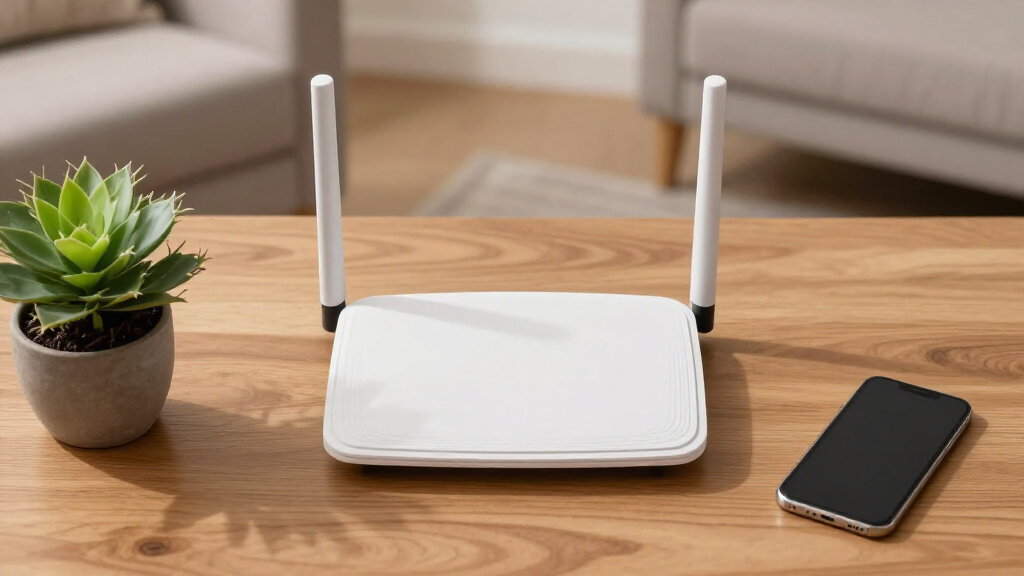
Placing your router in the right spot makes all the difference. Think of your WiFi signal like a gentle breeze: it needs an open space to flow freely. The best location? A central, elevated spot—like a high shelf in the living room. Avoid hiding it behind thick walls, metal furniture, or appliances like microwaves, which can block signals. A real-world example: a caregiver placed the router in a hallway closet, causing frequent drops in the far bedrooms. Moving it to a high shelf in the living room instantly improved coverage.
Here are quick rules:
- Place it in a central area, away from walls and interference sources.
- Keep it elevated—on a shelf or mounted high on a wall.
- Avoid placing it near metal objects or thick concrete walls.
Understanding why these rules matter helps prevent common pitfalls. Central placement ensures the WiFi signal can reach all corners of the home evenly, reducing dead zones that can cause frustration or unsafe situations if a device disconnects during an emergency. Elevation minimizes interference from furniture or objects that can absorb or reflect signals, which is especially critical in multi-room or multi-level homes. Avoiding metal objects and dense walls is vital because metal reflects signals, creating blind spots that compromise coverage and reliability. The tradeoff often involves balancing aesthetics and accessibility with optimal signal distribution—sometimes a discreet placement on a high shelf offers the best compromise between convenience and performance.
As an affiliate, we earn on qualifying purchases.
How to Boost WiFi in a Large or Multi-Story Home
Large homes or multi-story layouts challenge WiFi signals. You can’t just rely on a single router. To fix this, consider using mesh WiFi systems or WiFi extenders. Mesh systems, like a network of small units, work together to blanket your entire home in reliable coverage. Imagine a senior’s house with two floors and a basement—adding a mesh unit upstairs and one downstairs can eliminate dead zones. An elderly resident’s experience: after installing a mesh system, her smart devices responded instantly, even in the backyard.
Here’s what you can do:
- Identify weak spots with a signal test app.
- Place extenders or mesh nodes in those areas.
- Keep main router in a central, open space for best results.
Understanding why these solutions matter is key. In larger or multi-story homes, the distance and physical barriers like floors and walls significantly weaken WiFi signals. Mesh systems and extenders work by creating multiple access points, which means devices can connect to the strongest signal available rather than struggling with a distant single router. This reduces frustration, especially when seniors rely on consistent connectivity for safety devices or emergency alerts. The tradeoff involves cost and setup complexity—mesh systems are more expensive but offer seamless coverage, while extenders are more affordable but may introduce slight latency or complexity in network management. Proper placement of these devices maximizes their benefits, ensuring that coverage is uniform and reliable across all areas where seniors live and move.
As an affiliate, we earn on qualifying purchases.
Is It Safe and Easy to Keep the Router Accessible?
Yes, placing the router where seniors can reach it means they can easily reset or troubleshoot if needed. But there’s a balance—don’t put it in a place prone to tampering or accidental damage. For example, a caregiver set the router on a high shelf in the living room, well out of reach of curious grandchildren but still accessible to the senior for basic resets. Modern routers often have status lights and simple buttons that make management straightforward. This way, your loved one can handle minor adjustments without stress.
Tip: Use routers with clear labeling and simple setup instructions to make management foolproof.
It’s important to understand that accessibility isn’t just about physical reach; it also involves ensuring the router is placed where the senior feels comfortable and confident in handling it. If the router is too high or tucked away in a cabinet, it may be difficult for someone with limited mobility or vision to operate. Conversely, placing it in a visible, yet secure spot—like a dedicated corner shelf—strikes a good balance. The implications are significant: easy access encourages proactive troubleshooting, which can prevent connectivity issues from escalating into safety concerns. The tradeoff involves security—if the router is too accessible, there’s a slightly increased risk of tampering, especially if children or visitors are frequent. The key is to find a spot that provides convenience without compromising safety or security.
WiFi extender for multi-story home
As an affiliate, we earn on qualifying purchases.
As an affiliate, we earn on qualifying purchases.
How to Keep Your WiFi Safe and Secure in a Senior’s Home
Security starts with placement but doesn’t end there. Place the router in a location that’s physically secure—away from open windows or unlocked cabinets. Always use a strong, unique password and enable WPA3 encryption if available. Regular firmware updates are essential—they fix bugs and security flaws. For example, a senior’s router was hacked because it used default passwords. Changing these and enabling automatic updates prevented future breaches. Modern routers also have features like guest networks, which keep visitors off your main smart home devices.
Action tips:
- Change default passwords immediately.
- Enable automatic firmware updates.
- Use a separate guest network for visitors.
Understanding why placement matters for security involves recognizing that physical access can sometimes lead to cyber vulnerabilities. If a router is placed in an easily accessible location, it’s easier for someone to tamper with it physically, potentially resetting it to factory defaults or installing malicious firmware. Conversely, placing it in a secure, concealed spot reduces this risk while still maintaining signal strength if done thoughtfully. The tradeoff is between accessibility for maintenance and security from tampering. Additionally, physical security complements digital security measures—both are essential for protecting sensitive data and ensuring the safety of smart home systems in senior homes.
easy setup WiFi router with voice control
As an affiliate, we earn on qualifying purchases.
As an affiliate, we earn on qualifying purchases.
What Are the Best Routers for Senior-Friendly Smart Homes?
Look for routers that combine ease of use with strong security. Features like simplified setup, clear app interfaces, and reliable coverage matter most. For example, some routers come with voice assistant integration, allowing seniors to ask, ‘Is my WiFi working?’ and get instant answers. Compatibility with smart home devices like cameras or sensors is also key. A good pick: a router with a large, easy-to-read display, or one that offers a one-touch reset button and simple app controls. It’s about making the tech as stress-free as possible.
Understanding why these features matter helps ensure the device is accessible and manageable for seniors. A router with an intuitive interface reduces frustration and the likelihood of misconfiguration—common issues that can compromise security or performance. Voice assistant integration adds a layer of convenience, allowing users with limited mobility or vision to interact with their network naturally. Compatibility with smart home devices ensures seamless operation, which is crucial for safety and automation. The tradeoff might involve higher costs or limited options, but investing in a user-friendly router can significantly improve the overall smart home experience for seniors, promoting independence and peace of mind.
Can You Set Up Your WiFi Network Without Help?
Yes, most modern routers are designed for straightforward setup, often with step-by-step guides or smartphone apps. For a senior, choosing a router with a clear, simple interface makes the process smoother. Imagine a caregiver guiding their parent through a 10-minute setup on a user-friendly app. If questions come up, many companies offer online chat or phone support. Still, a professional setup can fine-tune placement for maximum coverage, especially in tricky layouts.
Pro tip: Look for routers with “guided setup” features and good customer support options.
Understanding the setup process and support options is crucial. A router with a simple, guided setup minimizes confusion, reduces the likelihood of errors, and speeds up the process—especially important when working with seniors who may be less comfortable with technology. Good support channels, such as live chat or phone assistance, provide reassurance and quick resolution if issues arise. Professional setup services can optimize placement and configuration, ensuring the network is both secure and reliable from the start. Recognizing these factors helps you choose a device that promotes independence and confidence in managing home tech systems.
Frequently Asked Questions
Where’s the best place to put my WiFi router in a senior’s home?
Place it in a central, elevated spot like a high shelf in the living room, away from thick walls and interference sources like microwaves or metal furniture. This ensures even coverage and fewer dead zones.How can I improve WiFi coverage in a large or multi-story home?
Use mesh WiFi systems or WiFi extenders to spread coverage across every room and floor. Position the main router in a central location and add nodes or extenders where signals weaken.Is it safe to place the router in a visible or accessible area?
Yes, but choose a secure, out-of-reach spot for seniors—such as a high shelf—so they can easily reset or troubleshoot without risking tampering or damage.How do I secure my WiFi network for safety?
Change default passwords immediately, enable WPA3 encryption if available, keep firmware updated, and set up a separate guest network for visitors to protect your main devices.What are the best routers for seniors or smart home setups?
Look for user-friendly models with simple setup processes, reliable coverage, strong security features, and compatibility with smart devices like cameras or voice assistants.Conclusion
Getting your router placement right is the foundation of a safe, reliable smart home for seniors. It’s about more than just speed—it’s about creating a secure digital space where technology works seamlessly. When you position your router thoughtfully, you’re enabling independence, safety, and peace of mind. Think of it as planting the roots for a thriving, connected home that truly supports your loved ones.
Remember, simple adjustments today can make a huge difference tomorrow. Take a moment to reevaluate your WiFi setup—your senior loved ones will thank you for it.
Fall Picks
fall essentials
As an affiliate, we earn on qualifying purchases.