
TL;DR

Turn quiet afternoons into listening time
- Thousands of audiobooks, podcasts and originals
- Listen on your phone, tablet or Echo — also offline
- Cancel anytime
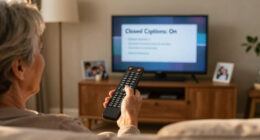
Most TVs and streaming devices allow you to turn on captions through menus or remote buttons. Customization options are common, making it easier to read and understand content. This guide walks you through the exact steps for any setup.
Most TVs and streaming platforms support closed captions, but the method varies by device.
Look for a ‘CC’ or ‘Subtitles’ button on your remote to toggle captions quickly.
Access the main menu or accessibility settings to enable or customize captions.
You can often change font size, color, and position for better readability.
Always verify if the content has captions available before trying to turn them on.
How to Turn On Closed Captions on Any TV
Dialogue hard to hear? A quick remote shortcut or settings change can add clear, readable text to broadcasts, streaming apps, discs, and connected devices—making every viewing session more inclusive and flexible.
More than an accessibility feature
Closed captions display dialogue and meaningful sounds. They support viewers who are deaf or hard of hearing while also improving comprehension when sound is limited, accents are unfamiliar, or the room is noisy.
Equal access
Dialogue, speaker cues, music, and important sound effects become visible instead of relying on audio alone.
Clarity anywhere
Follow every word in noisy rooms, during quiet late-night viewing, or when actors speak softly or use unfamiliar accents.
Better comprehension
Written dialogue reinforces vocabulary, pronunciation, spelling, and context for language learners and focused viewers.
Turn captions on in six moves
Menu names vary, but the underlying path is remarkably consistent across smart TVs, cable boxes, streaming sticks, disc players, and consoles.
Device captions and app captions can be independent. If captions are enabled on the TV but absent in Netflix, Hulu, Disney+, Prime Video, or another app, open the app’s speech-bubble or CC menu during playback.
Where the setting lives
The device producing the picture usually controls the captions. Start with the TV, then check the cable box, streaming app, disc player, or console if the text does not appear.
Smart TV
Use the television remote and open the main accessibility menu. Samsung, LG, Sony, TCL, and other brands use slightly different labels.
HOME → SETTINGS → ACCESSIBILITY → CAPTIONS → ONStreaming service
Start the program, reveal the playback controls, and select the speech-bubble, subtitles, or CC symbol.
PLAY VIDEO → PLAYBACK CONTROLS → CC → LANGUAGECable or satellite
Use the provider’s remote and menu. The box may override the TV’s caption setting for live channels.
MENU → ACCESSIBILITY → CLOSED CAPTIONS → ENABLEDisc player or console
Look under Audio & Subtitles in the disc menu or enable subtitles through the console’s media controls.
MEDIA MENU → AUDIO & SUBTITLES → SELECT TRACK| Viewing source | Fastest route | Style controls | Language choice | Key dependency |
|---|---|---|---|---|
| Broadcast television | Remote CC button | ~ Varies | ~ Varies | Channel supplies a CC signal |
| Smart TV app | Playback speech bubble | ✓ Usually | ✓ Usually | Title includes a caption track |
| Cable or satellite box | Provider accessibility menu | ~ Varies | ~ Varies | Box settings may override TV |
| DVD or Blu-ray | Disc subtitle menu | ✗ Limited | ✓ If included | Available languages on the disc |
| Gaming console | App or game accessibility | ✓ Often | ~ Varies | Individual game or media app |
Customize before you settle in
Modern caption systems commonly let you adjust size, font, foreground color, background, edge treatment, and position. Prioritize contrast and consistency over decoration.
Captions still not showing?
Most failures come from missing caption data, the wrong settings layer, or an incorrect language track—not from a broken television.
Why are captions enabled but invisible?
The current program may not provide them, or a connected box or streaming app may be controlling captions separately from the TV.
Can every TV change caption appearance?
No. Newer smart TVs and streaming platforms commonly offer customization, while older broadcasts, discs, and some external devices may provide limited styling.
What are CEA-608 and CEA-708?
CEA-608 is the older caption standard associated with analog broadcasts. CEA-708 is designed for digital television and generally supports richer display options.
How do I turn captions off again?
Repeat the same remote shortcut or menu path and choose Off. In a streaming app, reopen the playback subtitle menu and select Off or None.
The caption signal chain
What Are Closed Captions and Why Do They Matter?
Closed captions (CC) are text overlays that display dialogue and important sounds during a show or movie. They’re essential for viewers who are deaf or hard of hearing but also useful in noisy places or when you’re trying to understand accents. For instance, if you’re watching a film late at night, captions let you enjoy without disturbing others.
Beyond accessibility, captions can serve as a language learning tool, helping viewers pick up new vocabulary and pronunciation. They also assist in understanding dialects or mumbling characters, which can otherwise be missed. The ability to customize captions—such as changing font size, style, or background—further enhances readability, especially for viewers with visual impairments or in bright environments. This flexibility ensures captions are a practical aid rather than a distraction, ultimately making media consumption more inclusive and tailored to individual needs.
Deeply, captions open up media for a broader audience, providing equal access and enhancing comprehension. They can also influence content design, prompting creators to consider caption-friendly dialogue and sound cues. However, there are tradeoffs: poorly designed captions or excessive customization can sometimes distract or reduce readability, so understanding how to adjust them appropriately is key for optimal viewing.
Popular right now

De'Longhi Rivelia Automatic Espresso Machine with Milk Frother

Samsung 85-Inch QN70H Neo QLED 4K Smart TV (2026)

Ninja Foodi 10-Qt DualZone Smart XL Air Fryer, 6-in-1, DZ550
As an affiliate, we earn on qualifying purchases.
How to Find the Caption Button or Menu on Your TV
The first step to turning on captions is locating the right control. Most remote controls have a dedicated ‘CC’ or ‘Subtitles’ button. Pressing it often toggles captions on and off quickly, providing a convenient way to access captions during viewing. If your remote lacks this button, you’ll need to explore the TV’s menu system.
For example, on a Samsung remote, pressing the ‘Home’ button, then navigating to ‘Settings’ > ‘Accessibility,’ reveals the caption options. On LG TVs, look for ‘Settings’ > ‘Accessibility’ > ‘Captions.’
Understanding where these controls are is crucial because it affects how quickly you can enable captions when needed. Some devices also allow you to assign a shortcut or hotkey for rapid access, which is especially useful for frequent caption users. Familiarity with your remote and menu layout ensures you can activate captions swiftly, enhancing your viewing experience without unnecessary interruptions.
Deeply, knowing the location and function of caption controls helps prevent frustration during critical moments, like watching a suspenseful scene or a foreign film. It also allows you to troubleshoot quickly if captions aren’t appearing, saving time and maintaining immersion. Some devices may require additional setup, such as enabling captions in the main menu, so understanding the hierarchy of settings ensures you don’t miss out on accessibility features.
Step-by-Step Guide to Enable Closed Captions
- Press the ‘Menu’ or ‘Settings’ button on your remote to access the main menu.
- Navigate to ‘Accessibility,’ ‘Captions,’ or ‘Subtitles’—these options are often grouped under accessibility or display settings.
- Select ‘On’ or ‘Enable’ to activate captions. If available, choose your preferred language or style at this stage.
- Adjust caption style settings, such as font size, color, background, or position, to suit your viewing preferences and improve readability.
- For streaming platforms, during playback, look for a ‘Subtitles’ icon—often a speech bubble or ‘CC’—and select your preferred language or style.
- Verify caption availability before playing content, as some videos may lack captions, which can be disappointing if expected.
- Once enabled, test by playing different content to ensure captions appear as desired, and revisit settings to customize further if needed.
Deeply, enabling captions at both device and app levels ensures consistency. For example, some streaming apps have their own caption settings independent of device settings. Properly configuring both prevents situations where captions are enabled on the device but not in the app, which could cause confusion or missed information during viewing.
How to Turn Off Captions When You Don’t Need Them
If captions become distracting or unnecessary, turning them off restores a clean viewing experience. To do this, follow similar steps to enabling them: access the menu or playback options, navigate to ‘Captions’ or ‘Subtitles,’ and select ‘Off’ or ‘Disable.’
For example, on a Roku device, press the ‘Star’ button during playback, then navigate to ‘Subtitles’ and toggle off. Some platforms also allow quick toggling through remote hotkeys or on-screen menus, so becoming familiar with these shortcuts can streamline your control. Disabling captions when not needed prevents visual clutter and helps maintain focus on the content, but remember to re-enable them when accessibility or comprehension needs arise again.
Deeply, turning off captions when unnecessary can improve immersion, especially in cinematic or immersive content where text overlays might distract. However, if you or others rely on captions for understanding or accessibility, ensure that turning them off is a conscious choice based on context. Being aware of how to toggle captions quickly allows you to adapt seamlessly to different viewing scenarios, balancing clarity with comfort.