TL;DR

Turn quiet afternoons into listening time
- Thousands of audiobooks, podcasts and originals
- Listen on your phone, tablet or Echo — also offline
- Cancel anytime
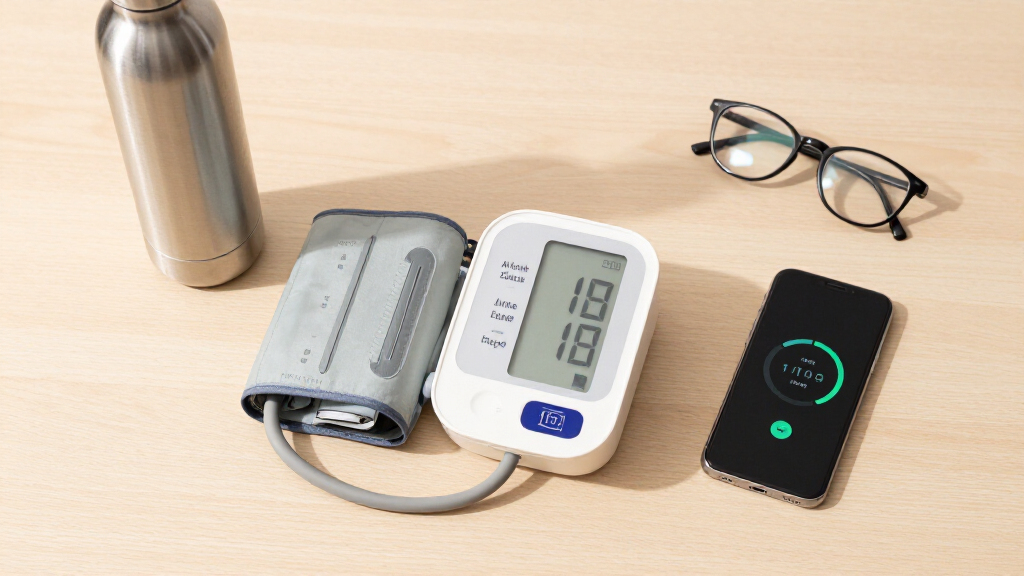
Most modern blood pressure monitors use Bluetooth or Wi-Fi to sync readings to a smartphone app. Proper setup involves installing the app, enabling permissions, pairing correctly within the app, and understanding sync behaviors—making health data easier to track and share.
Imagine measuring your blood pressure in the comfort of your home, then having that data automatically appear on your phone without any fuss. No manual entry, no hassle. It’s a game-changer for keeping tabs on your health — if you set it up right.
Getting your blood pressure monitor to sync seamlessly isn’t just about pressing buttons. It’s about understanding how your device talks to your phone, what permissions it needs, and how to troubleshoot common pitfalls. This guide walks you through every step, so your readings flow smoothly and confidently.
Always set your device on a flat, stable surface and follow proper measurement techniques for accurate readings.
Pair your monitor within the app—not just via Bluetooth settings—to ensure reliable data transfer.
Permissions matter: enable location on Android and Bluetooth on iOS to prevent setup failures.
Wi-Fi models sync automatically, but Bluetooth-only devices require the app to be open or in foreground for updates.
Regularly update your app and firmware to benefit from improvements and bug fixes.
Setting Up a Blood Pressure Monitor So Readings Sync Automatically to Your Phone
No manual entry, no hassle. Most modern monitors use Bluetooth Low Energy or Wi-Fi to push readings straight to a companion app — but reliable syncing depends on correct pairing, permissions, and setup. Here is exactly how to make it stick.
Omron · Withings · Qardio · A&D · iHealth
During Pairing & Measurement
Per Monitor, via Profiles or Guest Mode
Morning & Evening for a Week
ValidateBP.org & STRIDE BP
How Your Monitor Talks to Your Phone
Think of it like pairing a Bluetooth speaker — the magic happens inside the app, not in your phone’s Bluetooth menu. Each brand manages its own pairing flow, permissions, and sync schedule. Pairing via OS settings alone is a classic setup failure.
Power Up the Monitor
Charge the device or insert fresh batteries so it’s ready to connect.
Install the Official App
OMRON connect, Health Mate, Qardio, Heart Track, or MyVitals.
Create a Free Account
Required for cloud storage, history, and sharing with clinicians.
Pair Inside the App
Put the monitor in pairing mode; select it from within the app’s flow.
Measure & Verify
Take a reading in correct posture and confirm it appears in the app.
Short-Range & Phone-Dependent
Most common, especially for portable monitors. Syncs when the app is open or active — if the app isn’t running, new readings may wait in device memory.
Omron · QardioArm · iHealthAutomatic Background Sync
Uploads readings over your home network, often without the phone nearby. Dual-sync models have become notably more affordable.
Withings BPM Connect · Omron PremiumApple Health & Health Connect
Most major apps push data to Apple Health or Android’s Health Connect (which has replaced Google Fit), enabling sharing with portals and third-party apps.
PDF / CSV export for cliniciansStep-by-Step: Automated Sync Setup
Follow these eight steps in order. The permission steps trip up most people — especially on Android, where Location Services is required for Bluetooth scanning.
Charge or Insert Batteries
Make sure the monitor is fully powered and ready to connect before you start.
Get the Official App
From the App Store or Google Play. Choose a validated device from ValidateBP.org or the STRIDE BP registry — accuracy validation is independent of smart features.
Create a Free Account
Essential for data storage and sharing. Note: some brands (e.g., Omron’s premium tier) place extras like unlimited cloud history behind a subscription.
Enable Bluetooth / Wi-Fi
On Android, also turn on Location Services — it’s required for BLE scanning and is the #1 setup failure point.
Pair Within the App
Put the monitor into pairing mode (press a button until it flashes), then select it inside the app. Never pair via the phone’s Bluetooth menu alone — the app registers the device in its secure environment.
Grant All Requests
Especially Bluetooth and Location. Without them the app cannot communicate with the device, leading to missed or delayed readings.
Take a Reading Correctly
Seated, back supported, feet flat, arm at heart level, cuff snug but not tight. No caffeine, exercise, or smoking 30 minutes prior; no talking during measurement.
Confirm & Repeat
Check the reading appears in the app, linked to your profile. Then verify new readings sync automatically — in foreground or background, depending on your device.
Sync Behavior: What Happens & When
Different monitors sync differently. Recognizing your device’s behavior helps you plan your routine and avoid confusion about why data isn’t appearing.
| Device Type | Sync Mode | Phone Needed Nearby? | Offline Storage | What to Remember |
|---|---|---|---|---|
| Bluetooth-only Omron entry models, QardioArm, iHealth |
~ Foreground sync — when app is open or active | ✓ Yes, within ~10 ft | 30–200 readings in device memory | Launch the app after measuring so stored readings transfer. |
| Wi-Fi + Bluetooth Withings BPM Connect, Omron higher-end |
✓ Automatic background sync | ✗ No — uploads via home network | Syncs directly to the cloud | Keep home Wi-Fi stable and firmware up to date. |
| Multi-user monitors Most brands, 2+ profiles or guest mode |
~ Per-profile pairing | ~ Depends on radio type | Readings split by user profile | Select the correct user before measuring to avoid mixed data. |
| Cuffless / wearables Smartwatch optical BP estimation |
✗ Unvalidated for diagnosis | ✓ Yes, paired watch + phone | Varies by platform | Requires cuff calibration; not FDA-cleared for diagnostic use in the US. |
When Readings Don’t Appear: Fix the Root Cause
Most sync failures boil down to a short list of culprits. Work through them in this order — from most to least common — before assuming the device is broken.
From Cuff to Clinician
Once syncing works, your readings can travel further than the app. Most major apps push to Apple Health or Health Connect, and many offer PDF/CSV export — heavily used before appointments.
Cuff Measurement
Correct posture
Validated device
BLE / Wi-Fi Transfer
In-app pairing
Permissions granted
Companion App
Averaging & trends
Morning/evening protocol
Apple Health / Health Connect
Platform-controlled
sharing hub
Clinician Export
PDF / CSV
Patient portals
Sarah’s Omron readings were stuck on the device. The cause wasn’t the monitor or the app — she had never granted Location permission on Android, which BLE scanning requires. After enabling it, her readings flowed smoothly into the app. Issues that seem complex are often a single unchecked permission.
Blood pressure data is health data. Review your app’s data-sharing policy, and remember that anything shared to Apple Health or Health Connect falls under those platforms’ controls. Prefer upper-arm cuffs over wrist models — incorrect cuff size is a leading source of error, and sync is useless if the readings are wrong.
Five Rules for Reliable Sync
- 1Technique drives data quality. Flat, stable surface; seated with back supported, feet flat, arm at heart level, correct cuff size. Sync can’t fix a bad reading.
- 2Pair within the app — not just via Bluetooth settings — to ensure secure, reliable data transfer.
- 3Permissions matter. Enable Location on Android and Bluetooth on iOS to prevent the most common setup failures.
- 4Know your sync mode. Wi-Fi models sync automatically; Bluetooth-only devices need the app open or in the foreground.
- 5Keep everything updated. Regular app and firmware updates deliver sync improvements and bug fixes.
How Your Blood Pressure Monitor Talks to Your Phone (And How to Make It Stick)
Your device probably uses Bluetooth Low Energy (BLE) or Wi-Fi to send data to your phone. Bluetooth is most common, especially for portable monitors. Wi-Fi models, like the Withings BPM Connect, upload readings over your home network, often without needing your phone nearby.
To get readings to appear automatically, you need to pair your monitor with the right app, not just your phone’s Bluetooth menu. Think of it like pairing a Bluetooth speaker — it’s all about the app’s process, not just the device connection.
For example, if you have an Omron device, you’ll use the OMRON connect app. Withings uses the Health Mate app. Each one manages its own pairing process, permissions, and syncing schedule. Understanding this flow prevents frustrating errors.
Why does this matter? Because proper pairing within the app ensures that your device and phone communicate securely and reliably. If you skip this step or do it incorrectly, your readings may not transfer or may be delayed, reducing the usefulness of real-time health tracking. Additionally, knowing whether your device uses Bluetooth or Wi-Fi impacts how you troubleshoot connectivity issues, as Wi-Fi models often require network configuration but tend to be more autonomous once set up.
Popular right now

TCL QM64L 85-Inch QD-Mini LED 4K Smart Fire TV

TCL T7 Series 85-Inch 4K 144Hz QLED Smart Google TV

De'Longhi Rivelia Automatic Espresso Machine with Milk Frother
As an affiliate, we earn on qualifying purchases.
Step-by-Step: How to Set Up Your Blood Pressure Monitor for Automated Sync
- Charge your monitor or insert batteries. Make sure it’s ready to connect.
- Download the monitor’s official app from the App Store or Google Play. Choose a reputable, validated device from sources like ValidateBP.org.
- Create a free account within the app. This step is essential for data storage and sharing.
- Enable Bluetooth (or Wi-Fi, if available) on your phone. On Android, turn on Location Services — this is often required for BLE scanning.
- Open the app and follow its pairing instructions. Usually, you’ll put the monitor into pairing mode (e.g., pressing a button until it flashes), then select it from within the app. This process ensures that the device and app recognize each other securely, which is vital for consistent data transfer.
- Grant all permissions requested, especially Bluetooth and location. This step often trips people up on Android, causing pairing failures. Without these permissions, the app cannot communicate effectively with your device, leading to missed readings or delays.
- Take a blood pressure reading in the proper posture: seated, back supported, feet flat, arm at heart level, cuff snug but not tight. The app will usually prompt you for this. Proper technique is essential because inaccurate measurements can lead to misinterpretation of your health status, and the app’s ability to store and analyze data depends on consistent, correct measurements.
- Once the reading is complete, check that it appears in the app. Confirm the data is accurate and properly linked to your profile. This verification step ensures your device and app are communicating correctly, setting the foundation for automatic syncing in future measurements.
Repeat measurements as needed, and verify that new readings sync automatically when the app is open or in the background — depending on your device’s design. Understanding how your device behaves helps you plan your routine, ensuring consistent and reliable health data collection.
Troubleshooting Common Sync Problems and How to Fix Them
If readings don’t appear on your phone, don’t panic. Many issues boil down to permissions, pairing mishaps, or Bluetooth range. Recognizing the root cause helps you choose the right fix, saving time and frustration.
- Check permissions: Android needs Location enabled; iOS needs Bluetooth permission for the app. Go to Settings > Privacy > Location & Bluetooth permissions. Without these, your device cannot communicate effectively, leading to failed or delayed syncs.
- Pair inside the app: Never just pair via phone Bluetooth settings; always follow your app’s pairing flow. This ensures the device is registered correctly within the app’s secure environment, which is critical for consistent data transfer and avoiding conflicts with other Bluetooth devices.
- Stay close: Keep your device within 10 feet during pairing and measurement. Signal interference or distance can weaken the connection, causing dropped data or failed synchronization.
- Update the app: Make sure you’re running the latest version. Developers often fix bugs that affect syncing, and updates can improve compatibility with your device’s firmware.
- Restart: Restart your phone and device — sometimes a simple reboot clears connection issues, resets permissions, and forces a fresh connection attempt.
- If using Wi-Fi, ensure your device is connected to your home network and the monitor is within range. Wi-Fi models often sync automatically without the phone nearby, but network issues or interference can impede this process. Confirm your Wi-Fi connection is stable, and the monitor’s firmware is up to date for optimal performance.
Example: Sarah, who uses an Omron monitor, kept seeing readings stuck in the device. She realized she hadn’t granted location permission on Android. After enabling it, her readings flowed smoothly into the app. This highlights how permissions directly impact data transfer — overlooking them can cause persistent issues that seem complex but are often simple to fix once identified.
Understanding Sync Behavior: What Your Device Does and When
Different monitors have different ways of syncing. Some only transmit data when the app is open — called foreground sync. Others, especially Wi-Fi models, upload readings automatically in the background. Recognizing these differences helps you optimize your routine and avoid confusion about why data isn’t appearing as expected.
| Device Type | Sync Mode | Notes |
|---|---|---|
| Bluetooth-only | When app is open or active | Because Bluetooth is short-range, if the app isn’t running, new readings may not transfer. This means you need to remember to launch the app after measurements for data to sync properly, which can be overlooked if you assume automatic updates happen in the background. |
| Wi-Fi + Bluetooth | Automatic background sync | Most recent models like Withings BPM Connect sync when connected to Wi-Fi, even if the app is closed. This setup offers more convenience but requires initial network configuration and occasional firmware updates to maintain reliability. |
| Cellular-connected | Always on, no phone needed | These devices are designed for maximum independence, providing continuous data transmission without a phone. They are ideal for users who want minimal setup but may come at a higher cost and require cellular service plans. |
Understanding your device’s sync behavior allows you to plan measurements effectively. For example, if your Bluetooth monitor only updates when the app is open, you should incorporate launching the app into your routine after each measurement. Conversely, Wi-Fi models reduce this burden by uploading automatically, but they still benefit from regular firmware updates and network checks to prevent data gaps.
Sharing Your Data with Your Doctor — The Easy Way
Getting your readings to your healthcare provider is simpler than ever. Most apps let you export data as PDF or CSV files, which can be emailed or uploaded to patient portals. This ability ensures that your doctor has access to accurate, comprehensive data for better health management.
Many also sync with Apple Health, Google Fit, or Health Connect, allowing you to share data across apps or with your doctor’s preferred platform. This interoperability means you can centralize your health data, making it easier for your healthcare team to review trends and make informed decisions.
For example, if your doctor wants a week of morning and evening readings, you can set the app to remind you, then export the file for your appointment. Some monitors even have direct sharing options in the app, simplifying the process further. This seamless sharing reduces the need for manual data entry or complex reports, saving time and reducing errors.
Always review privacy policies before sharing. Blood pressure data is sensitive, so ensure it stays protected under your account and platform settings. Understanding the implications of sharing helps you maintain control over your health information, balancing convenience with privacy concerns.
Recent Advances and What’s Coming Next
Technology keeps evolving. Today, many monitors support dual Wi-Fi and Bluetooth, making syncing more reliable and flexible. Cellular models are emerging, perfect for those who don’t want to rely on a smartphone at all. These advancements aim to improve convenience, reduce setup complexity, and enhance data reliability.
Android’s Health Connect now acts as a central hub for health data, replacing Google Fit for many users. Firmware updates and new apps are making setup easier and more robust, often addressing previous connectivity issues and adding new features like automatic calibration and more comprehensive data analysis.
While cuffless and wearable blood pressure estimates are promising, they’re still being validated. For now, upper-arm cuffs remain the gold standard for home accuracy, especially when paired with proper setup. Future innovations may bring more comfort and continuous monitoring options, but current best practice still involves established cuff-based devices paired correctly.
Remote patient monitoring is expanding, with devices feeding directly into telehealth systems, making blood pressure tracking part of ongoing care — no phone needed. These systems are designed to support proactive health management, allowing healthcare providers to intervene earlier and customize treatment plans based on real-time data.
Frequently Asked Questions
Why won’t my monitor pair with my phone?
Most devices require you to pair through the app’s specific setup flow. Make sure Bluetooth is enabled, permissions are granted, and you’re following the instructions within the app rather than just the phone settings. Sometimes, turning Bluetooth off and on again, or restarting the device, helps.
Why did my reading not show up in the app?
This often happens if the app wasn’t open during the measurement or if the device is out of Bluetooth range. Check if your device stored readings locally and ensure you open the app afterward to sync. Wi-Fi models usually upload automatically, so no manual steps are needed.
Do I need my phone with me every time I measure?
Not always. Wi-Fi or cellular models can upload readings without your phone nearby. Bluetooth monitors typically require the app to be open or in the background to sync new data, so it’s good practice to launch the app after each reading.
Can two people use the same monitor and app?
Yes, many monitors support multiple profiles. Just make sure each person logs into their own account or profile within the app. Be cautious: measurements can get mixed up if profiles aren’t properly managed.
How do I share results with my doctor?
You can export your data as a PDF or CSV file directly from the app or sync with Apple Health or Google Fit. Many apps also allow sharing directly through the app or via email, making it simple to send your latest readings for review.
Conclusion
Getting your blood pressure monitor to sync automatically isn’t just a tech trick — it’s a way to make health tracking seamless. With the right setup, your readings flow into your phone effortlessly, giving you clearer insights and easier sharing. It’s a small step with a big impact.
Remember, the key isn’t just buying the latest device — it’s setting it up correctly. Take a few minutes now to ensure your monitor is working smoothly, and you’ll thank yourself later when health data is at your fingertips, anytime you need it.