
TL;DR

Turn quiet afternoons into listening time
- Thousands of audiobooks, podcasts and originals
- Listen on your phone, tablet or Echo — also offline
- Cancel anytime
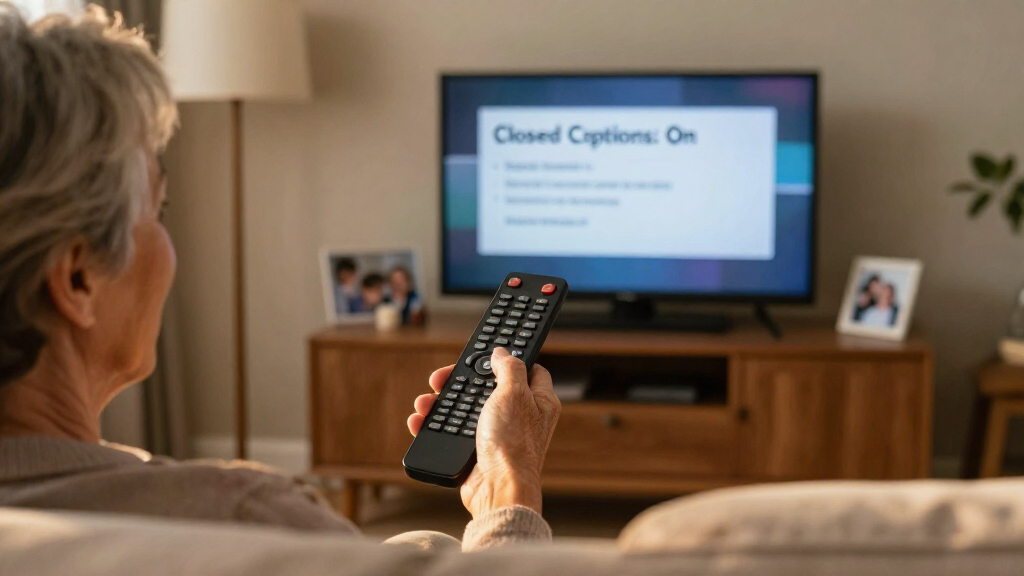
TV closed captions may be controlled by the television, the app, or a connected device such as a cable box or streaming player. Identify how you watch, look for Accessibility, Captions, Subtitles, or CC, and check each relevant control if captions do not appear. Options and menu names vary, and not every program offers captions.
You settle in for a late-night show, keep the volume low, and press the button marked CC. Nothing happens. The television is fine, the show is playing, and the captions are hiding in the settings of the streaming box plugged into the back.
That small mix-up explains why setting up TV closed captions can feel confusing: your picture may pass through more than one device, and each can have its own caption switch. This guide helps you identify your setup, find the right controls, make text easier to read, and troubleshoot missing or messy captions without guessing at one universal button sequence.
You’ll also learn what captions can and cannot do. Closed captions can usually be turned on or off; open captions are already part of the picture. Availability, language, and styling depend on the television, app, device, program, and sometimes region. If you need captions every time you watch, a quick check of each part of your setup can save repeated remote-control searches.
Identify whether you watch through an antenna, cable box, built-in app, or external player before changing settings.
Check captions in the program or app, then its connected device, then the television.
Closed captions can include speaker and sound cues; subtitles often focus on dialogue or translation, but labels vary.
Use text size and contrast settings to improve readability, and remember that appearance can differ between apps.
Test another program or app to find out whether a caption problem belongs to one show, one service, or your setup.
ACCESSIBILITY • THE PRACTICAL GUIDE
Setting Up TV Closed Captions on Any Television
A plain-language walkthrough for finding the right caption controls, improving readability, and troubleshooting missing text. Start by identifying where the program comes from: captions may be controlled by the TV, the app, or a connected device.
One screen can have more than one caption switch.
01 / MAP YOUR SETUP
Where does your show come from?
The source points you toward the likely caption menu. Notice which remote and input you use to start watching.
Antenna channel
If you change channels with the TV remote, check the television’s caption settings.
Cable or satellite
The box may provide its own accessibility or caption controls, alongside TV settings.
Built-in app
Check the app’s playback menu and the TV’s settings. Services can manage captions separately.
External player
A streaming stick or game console may control captions for the program it delivers.
Maya watches local news through an antenna, then streams a movie at night. Captions on the news are enabled on the TV; the movie needs captions selected in its app or streaming player.
02 / THREE-STEP ROUTE
Turn captions on, one control at a time
Follow the program from its playback menu to the device, then the television. Menu names and remote shortcuts differ by model.
Open playback controls
Pause or press Select, Menu, or Options. Look for CC, Captions, Subtitles, a speech-bubble icon, or Accessibility. Choose a language if offered.
Check the box or player
For a cable box, streaming player, or game console, open its quick menu or settings. Look under Accessibility, Captions, or Subtitles.
Check TV settings
Look on the home or settings screen for Accessibility, Captions, Captioning, Subtitles, or CC. Use the on-screen search or model support page if needed.
Change one setting, return to the same spoken line, and confirm that text appears. A dedicated CC button or voice command may help, but support varies by device and model.
03 / UNDERSTAND THE TRACK
Closed captions, open captions, subtitles
These labels describe common patterns. The exact wording and features depend on the program, app, and device.
| Type | Can you switch it? | What it commonly includes | Remember |
|---|---|---|---|
| Closed captions | ✓ Usually yes | Dialogue; may identify speakers and relevant sounds | Often available as a selectable track |
| Open captions | ~ No | Text already included in the video image | Your remote cannot turn the text off |
| Subtitles | ✓ Usually yes | Often dialogue, including translation | Some services use labels differently |
A caption track may show a sound cue such as “[door creaks]”; a subtitle track may focus on spoken words. Captions are not guaranteed for every program, language, or live broadcast, and live captions may have delays or gaps.
04 / MAKE TEXT EASIER TO READ
Tune size and contrast for your seat
Start with the problem you notice: small letters, text blending into bright scenes, or a background that feels too strong.
Make one change, then watch a scene
Look for text size, color, font, background, or opacity in the TV, app, or device settings. A modest size increase can help from across a room. A dark outline or background can make white text stand out over snow or pale walls. If a solid box feels too bright in a dim room, try a translucent style when available. App styling can differ, so test both bright and dark backgrounds in the actual program.
05 / TROUBLESHOOT WITHOUT GUESSING
When captions are missing, delayed, or messy
A problem can come from the program feed, app, connected device, or TV. Compare another show to narrow it down.
Check each control
Confirm captions are available for the program. Check the app’s playback menu, the connected device, then the TV. If one show has no track, try another program.
Compare services
If captions work elsewhere, check the affected app’s language and caption settings. The TV’s settings may not override an HDMI player or app.
Test the source
Try another channel or program. If only one feed is affected, the issue may be with that broadcast or service rather than the television.
Still searching? Menu wording and button sequences change across brands and models. Use the current on-screen menu or your device’s support page; try one change at a time and retest.
Start by finding out where your TV show comes from
TV closed captions are easiest to set up when you first identify the device delivering the program. If you watch an antenna channel, the television may handle captions; if you use a cable box, streaming player, or game console, that device or its app may control them. Knowing the path narrows the search before you open a menu.
Look at what you select to start watching. If you press the TV remote’s channel buttons, you may be using its tuner. If you switch to an HDMI input labeled something like “HDMI 1” and then use a cable remote, the cable box is involved. A smart-TV app such as a streaming service runs on the television, while an external streaming stick has its own settings and playback controls.
For example, Maya watches local news through an antenna in the morning and a streaming player at night. Captions work on the news after she enables them on the TV, but her movie app still needs captions selected in its playback controls. Same screen, different route.
Before changing anything, write down or remember your path: antenna, cable or satellite box, built-in TV app, or external device. This is the map for the rest of the walkthrough. Menu labels and button sequences vary by brand and model, so check the current on-screen menu or device support page if your labels differ.
Popular right now

TCL QM64L 85-Inch QD-Mini LED 4K Smart Fire TV

Vitamix Propel Series 750 Professional-Grade Blender, 4 Programs, Black

Apple AirPods Pro 3 Wireless Earbuds with Active Noise Cancellation
As an affiliate, we earn on qualifying purchases.
Use this three-step route to turn captions on
To set up TV closed captions, start with the program or app, then check the device providing it, and finally check the television. This order follows the signal from the show to your screen, so you can test the place most likely to have the active control without wandering through every menu.
- Open the show’s playback controls. Pause the program or press the select, menu, or options button. Look for CC, captions, subtitles, a speech-bubble icon, or an accessibility choice. Select the language you want if a list appears.
- Check the box or player. If the show comes through a cable box, streaming player, or game console, open that device’s settings or quick menu and look for Accessibility, Captions, or Subtitles.
- Check the television. On the TV’s home or settings screen, look under Accessibility, Captions, Captioning, Subtitles, or CC. Labels and menu layouts vary, so use the current on-screen search or the model’s support page if available.
Try one change at a time, then return to the same program and see what happens. For instance, if you are watching a movie through a streaming stick, enable captions in the movie’s playback menu first. If no text appears, look in the stick’s settings; the television’s own caption menu may not control content arriving over HDMI.
Some remotes offer a dedicated CC button or voice control, but support differs by device and model. Treat a shortcut as a quick route, not a guarantee: confirm captions by watching a spoken line and checking that text appears on screen.
Know why TV captions and subtitles may look different
Closed captions are text that a viewer can usually switch on or off, while open captions are permanently part of the video image. Subtitles usually show spoken dialogue, often as a translation, while captions can also describe relevant sounds or identify a speaker. The exact labels and features vary across broadcasts, apps, and devices.
That distinction matters when you are watching a quiet mystery and a character whispers off-screen. A caption track might show dialogue plus a cue such as a door creaking, which helps explain why another character turns around. A subtitle track may focus on translating the words. Neither label guarantees a particular style or amount of detail; the available track depends on the program and service.
Closed captions are not guaranteed for every program, language, or live broadcast. A show may offer captions in English but not in another language, or a live event may have delays or gaps. Open captions remain visible because they are part of the image, so your remote cannot switch them off like a separate track.
When a menu offers both “English” and “English CC,” try the option that best matches what you need. If one track only displays dialogue and you want sound descriptions, another may be available, but there may be no alternate track. The labels describe common patterns, not a promise that every app uses them the same way.
Make captions easier to read from your seat
Captions are easier to follow when their size and contrast suit your room and viewing distance. Many TVs, streaming services, and devices let you adjust some mix of text size, color, font, background, or opacity, though the available options vary. Start with the setting that solves your actual problem: size if the letters are tiny, or background contrast if they disappear over bright scenes.
For example, if you sit across a wide living room, a modest size increase may help you read dialogue without leaning forward. If white text vanishes over snow or a pale wall, a dark background or outline can make each line stand out. In a dim room, a fully opaque box may feel too bright, so a translucent background could be more comfortable if the service offers one.
Caption appearance can differ between apps because each service may control its own display. A style you set on the television might apply to antenna channels but not to a particular streaming app. If a show’s captions look different from the previous one, check both the app’s settings and the device’s caption preferences before assuming something broke.
Make one adjustment, then watch a scene with both dark and bright backgrounds. That gives you a more useful test than staring at a settings preview. If you share the TV with others, agree on a readable size and contrast that work from the seats people actually use.
Find the cause when captions vanish or fall behind
If captions are missing, delayed, or garbled, check whether the problem follows one program, one app, or every input. A single show without captions may lack a caption track; captions failing everywhere points toward a device or television setting. The problem can come from the program feed, app, device, or TV, so a quick comparison helps you avoid changing unrelated settings.
Use this simple sequence: test another episode or channel, test another app, then restart the app or connected device if the issue persists. If captions work on local antenna channels but not in a streaming app, the TV’s tuner setting is probably not the control you need. Open that app’s playback menu and confirm that a caption language is selected.
Consider a live sports broadcast. Captions may trail the announcer because the text must be prepared and sent with the program; a delay does not always mean your TV is malfunctioning. If the words are scrambled only on one channel, try another channel before changing the television’s settings. A service outage or poor caption feed can affect just one source.
If the caption option is unavailable or does not respond, confirm that the particular program supports captions, then check the app or device’s current help page for model-specific steps. A short restart can clear a temporary app problem. If captions remain unusable across several programs, contact the TV or service provider with the device model and the examples you tested.
Keep captions useful without changing every menu each night
Once captions work, make the setup easy to repeat. Many services remember your last caption choice, but others require you to turn captions on for each show or app. A quick test after setup tells you which behavior to expect, so you are not surprised when the next program starts without text.
If you watch mostly through one streaming app, enable captions there and check whether it remembers your choice after you exit and reopen the app. If your household switches between antenna TV and an HDMI player, note that each path may use separate controls. For instance, a family member can use the TV’s channel menu for morning news while you use a player’s caption setting for evening shows.
Voice control may help find settings on supported televisions or devices. Commands differ, and not every model understands requests such as “turn on captions,” so check the device’s current instructions. The remote’s search function, if present, may be another route to Accessibility or Captions.
Keep a short note near the remote if more than one person uses the setup: “News: TV settings; movies: app playback menu.” That little reminder can prevent a five-minute hunt through menus. If you change devices or replace a TV, repeat the same setup check because the new hardware may organize captions differently.
Frequently Asked Questions
How do I turn captions on with my TV remote?
Try a dedicated CC or subtitle button, or open the show’s playback controls and select Captions, Subtitles, or a speech-bubble icon. If you use a cable box or streaming player, check its controls too: the TV remote may not control that device’s caption track.
Why do captions work in one app but not another?
Each app may manage its own caption selection and styling, and not every program offers the same tracks. Check the playback menu in the app where captions are missing, then test another show to see whether captions are available there.
Should I turn captions on in the TV, cable box, or streaming device?
Start with the program or app, then check the device providing it, then the TV. An antenna channel may use the television’s tuner, while an HDMI-connected box or player may have its own caption setting.
How can I make captions larger or easier to read?
Look for caption style settings under Accessibility, Captions, or Subtitles. Depending on your TV or app, you may be able to change size, color, font, or background; test the result on both a bright and dark scene.
What should I do if captions are out of sync or incorrect?
Try another program or channel to find out whether the issue affects one feed or everything you watch. A live broadcast or a particular app may have delayed or inaccurate captions, so restart the app or device if the problem continues and consult the service’s support page for model-specific help.
Conclusion
When captions do not appear, trace the show’s path from its app or box to the television. Check the controls along that route, one at a time, and test another program if the first still has no text.
Once the right setting sticks, dialogue becomes easier to follow without turning the room into a volume contest. Start with the show you want to watch tonight.