TL;DR

Turn quiet afternoons into listening time
- Thousands of audiobooks, podcasts and originals
- Listen on your phone, tablet or Echo — also offline
- Cancel anytime
Smartphones include settings for larger text, bold text, display zoom, magnification, color filters and contrast that can make screen details easier to see. Change one option at a time, try it in the apps you use most, and keep the combination that feels comfortable; names and results vary by phone, software version and person.
A tiny map label can turn a simple trip into a squinting contest, even when the rest of your phone looks fine. A few display settings can make messages, menus and other screen details easier to see without changing how you use the phone.
This guide explains what text size, bold text, zoom and color filters do, and how to choose among them. You’ll also learn why one setting may help in one app and feel awkward in another, plus a simple way to test changes on your own phone.
Menu names and steps differ across iPhone models, Android versions and manufacturers, so use the settings search field if a label does not match. Most display adjustments can be reversed, which makes trying them more like turning a lamp dimmer than making a permanent change.
Increase text size for supported writing; try bold text separately if thicker strokes are easier for you to see.
Use display zoom or display size when icons and controls also feel small; use magnification for occasional close looks.
Test color filters and contrast in the apps you rely on, since a setting that helps one screen may affect another.
Change one setting at a time and check familiar tasks before deciding to keep or reverse it.
Look for an app’s own text controls when it does not respond well to the phone’s display settings.
ACCESSIBILITY · EVERYDAY SETTINGS
Make Your Smartphone Screen Easier to See
Larger text, bold type, display zoom, magnification, color filters and contrast can each help with a different screen challenge. Change one option at a time, test familiar tasks, and keep the setup that feels comfortable.
01 / START WITH THE TASK
Match the setting to what is hard to see
A tiny map label can make a simple trip a squinting contest, even if the rest of your phone looks fine. Notice whether the problem is small letters, tiny controls, pale text or colors that look too similar. That clue points to a more useful first adjustment.
Small writing
Increase text size for supported messages, menus and other writing. Expect fewer words to fit on screen.
Thin letters
Try bold text separately. Heavier strokes may stand out more, though regular type feels better to some people.
Small icons or controls
Display zoom can enlarge more interface elements. Magnification can help inspect one detail temporarily.
02 / TEXT THAT FITS YOUR EYES
Make menus and messages easier to read
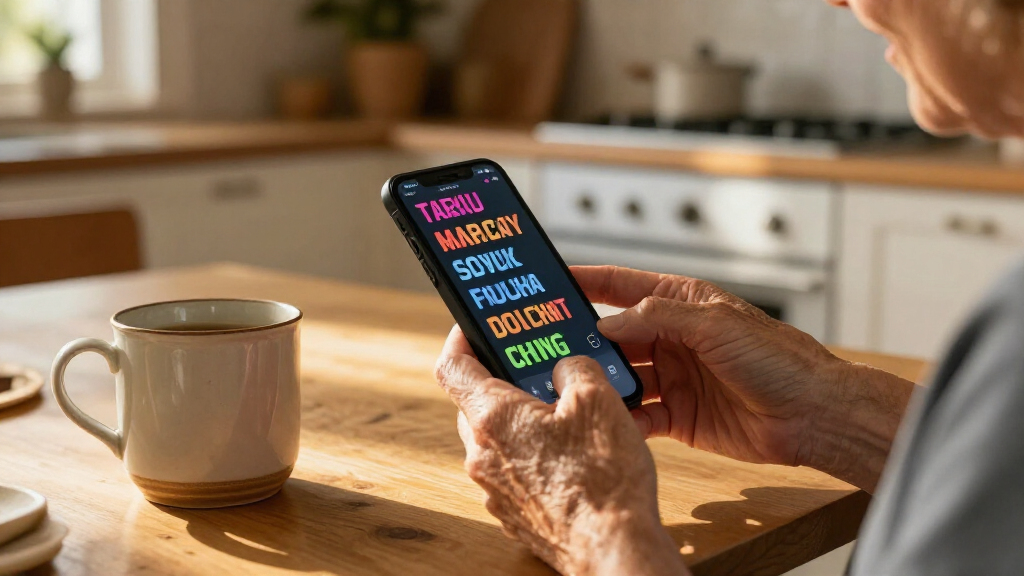
Increase text size a small step, then read a message and open a settings menu. Try bold text as a separate change and check both letters and icons. The goal is readable writing that still leaves important controls easy to find.
Bigger type, fewer words per view
Large letters can be easier to catch at a glance. They may also wrap differently, take more space and require extra scrolling.
Heavier strokes, same general scale
Bold text may make thin letter forms clearer without the layout changes caused by larger type. Results vary by person and app.
Raise text one step
Open a familiar message and read a few lines.
Test bold separately
Compare letter clarity and how crowded the screen feels.
Check another app
Try email or maps for clipping and awkward line breaks.
Keep or reverse
Adjust again if labels are cut off or the layout feels cramped.
03 / SIZE BEYOND TEXT
Choose display zoom or magnification
Display zoom enlarges interface elements across screens. Magnification enlarges part or all of the current screen for a closer look. Choose based on whether you want an everyday scale change or occasional help with a detail.
| Setting | What gets larger | When it may help |
|---|---|---|
| Text size | Supported writing | Messages and menus are hard to read, but icons are fine. |
| Display zoom / display size | Many interface elements | Buttons and icons also feel too small. |
| Magnification | Part or all of the current screen | You need a closer look at a specific detail. |
More of the interface grows
Useful when menus, buttons and icons all feel small. The tradeoff: less content fits at once, so lists may need more scrolling and maps show a smaller area.
Bring a closer look when needed
Magnification can help with a map label without keeping the whole phone enlarged. It may take a gesture, shortcut or control to activate and move the view.
04 / COLOR + CONTRAST
Test filters in the apps you rely on
Color filters and color correction alter how colors appear and may help some people distinguish them. Their effect depends on the person, content and app. Contrast options can help with particular text, background and lighting combinations.
Bars describe the kind of display change each option targets; they are not measured effectiveness scores.
05 / A SIMPLE TEST LOOP
Build a comfortable setup, one change at a time
Use familiar tasks as your measure. System settings may behave differently across apps, phone models and software versions, so check more than the settings preview.
Choose a task
Pick a message, grocery list, map or video caption that gives you trouble.
Make one change
Adjust one text, size, color or contrast option at a time.
Use the screen
Try reading, browsing and finding controls in your regular apps.
Keep or undo
Keep what helps. Most display changes can be reversed in Settings.
A NOTE ON COMPATIBILITY
Apps and phone versions matter
Some apps follow system text and appearance settings closely; others may scale or recolor inconsistently. If a paragraph wraps oddly or a button label gets cut off, try a smaller step or look for the app’s own text controls. Menu names and available features vary across iPhone models, Android versions and manufacturers.
Start by matching the setting to what you can’t see
Making a smartphone screen easier to see starts with noticing what is hard to read: small letters, tiny buttons, pale text or colors that look too similar. Those clues matter because each setting changes a different part of the display. Enlarging everything when only thin letters are the problem can create more scrolling without improving the part that troubles you.
Think of the screen like a printed page under a desk lamp. Text size changes the letters; bold text gives them thicker strokes; contrast changes how clearly they stand out from the paper. Zoom is closer to moving a magnifying glass over the page. The words stay the same, but you see them at a larger scale. These differences affect how much fits on screen as well as how easy it is to see.
For example, if you can read a message but struggle with the small icons beside it, larger text alone may leave the hardest part untouched. Display zoom can enlarge more interface elements, but that can mean fewer messages or controls fit at once. Magnification can help you inspect a small map label for a moment without keeping everything large all day, though it may take an extra gesture to use. If a red button and a green one look too similar, color correction or other design cues may be more relevant than simply enlarging them.
Start with the screen and task that bother you most: a grocery list, a banking app, a video caption or the labels on a map. Ask whether you need content bigger, darker, easier to distinguish by color or easier to inspect briefly. That distinction gives your first adjustment a clear purpose and makes its tradeoff easier to judge.
Popular right now
Apple AirPods Pro 3 Wireless Earbuds with Active Noise Cancellation

Shark PowerPro Reveal Plus Cordless Vacuum Cleaner, Charcoal, IZ376H

Ninja DualZone Smart XL Air Fryer, 10-Qt, 6-in-1, DZ950
As an affiliate, we earn on qualifying purchases.
Make menus and messages easier to read with bigger, bolder text
Making a smartphone screen easier to see often begins with increasing text size and trying bold text. These options can make supported menus, messages and other writing stand out, though the result depends on the app and your preference. The practical question is whether the improvement in legibility is worth having fewer words on screen.
Find Text Size or a similar control in your phone’s display or accessibility settings. Move the slider a small step, then open a message and a settings menu. Bigger letters can feel like switching from a pocket notebook to a large-print paperback: words are easier to catch, but fewer may fit on one screen. That can mean more scrolling and longer trips to find a particular detail, so small steps help you find a useful balance.
Then try bold text if thin letter strokes fade into the background for you. A person reading a long train update in bright sunlight might find heavier letters clearer at a glance because their strokes are easier to distinguish. Someone else may prefer regular type, which can look less crowded. Bold text and larger type address different things, so test them separately before deciding whether to keep both; one may help without the layout changes caused by the other.
Use this quick sequence as a first check:
- Increase text size one step and read a message.
- Try bold text and look at both letters and icons.
- Check a second app, such as email or maps, for clipping or awkward line breaks.
- Adjust again or revert if a screen feels cramped.
Some phones offer especially large text sizes or per-app controls. Some apps also have their own text settings, and some do not respond fully to system changes. If a paragraph wraps oddly or a button label gets cut off, try one step down or check that app’s own display options. The goal is readable text that still leaves important controls easy to find.
Use display zoom or magnification when the whole screen feels small
Display zoom and magnification make more than text larger, but they work in different ways. Display zoom enlarges interface elements across screens, while magnification enlarges a selected part or the current screen temporarily. Choose based on whether you want a lasting change or an occasional closer look, and consider how much screen area you are willing to give up.
Imagine reading a menu in a dim café. If the menu, buttons and icons all look too small each time you pick up your phone, display zoom or a larger display-size setting may make everyday use more comfortable. The tradeoff is that less content fits at once: you may scroll more or see a smaller area of a map. If you usually read fine but cannot make out one line on a map, magnification can act like a pocket lens you bring up only when needed. It preserves the usual layout most of the time, but requires you to activate and move the enlarged view.
| Setting | What gets larger | When it may help |
|---|---|---|
| Text size | Supported writing | Messages and menus are hard to read, but icons are fine. |
| Display zoom or display size | Many interface elements | Buttons and icons also feel too small. |
| Magnification | Part or all of the current screen | You need a closer look at a specific detail. |
On iPhone, Display Zoom changes the overall scale of interface elements; the separate Zoom accessibility feature magnifies part of the screen. Android phones commonly include display-size controls and a magnification shortcut or gesture, but the available choices depend on the manufacturer and software version. Search Settings for “zoom,” “magnification” or “display size” if the menu label differs.
There is a tradeoff: enlarging the interface can leave less room for content, so a map may show a smaller area or a list may need more scrolling. Try a common task after changing it, not just the settings screen, to see whether the extra size helps more than the reduced view hurts. If you need to turn magnification on often, check the accessibility shortcut options; many phones can offer a quick gesture, button or control, though the exact shortcut varies.
Try color filters and contrast on the apps you use most
Color filters and color correction change how colors appear, which may help some people distinguish certain colors or on-screen items. Their effect depends on the person, the colors in the app and the surrounding design; a filter does not automatically make every screen clearer. Because a filter changes relationships among colors across the display, a change that helps one distinction can make another less obvious.
For example, a chart that uses red and green alone to separate two lines may be difficult to read if those colors look similar to you. A color correction setting might make the difference easier to notice on your phone. But the same adjustment could make a photo look less natural or make another app’s colored buttons harder to tell apart. Try the settings in the places that matter to you, not just on the preview screen, and pay attention to whether important colors remain distinguishable.
Phones may also offer increased contrast, reduced transparency, color inversion, outlines or highlights. These can change how text and backgrounds stand apart. Increased contrast may make boundaries easier to pick out, while inversion can alter photos and familiar colors as well as interface backgrounds. Dark theme is another option, but it is a preference rather than a universal improvement: some readers like bright text against a dark background, while others find that combination tiring or harder to read. The lighting and the app can affect which works best.
Color filters do not cure color-vision deficiencies. They alter displayed colors and may help some people distinguish content, but results vary. Labels, shapes and patterns can also carry information without relying on color alone, which is useful when a filter is unavailable or does not help. If you are choosing settings for a particular vision concern or medical decision, a qualified eye-care professional can offer guidance suited to you.
Try one change, then check a message, a photo, a map and an app with colored buttons. A setting that helps you read a transit map may make a photo look strange. That is a useful result: you can turn it off, choose another adjustment or use a shortcut if your phone supports one. Judge the setting by whether it makes your important tasks clearer overall, rather than by how the preview looks.
Build a comfortable setup by testing one change at a time
A useful screen setup comes from testing one setting at a time against the things you actually do. Changing several options at once can make it hard to tell which one helped, like adding salt, lemon and pepper to soup all at once and then guessing which flavor made it better. Testing separately also helps reveal tradeoffs, such as clearer letters but more scrolling.
Choose a familiar, low-pressure moment to experiment, such as sitting at home before a walk. Begin with the setting that matches your main difficulty, then repeat the same task after each small adjustment. A message you know well makes a good test because you can focus on legibility rather than figuring out new information. Keep the lighting and viewing distance similar so you can tell whether the setting itself made a difference.
- Pick one task, such as reading a text, checking a grocery list or following a map.
- Change one setting, such as text size, bold text, display zoom or a color filter.
- Repeat the task in the same lighting and at your normal viewing distance.
- Check a second app to see whether the change works beyond the first screen.
- Keep, adjust or reverse it based on what felt clearer and what became crowded.
For instance, if you increase text size and now need to scroll twice as much through a message, try a smaller step rather than immediately switching everything back. If larger type improves reading but leaves map controls tiny, test display zoom separately. Comparing these results helps you decide whether the extra size solves the problem enough to justify seeing less content at once.
Most of these controls can be changed again. Some phones offer an accessibility shortcut or quick settings tile for chosen features, which can make occasional magnification or color changes easier to reach. The exact shortcuts vary, so search your phone’s accessibility settings after you find a combination you like. A shortcut is most useful for a setting that you need only in certain situations, while a persistent change is simpler for a need that comes up throughout the day.
Know why settings can look different from app to app
Not every app responds to display settings in the same way, so one successful adjustment may not change every screen. Many apps follow system text and display settings, while others use their own controls or do not scale and recolor all content consistently. This matters because a setting that works in one place cannot be assumed to work in the app where you need it most.
Say you increase text size and your text messages become much easier to read, but a shopping app still shows tiny product labels. That app may have its own text-size option, or it may not fully support the phone’s system setting. Try the app’s accessibility or appearance menu, if available, and check whether the manufacturer offers per-app display controls. If the app does not adapt, system-wide enlargement may still help some parts while making other screens feel crowded.
Different screens inside one app can also behave differently. A navigation map may show larger labels but less of the surrounding area; a chart may keep its colors while the rest of the interface changes. Think of each app like a different shop that uses the same street signs: the signs help, but each shop arranges its shelves its own way. So check the actual screen you rely on, rather than assuming that a setting affects every element uniformly.
Check practical details as well as readability. Can you still see the full name on a button? Does a large text setting push an important control below the screen edge? Does a filter make status icons easier to distinguish, or does it change a familiar color you rely on? These small checks matter when you use an app for tickets, payments, directions or other everyday tasks, where missing a label or control can interrupt what you are trying to do.
If a display change makes one app harder to use, you do not have to abandon every improvement. Look for a per-app adjustment, use magnification only when that app needs it, or return to the previous setting. A helpful setup is allowed to be specific to your routines, because different tasks may need different balances between larger details and more content on screen.
Keep expectations practical and ask for help when needed
Display adjustments can improve comfort, but they cannot guarantee that every screen will become easy to read. The phone, operating-system version, app design, lighting and your own preferences all affect the result. Treat settings as useful tools to try, not as a promise that one preset fits everyone. This expectation helps you judge a setting by the tasks it improves and recognize when another factor is getting in the way.
A bright outdoor screen, for example, may still be hard to read even after you enlarge the letters. You might get more immediate help by moving into shade, adjusting screen brightness or using a different contrast option. At home, a dark theme could feel comfortable in a dim room but less clear in a sunlit kitchen. The right choice can change with the task and the light, so a setting that works at night may need adjustment during the day.
Text size, bold type and most color adjustments usually have little effect on battery life. Some display features and OLED screen behavior can affect power use, though the result varies by phone and settings. Screenshots may or may not show certain visual accessibility effects, depending on the feature and app, so check the image itself before relying on it to share what you saw. That distinction matters if someone else needs to see the same visual change on their own device.
If you notice a new or continuing difficulty seeing screens or other things, a qualified eye-care professional can help assess your concerns. A clinician can discuss medical questions; phone settings only change the display. For everyday use, you can still experiment carefully and keep a note of the settings that make messages, maps or other tasks more comfortable.
There is no prize for using every feature. If one small text-size change makes your evening reading more comfortable, that may be all you need. If several adjustments work together, keep them and check your most important apps again after a software update, since menus and app behavior can change over time. Rechecking helps catch changes before they make a familiar task unexpectedly harder.
Frequently Asked Questions
How do I make text bigger on my smartphone?
Look in your phone’s Display or Accessibility settings for Text Size or a similar control. Increase it a little, then check a message and another app because some apps may not follow system text settings.
How do I make everything bigger, not just text?
Look for Display Zoom, display size or magnification. Display zoom or display size enlarges interface elements across screens; magnification can enlarge a selected part or the current screen, often through a shortcut or gesture.
Will bigger text work in every app?
No. Many apps respect system text settings, but some use their own controls or may not scale all content. If one app stays small, check its appearance settings or look for per-app options on your phone.
Do color filters fix color blindness?
No. Color filters change the colors displayed on your phone and may help some people distinguish certain content, but they are not a cure and results vary. Labels, patterns and strong contrast can also help communicate information without relying on color alone.
Should I use dark mode or color inversion?
Try each option with the apps and lighting you use most. Dark mode changes the appearance of supported interfaces, while color inversion changes many colors more broadly; either one can make some screens less comfortable for some people.
Can I turn these settings on quickly?
Often, yes. Phones may offer an accessibility shortcut, quick settings tile, gesture or side-button shortcut. The choices depend on your device, so search Settings for Accessibility shortcuts or a similar label.
Conclusion
Choose the setting that matches the part of the screen you struggle to see, then test it in the messages, maps and apps you use every day. Keep what makes those tasks clearer and reverse anything that crowds the screen or changes colors in an unhelpful way.
Your phone does not need a perfect preset; it needs a screen that lets you read the next message or find the next turn with less squinting.