
TL;DR

Turn quiet afternoons into listening time
- Thousands of audiobooks, podcasts and originals
- Listen on your phone, tablet or Echo — also offline
- Cancel anytime
Two people can watch the same TV at different volumes by sending sound to separate outputs, such as the TV speakers for one viewer and headphones for another. Whether that works depends on the TV, headphones, and audio connection, so check for simultaneous output and independent volume before buying or connecting anything. Captions and dialogue settings can also make speech easier to follow without raising every sound.
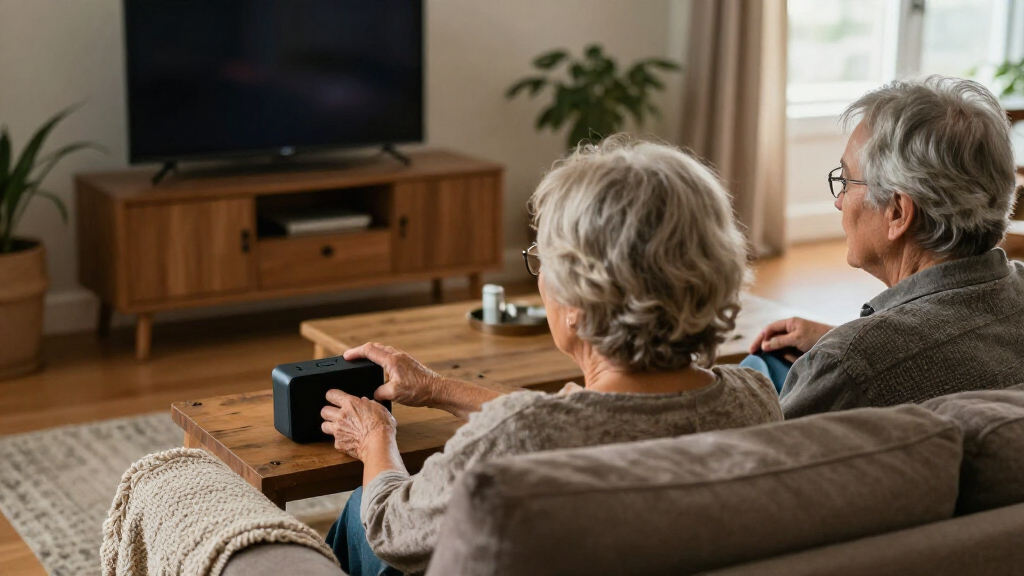
The opening music is barely a murmur to one person, but the dialogue still sounds muffled to the other. Someone reaches for the remote, and the room gets louder than either of you wanted. That familiar volume tug-of-war has a simple cause: one TV control is serving two different listening needs.
You can often solve it by routing sound separately—for example, keeping audio on the TV speakers for one viewer while sending it to headphones for another. The right arrangement depends on your TV’s outputs, your listening devices, and whether you need to hear speech, the full soundtrack, or both.
This guide walks you through the main setups, explains how to check whether they work with your equipment, and shares practical fixes for delay, captions, and comfort. You’ll have a clearer idea of what to try before you spend money or spend another evening reaching for the remote.
Check whether your TV can play through speakers and headphones at the same time; Bluetooth support alone does not confirm that it can.
Confirm that each viewer has independent volume control, especially when connecting two wireless headphones.
Match a transmitter’s connection—optical, HDMI ARC/eARC, or analog—to an output your TV actually has.
If speech is hard to follow, try captions, dialogue enhancement, or a center-channel adjustment before raising all sounds.
Test lip-sync, fit, battery life, and hearing-aid compatibility with your actual devices and a familiar program.
Shared viewing · Practical listening guide
How to Watch TV Together When One Person Needs It Louder
Give each viewer a comfortable listening level by routing TV sound to separate outputs. The right setup depends on your television, audio devices, and whether you want clear dialogue, the full soundtrack, or both.
At a glance
What makes shared TV listening work
A Bluetooth icon on the TV does not guarantee that its speakers will stay on when headphones connect. Check simultaneous output and independent volume controls.
Confirm that speakers and headphones can play at the same time.
Make sure each viewer can change their own volume independently.
Match optical, HDMI ARC/eARC, or analog to a port your TV has.
Try captions, dialogue enhancement, or a center-channel adjustment.
Test sync, fit, battery life, and hearing-aid compatibility at home.
Choose your listening route
Setups that can fit different needs
Treat the TV, soundbar, transmitter, and headphones as one system. Features vary across models, so verify the exact combination in the manual or product specifications.
01 · Direct pairing
TV speakers + Bluetooth headphones
Some TVs keep their speakers active when headphones connect; others mute them automatically.
02 · Dedicated route
TV transmitter + headphones
A transmitter can send TV audio wirelessly through an optical, HDMI ARC/eARC, or analog connection.
03 · Two listeners
Two wireless headphones
A compatible TV or transmitter may pair with two headphones for private listening.
04 · Room audio
Soundbar + headphones
Both paths may play together, but a mismatch between devices can mute one route or create delay.
05 · Personal audio
Hearing aids or listening device
Some systems stream TV audio directly to compatible hearing aids or personal receivers.
06 · Clearer speech
Captions + dialogue settings
Captions, dialogue enhancement, or a center-channel adjustment may make speech easier to follow.
Compare the fit
Match the setup to the listeners
The simplest route is not always the one with the most control. Use this checklist to narrow the options before shopping.
| Setup | What to check | Good fit when |
|---|---|---|
| TV speakers + Bluetooth headphones | Simultaneous output and independent volume controls | You already own compatible headphones |
| TV transmitter + headphones | Optical, HDMI ARC/eARC, or analog input; speaker behavior | You want a dedicated listening route |
| Two wireless headphones | Two supported connections and separate volume | Both viewers prefer headphones |
| Hearing aids or personal listening device | Direct streaming or accessory compatibility | One viewer needs sound closer to the ear |
| Soundbar + headphones | Simultaneous audio and lip-sync performance | You want room sound with a personal option |
A quick compatibility path
Check first, connect second
Step by step
Set up two listening levels
Start with the TV’s built-in options. If it mutes the speakers or ties both volumes together, check whether a compatible transmitter offers the controls you need.
Check the output ports
Look behind the TV for optical audio, HDMI ARC/eARC, or analog audio. Confirm the transmitter accepts an available connection.
Connect or pair the headphones
Follow the device instructions, then choose the matching audio output in the TV’s sound menu.
Turn on both listening paths
Play a familiar program and confirm that the speakers and headphones both produce sound.
Test independent volume
Adjust the headphone level, then the room level. Check that changing one does not unexpectedly change the other.
Check picture and sound together
Watch a speaking face and listen for a mismatch between lip movement and voice.
Make it easy to repeat
Keep the transmitter accessible and note the TV setting or input needed for next time.
Try captions, dialogue enhancement, or a center-channel adjustment before turning up the whole room. Headphones can help someone listen at a personal level; keep that level comfortable and safe.
Troubleshooting
When headphone sound arrives late
Wireless audio can take extra time to encode, send, and play. A delay is especially noticeable when the TV speakers and headphones are both on.
Look for a setting
Adjust audio delay
Check the TV menu for audio delay or lip-sync controls. Try small changes while watching close-up dialogue.
Check both devices
Confirm low-latency support
Low-latency performance depends on compatible technology supported by both the transmitter and headphones.
Compare routes
Test the complete setup
If voices still trail the picture, try another supported connection or a TV listening system designed for low delay.
Common questions
Before you settle on a setup
TVs and wireless audio increasingly offer more listening and accessibility features, but capabilities still differ substantially by brand and model.
Can the TV speakers stay on while someone uses headphones?
Sometimes. It depends on the TV’s audio-output settings or a transmitter that supports both listening paths.
Can two people use headphones at different volumes?
Yes, if the TV or transmitter supports two headphone connections and individual volume control.
Will Bluetooth headphones work with any TV?
No. Some TVs lack Bluetooth audio, restrict simultaneous connections, or introduce noticeable delay.
How can we reduce delay between picture and headphone audio?
Try the TV’s audio-delay or lip-sync setting. Check for compatible low-latency support on both the transmitter and headphones.
Start by checking whether your TV can send sound two ways
To watch TV together at different volumes, your television must send its audio to two listening paths at once, or an external device must split those paths. Some TVs can keep their speakers playing when Bluetooth headphones connect; others automatically mute the speakers. The feature depends on the TV model and its sound settings, so Bluetooth on the box alone does not promise that both outputs will work together.
Try a quick check before shopping. Open the TV’s sound menu while a show is playing, connect the headphones, and look for a setting such as simultaneous audio output, “TV speaker plus audio device,” or separate speaker and headphone controls. Menu names vary, so the manual or manufacturer’s support page can help you find the exact setting.
For example, imagine your TV has Bluetooth but switches off its speakers as soon as you pair headphones. One person can still listen privately, but the second person won’t hear the room speakers. If your sound menu offers no way to change that, a compatible transmitter or personal listening system may provide another route.
Write down the TV’s available outputs before choosing equipment: Bluetooth, optical audio, HDMI ARC/eARC, or analog audio. Older televisions may lack Bluetooth audio or may need an adapter. The key points to check are whether both outputs can play at once and whether the headphone wearer can adjust their own level without changing the room volume.
Popular right now

Bose QuietComfort Wireless Bluetooth Headphones with Active Noise Cancellation, Mic, USB‑C Charging, Deep Bass, 24‑Hour Battery – White Smok

Apple AirPods Pro 3 Wireless Earbuds with Active Noise Cancellation

TCL QM64L 85-Inch QD-Mini LED 4K Smart Fire TV
As an affiliate, we earn on qualifying purchases.
Choose a setup that fits your TV and your listeners
The best shared-TV setup is the one that gives each viewer a comfortable, independent volume using the connections your equipment actually supports. You can route sound to built-in speakers, headphones, a soundbar, hearing aids, or a mix of them. Each option has a tradeoff: the simplest connection may not allow simultaneous sound, while a dedicated listening system can add controls and equipment.
A few practical patterns can help you narrow it down. If you already own Bluetooth headphones, check whether your TV supports them alongside its speakers. If it does not, a dedicated transmitter can send TV audio to wireless headphones while some systems leave the speakers on. For two headphone users, check that the TV or transmitter supports two connections and individual volume controls.
| Setup | What to check | Good fit when |
|---|---|---|
| TV speakers plus Bluetooth headphones | Simultaneous output and separate volume controls | You already own compatible headphones |
| TV transmitter plus headphones | Optical, HDMI ARC/eARC, or analog connection; speaker behavior | You want a dedicated listening route |
| Two wireless headphones | Two supported connections and individual volume | Both viewers prefer headphones |
| Hearing aids or personal listening device | Direct streaming or accessory compatibility | One viewer needs sound sent close to the ear |
For instance, a couple may keep a soundbar at a modest level and send the same program to one person’s headphones. That works only when the TV, soundbar, and headphone path support simultaneous audio; a mismatch can mute one route or introduce delay. Check the devices as a system, not as separate feature lists.
Set up TV speakers and headphones without a remote-control tug-of-war
To set up TV speakers and headphones together, connect the headphones, enable simultaneous audio in the TV’s sound menu, and test each volume control while a program plays. If the TV mutes its speakers, check its manual for a dual-output setting or use a compatible transmitter that supports both the headphones and room speakers. A headphone connection is only useful for shared viewing if both listeners can hear and adjust their own sound.
- Check the output ports. Look behind the TV for optical audio, HDMI ARC/eARC, or a headphone-style analog output, and confirm the transmitter accepts that connection.
- Connect the transmitter or pair the headphones. Follow the device instructions, then select the matching audio output in the TV menu.
- Turn on both listening paths. Start a familiar scene with speech and background music, then see whether the speakers and headphones both play.
- Test independent controls. Change the headphone level, then the TV speaker level. Confirm that adjusting one does not unexpectedly alter the other.
- Check the picture and sound together. Watch a person speaking and listen for a mismatch between lip movement and voice.
Suppose one viewer wants the speakers at a low level while another needs the headphones louder. If the headphone buttons change both outputs, the setup still shares one control. Look for a transmitter with its own volume buttons or a TV option for separate output levels.
Keep the setup easy to repeat. A small label on the transmitter’s power cable or a note near the remote can save a frustrating search next week. Some dedicated TV headphone systems include a transmitter, charging dock, and independent controls in one package; confirm speaker behavior and connection support for the specific model.
Fix delayed sound before it spoils the scene
If headphone audio arrives after the TV speakers, look for an audio-delay or lip-sync setting on the TV and check whether the transmitter and headphones support a compatible low-latency mode. Wireless audio can take extra time to encode, send, and play, so the voice may lag behind a moving mouth. The delay is especially noticeable when both the room speakers and headphones play together.
Try a scene with close-up dialogue rather than judging from music alone. If a character’s lips move and the voice follows like an echo, lower the TV speaker volume briefly to see whether the mismatch becomes less distracting. Then check the sound menu for “audio delay,” “AV sync,” or “lip sync” and adjust it a little at a time.
For example, a family watching a cooking show may notice the chef’s words arriving late in the headphones while the room speakers sound on time. A TV sync adjustment may help; if it does not, the transmitter and headphones may not share the same low-latency technology. One compatible device is not enough when both ends need to support the same method.
Wired connections can sometimes avoid wireless delay, but the TV may not support speaker output and wired headphones simultaneously. There is no single fix that works for every combination. Test the actual scene and devices you use, and favor a setup where viewers can still follow dialogue naturally without turning up every output to mask the lag.
Make dialogue clearer without turning every sound up
When speech gets lost beneath music or effects, try captions, a dialogue-enhancement setting, or a center-channel adjustment before raising the whole soundtrack. These options can help a viewer follow conversation while keeping explosions, theme music, and background noise at a more comfortable level. Their names and effects vary across televisions, streaming apps, and sound systems.
Start with captions for one episode or film. They can fill in a missed line, identify who is speaking, and show important sounds such as “[door slams].” If captions feel busy during a fast comedy, try a dialogue mode instead. On a soundbar or surround system, a center-channel control may raise speech while leaving other channels quieter.
Picture an evening drama where whispers disappear under a swelling score. Turning up the TV may make the next car chase painfully loud. A dialogue setting or captions can address the missed speech more directly, so both people can enjoy the scene without each musical cue becoming a volume surprise.
These features don’t replace a personal listening device when someone needs sound delivered closer to the ear, and they may alter the original mix. Treat them as tools to test, not automatic fixes. Try a familiar program, make one change at a time, and ask each viewer whether the result feels clearer and comfortable.
Give two headphone users their own volume and comfort
Two people can watch through headphones at different volumes when the TV or transmitter supports two headphone connections and lets each person control their own level. Some devices pair with only one set, and some share a volume control, so confirm both details before relying on the setup. A second headphone connection does not automatically mean a second volume setting.
This arrangement can suit a quiet apartment: one person listens softly while the other turns their own headphones up enough to hear dialogue. It can also help when one viewer wants headphones and another prefers speakers, though that still depends on simultaneous output support. Test the controls together while a show is playing; make sure changing one listener’s level does not surprise the other.
Comfort can matter as much as the connection. A heavy headset may feel fine for ten minutes but press uncomfortably during a two-hour film. Check the fit, battery life, ease of charging, and whether the buttons are simple to use; a person who can change volume without digging through menus is more likely to enjoy the setup.
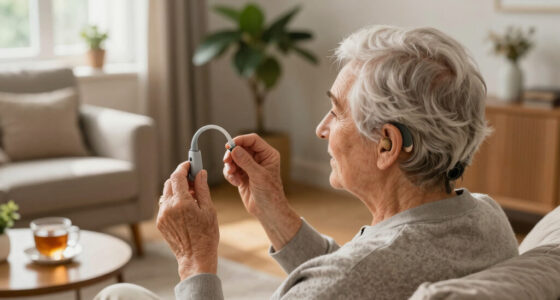
For someone who uses hearing aids, some systems can stream TV audio directly or connect through an accessory transmitter or personal listening device. Compatibility depends on the hearing aids and TV arrangement, so consult the hearing-care professional or device documentation for options. Headphones can make personal adjustment easier, but keep listening at a comfortable level and seek qualified guidance for health-related decisions.
Use a quick test to find the simplest setup that works
The simplest reliable setup is the one you can connect, control, and repeat without guessing. Before buying an adapter or new headphones, test your current TV outputs and decide whether one person needs speech clarity, the whole soundtrack, or just a little more volume. A ten-minute trial can reveal problems that a feature list won’t.
Try this at home with a show both viewers know. First listen through the TV speakers at a comfortable room level. Then connect headphones and check whether the speakers stay on. Play a scene with quiet dialogue, background music, and a sudden sound, such as a door closing; it gives you a useful range of audio to judge.
Note what happens: Do both viewers hear the show? Can they adjust levels independently? Does the headphone audio line up with speech? Is the headset comfortable enough to wear through a full episode? If one route fails, change one thing at a time—output setting, connection, or device—so you can identify the cause.
Modern TVs and wireless audio products increasingly offer Bluetooth, multiple listening choices, dialogue settings, and hearing-accessibility features, but those capabilities differ by model. A dedicated TV system may simplify pairing and charging; a TV with suitable Bluetooth may be enough if you already own compatible headphones. The practical choice comes from your own test, not a general claim that every television can do the same thing.
Frequently Asked Questions
Can the TV speakers stay on while someone uses headphones?
Sometimes. Check the TV’s sound settings for simultaneous audio output; some models mute the speakers when headphones connect. A compatible transmitter may provide a separate listening path, but check whether it supports the speakers staying on.
Can two people use headphones at different volumes?
Yes, if the TV or transmitter supports two headphone connections and gives each listener an individual volume control. Test both controls while audio is playing, since some systems connect two headsets but share one level.
Will Bluetooth headphones work with any TV?
No. Some TVs do not support Bluetooth audio, and others limit simultaneous connections or introduce noticeable delay. Check the TV’s specifications and settings before choosing headphones based on Bluetooth alone.
How can we reduce a delay between the picture and headphone audio?
Look for an audio-delay, AV-sync, or lip-sync setting on the TV, and adjust it while watching someone speak. Low-latency performance depends on compatible support in both the transmitter and headphones, so one compatible device may not solve the mismatch.
What if connecting headphones mutes the TV speakers?
Check the TV manual and sound menu for a simultaneous-output setting. If your TV does not offer one, see whether a compatible external transmitter or personal listening system can provide a separate route while keeping the room speakers active.
Can captions or dialogue enhancement help instead of turning up the TV?
Yes. Captions show speech as text, while dialogue modes or a center-channel adjustment may make voices stand out from music and effects. Try one option with a familiar program and see which gives each viewer a more comfortable result.
Conclusion
Start with the TV’s sound menu and check for two outputs and independent volume. If your current gear can’t do both, compare a compatible transmitter or personal listening system with the cost and effort of replacing anything. Captions and dialogue settings can also make a real difference when speech, rather than overall loudness, is the problem.
When each person can hear comfortably, the remote can stay on the table—and you can both follow the same story without negotiating every scene.