
TL;DR

Turn quiet afternoons into listening time
- Thousands of audiobooks, podcasts and originals
- Listen on your phone, tablet or Echo — also offline
- Cancel anytime
Smartphones for seniors with low vision include features like screen readers, zoom, and high contrast modes that significantly improve readability and navigation. Both iOS and Android offer these tools, which can be customized for individual needs, making phones more accessible and easier to use daily.
If you or a loved one struggles to read small text or distinguish colors on a phone, you’re not alone. Millions of seniors face low vision challenges every day, and modern tech is stepping up to help. Smartphones now come equipped with built-in tools—like screen readers, magnifiers, and high contrast modes—that turn a regular device into a powerful aid. Understanding these features can transform how you see and interact with your phone. It’s not about complicated tech; it’s about making everyday communication simple and clear.
In this guide, you’ll learn exactly how these tools work, how to activate them, and which features make the biggest difference. Whether you use an iPhone or an Android, you’ll find practical steps to customize your device for easier reading, navigation, and independence. Let’s explore how to turn your smartphone into a low vision-friendly companion.
Activating screen readers like VoiceOver or TalkBack transforms your device into a vocal assistant, making reading and navigation easier.
Using zoom or magnification features can instantly enlarge text and images, reducing eye strain and improving clarity.
High contrast modes and color filters help distinguish text and icons by sharpening colors and reducing glare, especially in bright environments.
Combining multiple accessibility tools creates a tailored, user-friendly experience that adapts to your specific needs.
Regularly customize settings, update software, and experiment with features to keep your device easy to use and comfortable.
Top Tips for Customizing Your Phone for Low Vision
- Adjust text size and icon dimensions: Make everything larger through Settings. Larger icons mean fewer missed taps and easier recognition, which is crucial for users with visual impairments. However, increasing size too much can clutter the screen, making navigation less efficient. Finding a balance ensures you maintain quick access without overwhelming your interface.
- Set up shortcuts: Add quick toggle buttons for zoom, high contrast, or voice control on your home screen for instant access. This reduces the number of steps needed to activate critical features, saving time and effort. Custom shortcuts also help you quickly adapt your device to different environments, like bright sunlight or low-light conditions.
- Use voice commands: Enable voice control to open apps, send messages, or make calls without looking at your phone. This not only improves accessibility but also encourages hands-free operation, which can be safer and more comfortable, especially if you have dexterity issues or limited vision.
- Experiment with color filters: Find a filter that reduces glare or enhances contrast based on your needs. Different filters can improve visibility of certain colors or reduce eye fatigue, but overuse might distort colors or make some content harder to interpret. Testing various options helps identify what works best for your specific visual challenges.
- Regularly update your device: Software updates often bring improvements to accessibility features and fix bugs that could hinder usability. Staying current ensures you benefit from the latest enhancements, keeping your device responsive and tailored to your evolving needs.
- Learn about accessibility settings: Take time to explore all available options within your device’s accessibility menu. Features like sound alerts, vibration feedback, or custom gestures can further enhance usability and compensate for specific challenges, making your device truly tailored to your needs.
- Practice and familiarize yourself: Spend time practicing how to activate and use these features. The more familiar you are, the more natural and efficient your interactions will become, reducing frustration and increasing confidence in using your device daily.
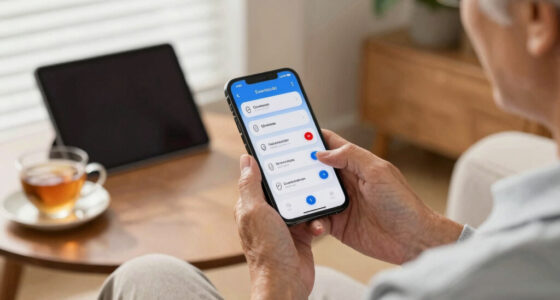
For example, a senior uses a large icon grid and a shortcut widget for magnification. Now, they can quickly zoom in on a recipe or read a label without fumbling through menus. Making these adjustments creates a customized environment that enhances confidence and independence in everyday tasks.
smartphones for seniors with low vision
As an affiliate, we earn on qualifying purchases.
As an affiliate, we earn on qualifying purchases.
Choosing the Right Phone for Your Low Vision Needs
Both iPhone and Android devices support comprehensive accessibility features, but the best choice depends on your comfort and preferences. iPhones tend to be more intuitive and require less setup, which can be beneficial for those less familiar with technology. Android phones offer extensive customization options, allowing you to tailor settings more precisely to your needs, but they may require more initial effort to configure effectively. This tradeoff means you should consider your willingness to tinker versus preferring a plug-and-play experience.
For instance, if you want a device that works well out of the box with minimal setup, an iPhone might be the best. But if you enjoy tweaking settings or adding third-party apps to enhance accessibility, a high-end Android device could suit you better. Keep in mind that some Android devices also come with features not available on iPhones, like more granular control over display colors or additional magnification options.
Consider your budget, comfort with tech, and whether you prefer a simple interface or a customizable experience. Many programs and organizations offer discounted or refurbished models to make accessible phones more affordable. Trying both options, if possible, can help you find the device that feels most natural and supportive for your vision needs.
Ultimately, the key is to choose a device that aligns with your daily routines and comfort level, ensuring it becomes a reliable tool rather than a source of frustration. Remember: the right device is the one that adapts to you, not the other way around.
Android iPhone accessibility features
As an affiliate, we earn on qualifying purchases.
As an affiliate, we earn on qualifying purchases.
Understanding Why These Features Matter
While the technical aspects of accessibility features like screen readers and magnification are important, understanding why they matter can motivate consistent use and deeper engagement. These tools are designed to compensate for specific visual impairments, but their benefits extend beyond mere functionality. For example, increasing text size or using high contrast modes can reduce eye strain and fatigue, making prolonged phone use more comfortable and less tiring. This is especially significant for seniors who may experience eye fatigue or glare sensitivity.
Moreover, these features can foster greater independence. When you can navigate your phone confidently without assistance, it enhances your ability to communicate, access information, and manage daily tasks. This independence has profound psychological benefits, boosting confidence and reducing feelings of frustration or helplessness caused by low vision.
However, there are tradeoffs. Overusing certain features, like overly high contrast or zoom, might distort content or make some images and colors appear unnatural. Finding the right balance is key—it’s about customizing your device to feel natural and comfortable, not just technically optimized. Experimenting with different settings and understanding their implications helps you develop a personalized, effective approach that maximizes benefits while minimizing drawbacks.
In summary, these features are not just technical add-ons—they are vital tools that directly impact your quality of life, independence, and well-being. Taking the time to learn and adapt them ensures you get the most out of your device and enjoy a more seamless, accessible experience.
As an affiliate, we earn on qualifying purchases.
Frequently Asked Questions
Which smartphone is easiest for seniors with low vision to use?
Many find iPhones easiest due to their intuitive accessibility features like VoiceOver and simple settings. However, high-end Android devices offer extensive customization, which some users prefer. The best choice depends on your comfort with technology and personal preferences.
How do I turn on and customize accessibility features?
On iPhone, go to Settings > Accessibility to enable features like VoiceOver, Zoom, and high contrast modes. On Android, find similar options in Settings > Accessibility. These menus allow you to adjust settings like speech speed, magnification gestures, and color filters to suit your needs.
Are these built-in features enough for everyday use?
For many seniors, yes. Features like screen readers, zoom, and high contrast modes greatly enhance usability. But for added convenience, some may prefer third-party apps or hardware accessories, like external magnifiers or specialized reading devices.
Can I use multiple accessibility features at once?
Absolutely. Combining tools like a screen reader with zoom and high contrast creates a customized experience that maximizes ease of use. Experiment to find what combination works best for you.
What are some good apps to help with low vision?
Popular options include Seeing AI, Be My Eyes, and Magnifying Glass + Flashlight. These apps can read text aloud, identify objects, or magnify real-world items, making daily tasks much easier.
As an affiliate, we earn on qualifying purchases.
Conclusion
Modern smartphones are powerful tools for seniors with low vision—if you take the time to set them up right. With features like screen readers, zoom, and high contrast, you can regain independence and enjoy everyday tasks with less frustration. It’s about making your device work for you, not the other way around.
Remember, small tweaks make a big difference. Start simple, experiment, and don’t be afraid to ask for help when needed. Your phone can become a true partner in staying connected and confident.
Fall Picks
fall essentials
As an affiliate, we earn on qualifying purchases.