
TL;DR

Turn quiet afternoons into listening time
- Thousands of audiobooks, podcasts and originals
- Listen on your phone, tablet or Echo — also offline
- Cancel anytime
Most accidental app downloads and purchases by seniors happen due to unprotected device settings or unfamiliar interfaces. Proper restrictions, authentication, and education make a big difference. This guide shows how to set up and use those controls effectively.
Imagine handing a tablet to a senior, only to find dozens of unexpected app downloads or charges. It’s frustrating — for them and for you. The good news? Simple tweaks can turn their device into a safer space, free of accidental spending or downloads.
This guide walks through proven strategies — from easy-to-use controls to practical tips — so your loved ones can enjoy their tablets without worry. Let’s make technology accessible and secure, one setting at a time.
Enable password or biometric authentication for all purchases to prevent accidental spending.
Use device restrictions and simplified interfaces to reduce confusion and accidental taps.
Regularly review app permissions, installed apps, and settings to keep controls effective.
Educate seniors on recognizing genuine prompts and avoiding accidental interactions.
Turn off in-app purchase options unless absolutely necessary, and require authentication for all transactions.
How to Make Tablets Less Confusing and Avoid Mistakes
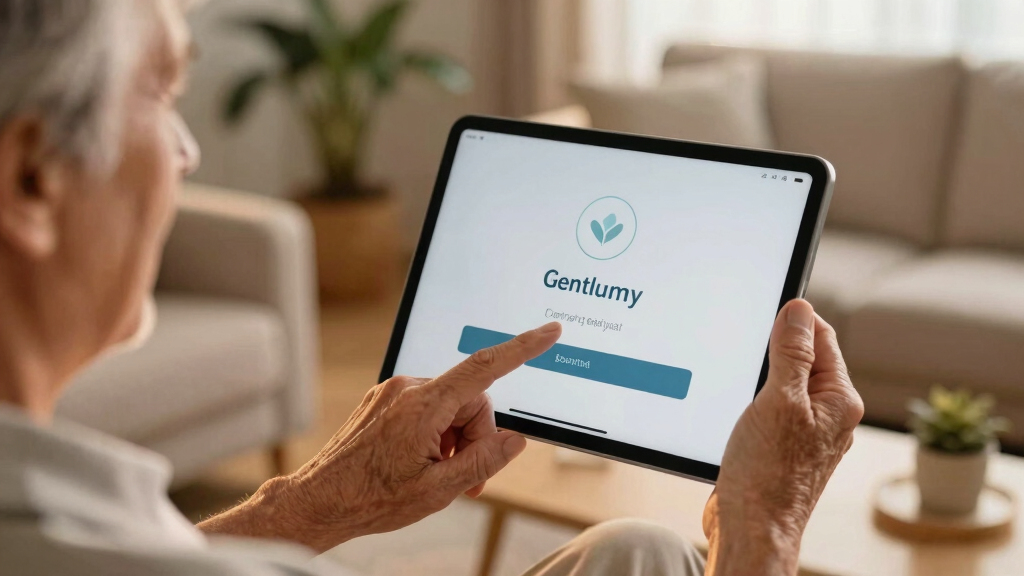
Many seniors tap apps and screens without realizing what they’re doing. Simplified home screens and larger icons help. Think of it like a friendly, uncluttered shop aisle — easy to see and navigate.
For example, some tablets let you customize the main screen to show only essential apps, with big buttons and clear labels. This reduces accidental taps and makes the device feel less overwhelming.
Adding a protective layer of restrictions can prevent unintended purchases. Here’s how to do it:
- Open Settings > Screen or Accessibility options.
- Choose simplified or senior mode, if available.
- Increase icon size and font for better visibility.
- Hide or disable unnecessary apps to prevent confusion.
Popular right now

Ninja DualZone 6-in-1 Air Fryer, 8-Qt, Grey, DZ801

Ninja CREAMi 7-in-1 Ice Cream Maker, NC299AMZ

De'Longhi Rivelia Automatic Espresso Machine with Milk Frother
As an affiliate, we earn on qualifying purchases.
Lock Down App Stores to Stop Unwanted Downloads
App stores like Google Play or Apple’s App Store have settings that can stop accidental downloads. Requiring passwords or authentication for every purchase is a crucial step toward safeguarding seniors from unintended expenses. These restrictions matter because they serve as a barrier against impulsive or accidental taps that could lead to financial surprises.
Enabling password requirements ensures that even if a senior taps on a download by mistake, they cannot proceed without deliberate authorization. This tradeoff is a small inconvenience for the significant benefit of preventing costly mistakes. It encourages more mindful interaction with the device, fostering confidence and reducing frustration when accidental purchases are avoided.
For example, on an iPad, turning on “Require Password” for all app store activity adds an extra layer of security. Android devices have similar options under security settings, but the key is understanding that these restrictions safeguard not just money but also privacy and digital well-being.
Here’s a quick comparison:
| Feature | Apple Devices | Android Devices |
|---|---|---|
| Require password for downloads | Enabled in Settings > Apple ID > iTunes & App Store > Password Settings | Enabled in Settings > Security > Google Play > Require authentication for purchases |
| In-app purchase restrictions | Set in Settings > Screen Time > Content & Privacy Restrictions | Set in Google Play > User Controls > Require authentication |
Implementing these restrictions balances ease of use with security, giving caregivers peace of mind that accidental or impulsive spending is minimized while still allowing necessary app access.
Secure Purchases with Passwords and Biometrics
Using strong passwords or biometric features like fingerprint or facial recognition makes unauthorized purchases harder. It’s like locking the front door of their device, preventing accidental or malicious transactions. These security measures are especially important because they provide a quick yet effective way for seniors to authorize actions without needing to remember complex passwords, reducing frustration.
For example, turning on Face ID or Touch ID on an iPhone or iPad simplifies secure access and makes it less likely that accidental taps will lead to unintended purchases. Android phones often allow fingerprint or face unlock in security settings, offering similar benefits. The tradeoff here is between convenience and security — biometric options strike a balance by allowing quick authorization while keeping unauthorized access at bay. This approach fosters independence while maintaining safety, especially when caregivers cannot be present to monitor every interaction.
Here’s how to set it up:
- Go to Settings > Security or Face Recognition.
- Follow prompts to add fingerprint or facial data.
- Enable “Require authentication” for app store and in-app purchases.
- Choose strong, memorable passwords for device lock screens.
Biometric options reduce the reliance on remembering complex passwords, which can be a barrier for some seniors, making security both accessible and effective. The key is to balance ease of use with the level of security needed to prevent accidental or unauthorized transactions.
Control In-App Purchases to Stop Surprises
Many seniors tap on ads or notifications that trigger in-app purchases, often without realizing the implications. Disabling or restricting these options is vital because it directly impacts their financial safety and peace of mind. These in-app purchases can be small or large, but for seniors, even minor charges can cause confusion or frustration, especially if they’re unexpected.
Turning off in-app purchase permissions in settings removes the temptation or accidental triggers, which is crucial for maintaining control. This restriction encourages more mindful interaction, reducing the risk of accidental charges. Additionally, setting a PIN or password requirement for each purchase adds a further layer of security, making it more difficult for accidental taps to result in unintended costs. This approach not only protects their finances but also helps establish safe device habits, fostering confidence in managing digital interactions.
In essence, controlling in-app purchase settings is about creating a safer, more predictable environment where seniors can enjoy their devices without fear of surprises or financial mishaps.
Teach Your Loved One How to Use Their Tablet Safely
Understanding what to watch for helps seniors avoid accidental purchases. Show them how to recognize genuine app prompts versus ads or pop-ups. This knowledge is crucial because many seniors may not distinguish between legitimate notifications and deceptive ones, increasing their vulnerability to accidental taps.
For example, role-playing a scenario where an ad appears, and explaining that they don’t have to tap it, can build confidence. Reinforce that genuine prompts from trusted apps are different from pop-up ads, which often mimic real notifications but are designed to trick users into unintended actions. Encourage cautious interaction with notifications and pop-ups, emphasizing that it’s okay to ask for help if they’re unsure.
Simple tutorials, with visuals or step-by-step demos, make learning easier and more engaging. Remind them: if something feels confusing or expensive, ask a family member first. This education helps build awareness and reduces impulsive reactions that could lead to unintended purchases or security risks.
Keep Tabs Regularly and Keep Settings Up to Date
Regularly checking the device prevents surprises and keeps safety measures effective. Review app permissions, installed apps, and restrictions to ensure they remain appropriate and functional. This ongoing oversight helps identify potential issues before they escalate, such as unfamiliar apps or settings that could compromise security.
For instance, once a month, glance through installed apps and remove any unfamiliar or unnecessary ones. Updating device software ensures access to the latest security patches, which protect against new threats and vulnerabilities. These regular checks are about establishing a routine that maintains control, reduces risks, and promotes confidence in device management.
This habit also encourages caregivers and seniors to stay engaged and aware of their digital environment, fostering a proactive approach to safety. Setting reminders or creating a simple checklist can help turn these quick reviews into a consistent practice that safeguards their digital experience over time.
Frequently Asked Questions
How can I prevent my elderly parent from making accidental app purchases?
Activate purchase restrictions, require passwords or biometric authentication, and educate them on recognizing genuine prompts. These steps create a safety net against unintended spending.
What are the best settings to restrict app downloads and purchases?
Set device restrictions to require passwords or biometric approval for every download or purchase, and disable in-app purchases unless necessary. This keeps spending under control.
Are there tablets designed for seniors that prevent accidental purchases?
Yes, some tablets feature simplified interfaces and dedicated senior modes that limit app access and minimize accidental taps, making them safer and easier to use.
How do I set up password protection or biometric authentication?
Visit the device’s security or privacy settings, then follow prompts to enable fingerprint, facial recognition, or set strong passwords. Many devices guide you through this process step-by-step.
What should I do if my senior accidentally makes a purchase?
Contact the app store’s support immediately to dispute the charge or request a refund. Keep records of the accidental purchase, and explain the situation clearly.
Conclusion
Small changes in how you set up a tablet can make a world of difference for a senior’s safety and confidence. It’s about creating a device environment that’s friendly, clear, and protected against surprises.
Think of it as installing guardrails on a busy path — simple, effective, and peace of mind. With a few tweaks today, you help them enjoy their device without worry tomorrow.