
TL;DR

Turn quiet afternoons into listening time
- Thousands of audiobooks, podcasts and originals
- Listen on your phone, tablet or Echo — also offline
- Cancel anytime
You can set up a tablet so grandma just taps one big button to see her family. Use simple apps, lock down the device, and ensure reliable Wi-Fi for a foolproof experience. It’s a gift of connection with almost zero maintenance.
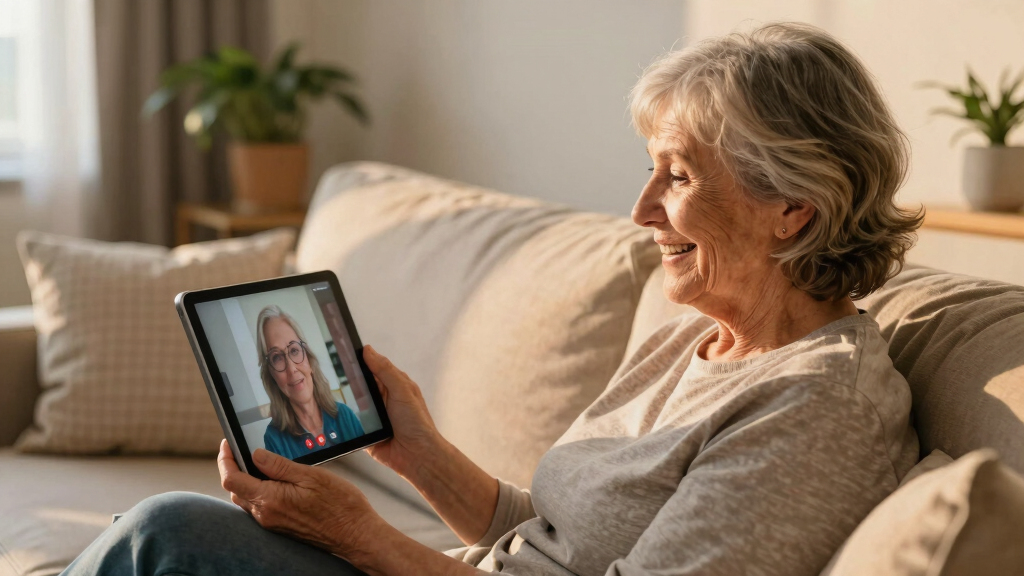
Imagine grandma tapping a single, brightly colored icon and instantly seeing her grandkids’ smiling faces. No complicated menus, no confusing buttons. Just pure, simple connection. That’s what a well-setup tablet can do — turning technology into a reliable bridge across generations.
This guide walks you through the exact steps to create a one-touch video calling machine. It’s about making tech so intuitive that grandma’s only job is to smile and chat. Ready to make it happen? Let’s start.
Use a larger screen tablet, set it up with only the calling app, and lock it into that app for simplicity.
Enable auto-answer and lock the device to prevent accidental exits or changes.
Ensure strong Wi-Fi or LTE fallback to keep calls smooth and reliable.
Pick a communication app your family already uses, making calls effortless for grandma.
Regularly test the setup and keep the device plugged in to avoid surprises.
One Tap. One Smile.
Grandma’s Video Phone.
Turn a spare tablet into a single-purpose calling machine: one bright icon, auto-answer, and a locked-down home screen — so grandma’s only job is to say hello. No menus, no passwords, no surprises.
“A dedicated, one-touch video calling device can reduce senior loneliness by over 30%.”
Key Insight — Emotional Health ResearchConnect
Screen Size
Plugged In
Senior Loneliness
One Afternoon
Needs To Learn
Compared Below
Or Pop-Ups
The Six-Step Setup, In Order
Each step removes one more way things can go wrong. Do them in sequence and the result is a device that behaves the same way every single day — which is exactly what builds grandma’s confidence.
-
1
Pick The Tablet
9–11″ screen, sturdy stand, colorful case. Refurbished is fine.
-
2
Power 24/7
Charging dock or permanent cable. She never thinks about batteries.
-
3
Choose One App
Whatever the family already uses daily — consistency beats features.
-
4
One-Touch Home
One big icon, everything else removed, text and icons enlarged.
-
5
Auto-Answer
The call connects itself. She just hears the ring and says hi.
-
6
Lock It Down
Guided Access or app pinning, notifications and updates off.
Test the whole flow weekly from your own phone, and after every app update. A five-minute test call prevents the “it stopped working and nobody noticed” problem.
Choose The Tablet: Big Screen, Simple Setup
A larger screen is easier on aging eyes and far less frustrating than a phone. Video calling is undemanding — older and refurbished devices handle it comfortably.
iPad 10.2″
The no-brainer when the whole family is on iPhones. FaceTime is built in, Guided Access is rock solid, and speakers are loud enough for hearing difficulties.
- FaceTime pre-installed
- Guided Access lockdown
- Accessibility auto-answer
- Refurb units widely available
Galaxy Tab A
Affordable, dependable, and the best match for senior launchers. Direct-dial contact widgets put grandkids’ faces right on the home screen.
- BIG Launcher / BaldPhone ready
- Direct-dial home widgets
- App pinning (kiosk mode)
- Great price-to-screen ratio
Fire HD 10
The cheapest big screen that still works well. Bonus: Alexa “Drop In” can auto-connect calls with zero taps — the simplest answer of all.
- Lowest cost of entry
- Alexa Drop In auto-connect
- Show Mode turns it into an Echo
- Sturdy kid-proof cases exist
A fixed dock or permanent cable means a dead battery is never the reason a call fails. Modern tablets manage battery health themselves — some can cap charging at 80% to extend lifespan. Check the connection weekly.
One-Touch Mode & The Lockdown
Strip the home screen to a single, colorful icon, then lock the tablet inside the calling app so stray taps can’t exit, close, or confuse. She taps once — the call begins, every time.
iOS Setup Path
- Settings → Accessibility → Guided Access — locks the iPad into the calling app; even the home button won’t escape.
- Settings → Accessibility → Touch → Call Audio Routing → Auto-Answer Calls — the magic trick.
- Display Zoom — enlarge icons and text system-wide for easy reading.
- Shortcuts app — create a “Call Sarah” home-screen icon with her photo.
Android Setup Path
- BIG Launcher or BaldPhone — senior-designed home screens with huge icons and text.
- App pinning / kiosk mode — keeps the tablet inside the calling app, exit-proof.
- Direct-dial widgets — one-tap contact shortcuts placed on the home screen.
- Play Store auto-updates off — no surprise redesigns that strand her mid-routine.
Auto-Answer: The Single Most-Loved Trick
With auto-answer on, grandma touches nothing at all — she hears the ringtone and simply says hello. Perfect for shaky hands, hearing aids, or dexterity issues. Configure it carefully: it can pick up unintended calls, so whitelist family contacts and keep notifications silenced.
Pick What The Family Already Uses
The right app is the one the callers know — not the one with the best specs. Consistency matters more than features: same app, same icon, every time. Note: Google Duo has merged into Google Meet.
| App | Platforms | Auto-Answer | Account Needed | Best For |
|---|---|---|---|---|
| FaceTimeApple Built-In | iPhone & iPad only | ✓ Accessibility setting | Apple ID | All-Apple families — simplest option |
| Google MeetDuo’s Successor | iOS, Android, Web | ~ Via launcher / links | Google account | Mixed-device families — cross-platform pick |
| ZoomPandemic Familiar | All platforms | ~ Calendar auto-join | Optional | Seniors who already learned it |
| WhatsAppChat + Calls | All platforms | ✗ Manual answer only | Phone number | Families already chatting there |
| MessengerFacebook Calls | All platforms | ✗ Manual answer only | Facebook account | Facebook-heavy households |
VERDICT: ALL-APPLE FAMILY → FACETIME | MIXED DEVICES → GOOGLE MEET | ZERO-TAP PRIORITY → ECHO SHOW DROP IN
One Afternoon Of Setup, Years Of Connection
Typical hands-on time per step, plus where a DIY tablet sits against purpose-built senior devices.
Typical Setup Time Per Step
Minutes — Typical, One-Time OnlyThe payoff: a dedicated one-touch device can reduce senior loneliness by over 30% — roughly 80 minutes of setup for a daily bridge across generations.
DIY vs. Purpose-Built
Effort Spectrum — Hands-On → Fully ManagedThe Whole Journey, In Her Shoes
icon
on screen
fallback
up itself
accomplished
Choose the right tablet — big screen, simple setup
The first step is picking a tablet that’s easy for grandma to use. A larger screen, around 9 to 11 inches, makes a real difference. It’s easier on her eyes and less frustrating to use than tiny phones. Older iPads, Samsung Galaxy Tab A, or even a budget Amazon Fire work well.
For example, a 10.2-inch iPad with a sturdy stand and colorful case can sit on her kitchen counter or beside her favorite chair. Keep it plugged in constantly to avoid charging hassles. A simple, durable case with a stand keeps it stable and protected from accidental drops.
Refurbished devices are fine — they’re cheaper and still fast enough for video calls. The key is a reliable, stable device that won’t slow down or freeze mid-conversation.
Choosing a larger, straightforward device reduces the cognitive load on grandma, minimizing confusion and frustration. It also means less fiddling with tiny icons or complex menus, making her more likely to use it regularly. The tradeoff is that larger devices can be bulkier and less portable, but for a fixed setup, this is usually worth the benefit of simplicity and ease of use.
Popular right now

Apple AirPods Pro 3 Wireless Earbuds with Active Noise Cancellation

Shark PowerPro Reveal Plus Cordless Vacuum Cleaner, Charcoal, IZ376H

Ninja DualZone Smart XL Air Fryer, 10-Qt, 6-in-1, DZ950
As an affiliate, we earn on qualifying purchases.
Set up power and charging so grandma never worries about it
Leave the tablet plugged in 24/7. A charging dock or a fixed power outlet nearby keeps it always ready. Modern devices handle battery health well, especially if you don’t constantly unplug and re-plug. Some tablets even have settings to limit charging after 80%, extending battery life.
For instance, a simple charging stand with a permanent cable means grandma never needs to think about plugging or unplugging. She just taps her icon, and it’s ready.
Regularly check the connection and ensure the tablet stays on. A dedicated, always-on power setup prevents accidental shutdowns or dead batteries before calls.
Consistent power management ensures that the device remains available for calls at all times, which is crucial for maintaining regular contact. If the device loses power or battery unexpectedly, it can disrupt the routine and cause frustration. Using a dedicated charging station minimizes these issues, but it’s also important to periodically verify that the power setup remains functional and accessible for grandma to avoid interruptions.
Pick the perfect app — what everyone uses and understands
Choosing the right video calling app is crucial. If your family already uses FaceTime, that’s the easiest for Apple users. Google Meet or Duo (now part of Google Meet) works across Android and iOS. Zoom is familiar to many seniors after the pandemic. WhatsApp and Messenger are common for quick chats.
For example, if grandma’s kids are all on iPhones, FaceTime is a no-brainer. But if relatives use Android or Windows, Google Meet or Zoom will be more reliable and straightforward. The key is to pick what your family already knows and uses daily.
Consistency matters — always use the same app so grandma isn’t confused by different platforms.
Understanding why a particular app is chosen helps ensure that everyone in the family can participate easily. For instance, using an app familiar to most relatives reduces the learning curve, encouraging more frequent calls. It’s important to recognize that some apps might have limitations or require updates, which could cause minor hiccups if not managed. The tradeoff is balancing familiarity with functionality—selecting an app that is both reliable and simple enough for grandma to use effortlessly.
Make it one-touch — simplify and lock down
The core of this project is turning the tablet into a single-purpose device. Remove all icons except the calling app. On iOS, you can move everything off the home screen or use Guided Access to lock her into just that app. On Android, install a simplified launcher like Big Launcher or BaldPhone, designed for seniors.
For instance, set up a big, colorful icon labeled “Call Grandma” or “See Family.” Increase icon size and font for easy reading. Pin this icon so it’s the only thing she taps.
Disable notifications from other apps and turn off auto-updates — sudden UI changes can confuse her. This way, she taps once, and the call begins, every time.
Deepening this approach by customizing the interface ensures that grandma’s interaction is as straightforward as possible. Removing all distractions and potential confusion points means she is less likely to accidentally exit the call or get lost in menus. Locking the device into one app reduces cognitive load and minimizes frustration, making the experience more natural and stress-free. However, it’s important to weigh the tradeoff — too many restrictions might make the device seem limited, so balance simplicity with enough flexibility for updates or troubleshooting when needed.
Enable auto-answer — grandma just needs to say hello
Many families love the idea of grandma not having to press anything to answer. On iOS, you can activate auto-answer in Accessibility settings under Call Audio Routing. For Android, apps like Simple Dialer or custom settings can auto-answer incoming calls.
For example, with auto-answer enabled, grandma just hears a ringtone and says “Hi” — the call picks up automatically. It’s like magic, and it keeps her feeling connected without extra steps.
This feature is especially helpful for seniors who might have trouble with precise taps or who wear hearing aids that make handling small buttons difficult. By automating the answer process, you reduce frustration and ensure she doesn’t miss important calls.
Deeply, auto-answer reduces the cognitive and physical effort required for each call, making the connection more reliable. It’s particularly valuable if grandma has mobility or dexterity issues that make pressing buttons difficult. The tradeoff is that auto-answer might sometimes pick up calls accidentally, so it’s important to configure it carefully and consider whether grandma prefers manual control or automatic pickup for peace of mind.
Lock the device — stop accidental exits and surprises
To keep the tablet in one app, use Guided Access on iOS or Pin mode on Android. This stops grandma from switching apps or accidentally closing her call. It’s like putting the device on “lockdown” so she only sees and interacts with the calling app.
For example, after setting Guided Access, even if she presses the home button, the device stays on her call screen. You can also turn off auto-updates and notifications to avoid unexpected changes.
Using these locking features ensures that grandma remains within the intended interface, preventing accidental navigations that could disrupt her connection. It simplifies her experience and minimizes the risk of confusion or frustration during calls. Additionally, setting a long auto-lock timer helps keep the screen active during longer conversations, avoiding interruptions.
Deeply, device locking prevents accidental app closures or navigation errors that could cause her to lose the call. It creates a controlled environment, reducing the chance of accidental exits or confusing UI changes. The tradeoff is that it limits her ability to access other functions if needed, so set up the lock with her routine in mind and ensure she knows how to request help if necessary.
Ensure reliable Wi-Fi or fallback options
Good Wi-Fi is the backbone of smooth video calls. Check signal strength where grandma’s tablet sits — a weak signal leads to frozen picture and choppy sound. Consider a Wi-Fi extender or mesh system if coverage is patchy.
If Wi-Fi isn’t reliable, a tablet with LTE (cellular data) can be a lifesaver. Just insert the SIM card, and grandma stays connected even if Wi-Fi drops. This is especially useful in rural areas or homes with spotty internet. Keep in mind, LTE plans may have additional costs, but they provide peace of mind that grandma will always be reachable, regardless of Wi-Fi issues.
Deepening this, reliable internet access is critical because unstable connections can cause dropped calls or frustrating buffering, which might discourage grandma from using the device regularly. Investing in a strong Wi-Fi system or a cellular fallback ensures consistent communication, reducing the risk of missed moments. The tradeoff involves additional costs or setup complexity, but for peace of mind and consistent connection, these investments are often justified.
Alternative options worth knowing about
While a DIY tablet setup offers flexibility, some devices are designed specifically for seniors, providing integrated solutions that address many of these challenges out of the box. Devices like GrandPad, Amazon Echo Show, and Meta Portal come with curated interfaces, auto-answer features, and simplified controls, reducing setup time and potential confusion.
For example, a family might opt for a GrandPad because it’s built for ease of use, with a durable design, managed contacts, and a straightforward calling process. Similarly, the Echo Show’s “Drop In” feature allows for instant, hands-free communication, which can be a real boon for less tech-savvy seniors.
Choosing these devices involves weighing the higher cost against the benefits of reduced setup complexity and enhanced reliability. They often include customer support tailored for seniors, which can be invaluable for troubleshooting or updates, ensuring grandma stays connected without constant tech management.
Deeply, these specialized devices simplify the user experience, often eliminating the need for extensive configuration and ongoing maintenance. While they may be more expensive upfront, they reduce frustration and technical barriers, fostering more consistent and reliable communication, which is ultimately the goal of this setup.
Frequently Asked Questions
Can the call answer itself so grandma doesn’t have to tap anything?
Yes — many devices and apps support auto-answer features. On iOS, you can enable auto-answer in Accessibility settings. For Android, apps like Simple Dialer or custom settings can do the same. This makes it so grandma just hears the ringing and says hello, without pressing any buttons.
What’s the easiest tablet for a senior to use?
Generally, larger screens (9-11 inches), simple interfaces, and sturdy stands make a big difference. An older iPad, Samsung Galaxy Tab A, or Amazon Fire with a simplified launcher works well. The key is choosing a device that feels familiar and isn’t overloaded with features.
How do I keep grandma from accidentally exiting the call or changing settings?
Use Guided Access on iOS or Pin mode on Android to lock her into the calling app. Turn off notifications and auto-updates, and set a long auto-lock time. This prevents accidental taps or UI surprises that could disrupt her connection.
What if her Wi-Fi is unreliable or she has no Wi-Fi?
A tablet with LTE (cellular data) can be a lifesaver. Simply insert a SIM card, and she stays connected even without Wi-Fi. Alternatively, a Wi-Fi extender or mesh system in her home can boost signal strength. For critical calls, a fallback LTE device ensures she’s always reachable.
How can I fix her tablet remotely if something goes wrong?
Family members can use remote management tools like TeamViewer or Chrome Remote Desktop to troubleshoot or update settings from afar. Regularly testing the setup and keeping a backup plan helps avoid long tech gaps or missed calls.
Conclusion
Turning a tablet into a dedicated, one-touch video call machine is a gift of connection that lasts for years. It’s about making technology work *for* grandma — simple, reliable, and stress-free. When she taps that big icon, she gets to see her loved ones’ faces — and that’s priceless.
Now, with a little setup and some smart choices, you’ve created a little bridge for love, right in her living room. Think of it as giving her the best gift — more moments, more smiles, more family.