TL;DR

Turn quiet afternoons into listening time
- Thousands of audiobooks, podcasts and originals
- Listen on your phone, tablet or Echo — also offline
- Cancel anytime
Voice assistants on phones help seniors operate their devices more easily. They improve independence, allow hands-free commands, and can connect to smart home devices—making technology more accessible and safer.
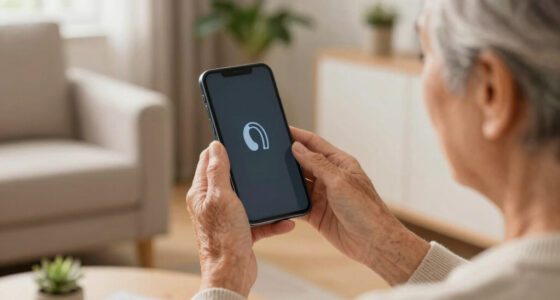
Imagine telling your phone to call your granddaughter, set an alarm, or ask about the weather—without touching a single button. That’s the power of voice assistants. They turn complex smartphones into simple, voice-controlled helpers, especially for seniors who may struggle with small screens or typing. If you’ve ever felt overwhelmed by your device, knowing how to use a voice assistant can make a real difference. This guide will walk you through what voice assistants do, how to use them safely, and why they can become your best tech friend.
Whether you have a new smartphone or an older model, learning the basics of voice assistants can open a world of convenience. Think of it as having a personal assistant who listens and helps with everyday tasks—hands-free. Ready to explore how this magic works? Let’s start.
Start with simple commands like making calls or asking about the weather to build confidence.
Choose the voice assistant that best fits your device—Siri for iPhones, Google Assistant for Android, or Bixby for Samsung.
Privacy matters: review settings and control what data your assistant can access.
Practice regularly, even 10 minutes a day, to become comfortable with voice commands.
Voice assistants can do more than you think—control smart home devices, send texts, and help in emergencies.
Turn a Smartphone Into a Friendly Hands-Free Helper
TL;DR: Voice assistants help seniors make calls, send messages, set reminders, check the weather, and control smart devices with simple spoken commands. They reduce tiny-screen frustration, support independence, and can make everyday phone use feel calmer and safer.
70%+
Recent studies report that more than 70% of seniors who try voice assistants find them useful for daily tasks.
10 min
A short daily practice session can build confidence with wake words, clear commands, and confirmations.
“Call my granddaughter” can replace searching through contacts, tapping small icons, and worrying about misdialing.
Main phone assistants: Siri, Google Assistant, and Bixby.
Wake word, command, then listen for confirmation.
Google Assistant supports English and many additional languages.
Begin with calls, weather, reminders, or alarms.
Why Seniors Should Care
Voice assistants are digital programs built into smartphones. They listen for a wake word, understand spoken requests, and perform tasks that might otherwise require small taps, typing, or moving through menus.
Less Tapping, More Doing
Say “set an alarm for 7” or “call my daughter” without hunting through screens or pressing tiny buttons.
Helpful for Vision or Dexterity
Hands-free control can support people with poor eyesight, arthritis, tremors, or limited mobility.
Faster Contact in a Pinch
Voice commands can quickly call trusted contacts, set medication reminders, or control lights from across a room.
How to Use One in 3 Easy Steps
The easiest way to learn is to practice the same short pattern several times: wake the assistant, speak one clear command, then listen for the response.
Say the Wake Word
Use “Hey Siri,” “Hey Google,” “OK Google,” or the Samsung activation option your phone supports.
Give One Clear Command
Try “What’s the weather today?” or “Remind me to take medication at 8 pm.” Simple sentences work best.
Hear and Confirm
The phone may read back your request. If it misunderstood, repeat it or cancel before the task is completed.
What Seniors Often Find Most Useful
Start with everyday tasks before exploring advanced features. Confidence usually grows fastest when the first commands solve familiar problems.
Best starter habit
Practice one task each day for a week: calls on Monday, weather on Tuesday, reminders on Wednesday, texts on Thursday, and smart-home commands on Friday.
Compare the Main Phone Assistants
The best assistant is usually the one already built into your phone. That keeps setup easier and makes everyday commands feel more natural.
| Feature | Siri | Google Assistant | Bixby |
|---|---|---|---|
| Best Fit | iPhone users | Most Android users | Samsung phone users |
| Ease of Use | ✓ Very intuitive in Apple settings | ✓ Responsive and flexible | ~ Strong Samsung integration |
| Language Support | ✓ English plus many others | ✓ English and 40+ languages | ~ English and select languages |
| Privacy Controls | Managed in iPhone settings | Managed through Google Account | Managed in Samsung Settings |
| Compatibility | ✓ Seamless on iPhones | ✓ Works on most Android phones | ~ Best on Samsung devices |
Everyday Commands That Make Life Easier
These simple requests are a practical starting menu for anyone who wants the phone to feel less complicated and more helpful.
Stay Connected
“Call my daughter” connects without searching contacts.
Send a Message
Dictate short notes instead of typing on a small keyboard.
Remember Tasks
Ask for medication, appointment, or grocery reminders.
Ask Quickly
Get weather, news, directions, or simple answers aloud.
Control Devices
Turn on lights or adjust connected devices hands-free.
Privacy and Confidence Go Together
Voice assistants are safest when the user understands what the phone can access, how to review settings, and how to correct mistakes.
Review Permissions
Check microphone access, contact access, voice history, and account settings. Many phones let you review or delete stored voice activity.
Use Clear, Short Phrases
A quiet room, natural speaking pace, and direct commands reduce misunderstandings, especially with accents or speech changes.
Wake
The assistant listens after the wake word.
Request
You ask for one clear action.
Confirm
The phone repeats or displays what it heard.
Control
You approve, correct, cancel, or adjust settings.
What Is a Voice Assistant and Why Should Seniors Care?
Voice assistants are smart programs built into smartphones like iPhones and Android devices. They respond to spoken commands—like asking about today’s weather or making a call. For seniors, they can replace tricky taps and small buttons, making the phone easier to use.
Picture this: instead of fumbling with tiny icons, you simply say, “Call my daughter,” and it happens. This feature is especially valuable for seniors who might have difficulty seeing small icons or using their fingers precisely due to arthritis or limited dexterity. The ability to operate the phone through voice reduces frustration and enhances independence. Moreover, by minimizing manual interactions, voice assistants can decrease the risk of accidental presses or errors, making the experience safer. However, it’s important to recognize that reliance on voice commands requires a quiet environment for accuracy and clear speech. Understanding these tradeoffs helps users decide when and how to best utilize voice assistants for their needs.
Popular right now

Samsung 85-Inch QN70H Neo QLED 4K Smart TV (2026)

Ninja Foodi 10-Qt DualZone Smart XL Air Fryer, 6-in-1, DZ550

TCL QM64L 85-Inch QD-Mini LED 4K Smart Fire TV
As an affiliate, we earn on qualifying purchases.
How to Activate and Use Voice Assistants in 3 Easy Steps
- Say the Wake Word: For Siri, say “Hey Siri”; for Google, say “Hey Google” or “OK Google.” These wake words are designed to activate the assistant without manual input, so choosing the right one for your device is key. Practice saying the wake word clearly and in a natural tone—this helps ensure the assistant responds reliably. Additionally, some devices allow you to customize or disable wake words, which can be useful if you find the default commands confusing or if they activate unintentionally, leading to false responses.
- Give Your Command: Speak clearly and concisely. The assistant relies on your voice clarity to interpret your requests accurately. For example, instead of mumbling, say, “Send a message to John, I’ll call you later,” rather than an ambiguous phrase. The clarity of your speech influences how well the assistant understands and executes commands, especially for seniors with speech difficulties or accents. Using simple, direct language reduces misunderstandings and increases the likelihood of successful task completion.
- Hear and Confirm: The assistant will read back or show the info. This confirmation step is crucial because it ensures you’re aware of what the device understood. If the response isn’t what you expected, you can clarify or give a new command. This feedback loop helps build confidence and ensures safety—especially when managing important tasks like medication reminders or emergency calls. Over time, recognizing how the assistant responds will help you refine your commands and trust the technology more fully.
Compare Voice Assistants: Which One Works Best for Seniors?
| Feature | Siri (iPhone) | Google Assistant (Android) | Bixby (Samsung) |
|---|---|---|---|
| Ease of Use | Very intuitive, especially for Apple users | Highly responsive, good for multitasking | Great integration with Samsung devices |
| Language Support | English, plus many others | English and over 40 languages | English and select languages |
| Privacy Settings | Manage via iPhone settings | Control through Google Account | Adjust in Samsung Settings |
| Compatibility | Works seamlessly on iPhones | Works on most Android phones | Best with Samsung phones and tablets |
Choosing the right assistant depends on your device and comfort. If you already have an iPhone, Siri is natural because it’s integrated into the Apple ecosystem, providing a seamless experience. Android users might prefer Google Assistant for its broader language support and flexibility, which can accommodate diverse speech patterns and regional accents. Samsung owners often find Bixby a good fit, especially with their devices, but it may require some adjustment due to its more specialized features. Considering these factors helps ensure you pick an assistant that works well with your device and lifestyle, leading to a smoother, more satisfying experience. Remember, the best choice is the one that fits your comfort level and device compatibility, making daily interactions easier rather than adding complexity.
Simple Ways Voice Assistants Make Daily Life Easier
- Making Calls: Say “Call my daughter,” and it connects instantly. This is especially helpful if dialing manually is difficult due to small buttons or poor eyesight, reducing the risk of misdialing. It also saves time, allowing you to get help or stay connected quickly.
- Sending Texts: Just say, “Send a message to John, ‘I’ll call you later,’” and it types it out for you. This feature is valuable for those who find typing on small screens cumbersome or challenging, enabling quick communication without physical effort.
- Setting Reminders: Tell your phone, “Remind me to take medication at 8 pm,” and it will alert you. This reduces reliance on paper notes or memory, which can be unreliable. Proper reminders support medication adherence and daily routines, promoting health and safety.
- Getting Information: Ask, “What’s the weather today?” or “What’s the news?” for quick updates. Staying informed is easier, and you can plan your day accordingly. This feature is especially useful if reading small print or scrolling through news apps is difficult or tiring.
- Controlling Smart Home Devices: Turn on the lights by saying, “Turn on the living room light,” even from across the room. This hands-free control can be a game-changer for those with mobility challenges, allowing independence in managing their environment. It also encourages safer living spaces by enabling quick adjustments without physical exertion.
Privacy and Safety Tips for Using Voice Assistants
Voice assistants are powerful, but they come with privacy considerations that are especially important for seniors. Always review what data your assistant stores and shares, and adjust settings accordingly. For example, checking privacy options in your device’s menu allows you to control whether recordings are saved or deleted, helping you manage your digital footprint. This is crucial because stored recordings could potentially be accessed by others or used for targeted advertising, which might feel invasive or confusing for some users.
Use a passcode or biometric lock for added safety. If you share your device with family members or caregivers, ensure voice commands for sensitive tasks—like unlocking your device or making emergency calls—are monitored or disabled to prevent accidental or unauthorized use. This balance between convenience and security helps maintain your privacy while still benefiting from voice assistant features. And in case of emergencies, you can always say, “Call 911,” which is a quick, reliable way to get help without navigating menus or screens. Understanding these safety measures ensures you can use voice assistants confidently, knowing your privacy and security are protected.
Nearly 80% of seniors say understanding privacy is vital before starting to use these tools. Taking a few minutes now to review settings can prevent potential issues later and help you feel more secure in your digital interactions.
What Improvements Are Making Voice Assistants Better for Seniors?
Voice assistants are continually evolving, with recent advancements making them more suitable for seniors. Improvements in artificial intelligence enable assistants to better understand natural speech, even with background noise or diverse accents—reducing frustration and increasing usability. For instance, you can ask, “What’s that song?” and the assistant may identify it instantly, making entertainment and identification easier for users with hearing difficulties or unfamiliar languages.
Many companies now develop simplified interfaces or modes specifically designed for seniors. These modes focus on essential functions, reducing clutter and confusing options that might overwhelm users. This streamlining helps seniors access key features without feeling lost or frustrated. Additionally, privacy controls are becoming more transparent, allowing users to review what data has been stored or shared, which builds trust and confidence. Devices often now include options to mute recordings or review stored data—giving seniors more control over their information and fostering safer usage. These updates demonstrate a commitment to enhancing usability, safety, and trustworthiness, making voice assistants more accessible and reliable for everyday use.
How Can You Get Started Without Feeling Overwhelmed?
Start small by focusing on one or two tasks that make a noticeable difference—like making a call or asking about the weather. These simple steps help build familiarity without feeling daunting. Practice saying the wake word and giving straightforward commands in a quiet environment to improve accuracy. It’s natural to feel hesitant at first, but with regular practice, speaking to your device will become second nature. Setting aside just 10 minutes a day to explore your device allows you to gradually learn and gain confidence. Using a cheat sheet with common commands—such as “Call Mom,” “What’s the date?” or “Turn on the living room light”—can help reinforce your learning. Over time, these commands will become intuitive, and using your voice assistant will feel like having a helpful companion nearby. Remember, the goal isn’t perfection but making everyday life easier. Patience and consistency are key to turning this technology into a trusted helper in your routine.
Frequently Asked Questions
Are voice assistants safe for seniors to use?
Yes, they are safe when you review and manage privacy settings. It’s wise to be aware of what data is stored and shared, but with proper controls, they can be a trusted helper.
How do I start using a voice assistant on my phone?
Usually, activate the assistant by saying the wake word, like “Hey Siri” or “Hey Google,” or pressing a dedicated button. Then, speak clearly and ask your question or give a command.
Can voice assistants understand me if I have a strong accent or speech difficulty?
Many modern assistants are improving in understanding diverse speech patterns. Adjusting settings or giving a bit more clarity can help. It might take a few tries, but most seniors find they catch on quickly.
What if I make a mistake or want to change a command?
You can usually repeat or clarify your command, or give a new one. For example, if you said, “Call John,” but meant to call your wife, just say again, “Call my wife.” The assistant will listen for follow-ups.
Are there privacy concerns I should know about?
Yes, voice data can be stored or shared with companies. Reviewing privacy settings and understanding what’s stored helps keep your information safe. Take a few moments to learn how to control your data.
Can voice assistants help me in emergencies?
Absolutely. You can say, “Call 911” or your emergency contact, which can be life-saving. Familiarize yourself with commands that can get help quickly when needed.
Conclusion
Using voice assistants on your phone isn’t just for tech whizzes—it’s a simple way to stay connected and independent. With a little practice, you’ll find them as natural as talking to a friend. Imagine a future where asking for help takes just a word—no fuss, no fuss.
So, give it a try. Your phone is ready to listen, understand, and lend a hand whenever you need it. Think of it as your new, quiet partner for everyday life.