
TL;DR

Turn quiet afternoons into listening time
- Thousands of audiobooks, podcasts and originals
- Listen on your phone, tablet or Echo — also offline
- Cancel anytime
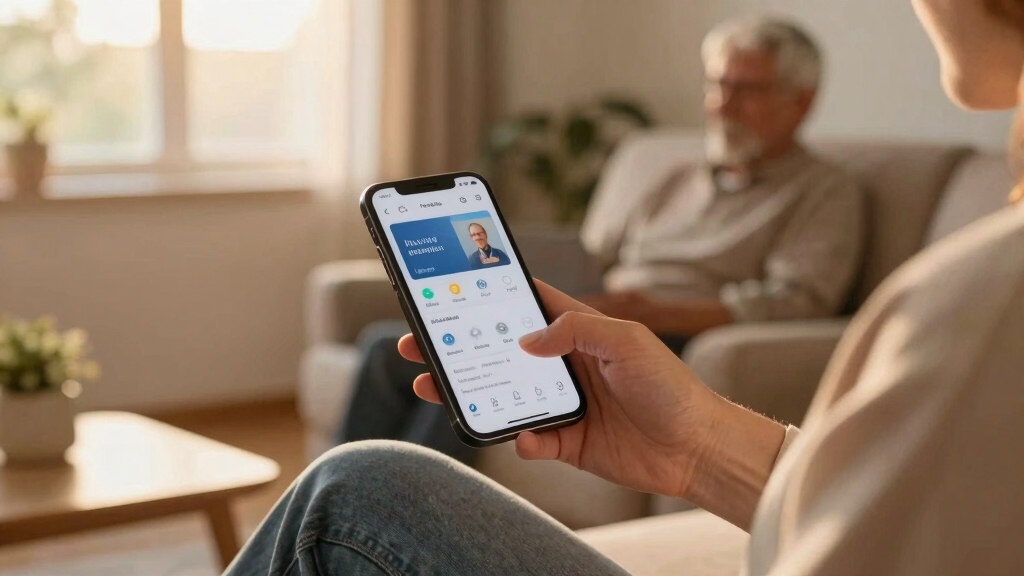
Remotely managing a parent’s phone is possible with mutual consent and the right tools. Focus on respect, privacy, and clear communication to make it helpful, not intrusive.
Imagine being miles away and still being able to check if your parent’s phone is charged, their location, or if they’ve missed any calls—without invading their privacy. It’s not about spying; it’s about caring. If you want to help manage your parent’s phone respectfully, you need the right tools and a good dose of understanding.
This guide shows you how to do it without crossing lines, with real-world tips and simple tech solutions that keep everyone’s dignity intact. Whether your parent lives alone, or simply isn’t tech-savvy, you’ll find practical ways to stay connected and supportive from afar.
Always get your parent’s permission before installing or using remote management tools.
Choose reputable, privacy-conscious apps like Google Family Link or Apple Screen Time.
Set clear boundaries about what data you access and discuss these openly.
Use remote management as a support tool, not a way to control or monitor unnecessarily.
Maintain ongoing conversations to respect your parent’s comfort and privacy.
How to Remotely Manage a Parent’s Phone From Miles Away, Respectfully
Remote support can help with location sharing, missed calls, app setup and troubleshooting—but only when it is built on permission, clear limits and ongoing conversation. Think safety net, not surveillance.
Support starts with trust
The technology matters less than the agreement around it. Define the purpose, keep access narrow and make it easy for your parent to change their mind.
Get permission first
Explain what you want to install, what it can see and why it would help.
Use reputable tools
Prefer built-in options or established providers with transparent privacy controls.
Set clear boundaries
Agree on location, usage and call access separately—not as one blanket permission.
Avoid unnecessary monitoring
Activate only the features needed for safety or practical assistance.
Keep talking
Check regularly that the arrangement still feels useful and comfortable.
Set it up together in three moves
Most tools require an app, account connection or device permission on the parent’s phone. Guide the process remotely if necessary, but let them approve each choice.
Agree on purpose and limits
Name the specific need: troubleshooting, location during outings, app help or missed-call awareness. Decide what remains private.
Choose the simplest suitable tool
Help your parent enable the built-in family feature or install a reputable app. Review every requested permission together.
Test, document and revisit
Activate only agreed features, run a test and schedule a future check-in. Remove access when it is no longer useful.
Match the tool to the phone—and the person
Built-in tools usually offer easier setup and tighter operating-system integration. Third-party apps can add flexibility, but their data practices require closer review.
| Feature | Google Family Link | Apple Screen Time | Third-party apps |
|---|---|---|---|
| Location sharing | ✓ Yes | ✓ Yes | ✓ Usually |
| App limits & approval | ✓ Yes | ✓ Yes | ✓ Usually |
| Activity visibility | ✓ Yes | ✓ Yes | ~ Varies |
| OS integration | ✓ Android | ✓ Apple | ~ Varies |
| Privacy controls | ✓ High | ✓ High | ~ Review |
Use the narrowest access that solves the problem
A respectful setup gives your parent visibility and control. Avoid messages, email or detailed monitoring unless there is a specific need and explicit agreement.
The minimum-access model
Illustrative access levels: maximize consent and transparency while minimizing personal-data exposure.
Write down the boundaries
A short agreement prevents assumptions and makes consent easier to revisit.
From conversation to respectful support
Each link protects the next. If consent or comfort disappears, pause the chain and return to conversation.
Pause, listen and reduce the scope.
Offer a lighter alternative: scheduled calls, location sharing only during trips, an emergency contact shortcut or help on request. Resistance is not a setup problem to overcome—it is a boundary to respect.
Start with Their Permission and Clear Boundaries
The first step? Always ask. Your parent’s trust is the foundation. Explain why you want to manage their device—whether it’s to help locate them, ensure their safety, or troubleshoot issues. Be honest about what you’ll see and do.
Set clear boundaries: What data are they comfortable sharing? Do they want you to see their location only, or also monitor app usage? Respect their choices. This openness builds cooperation and trust, making remote management a team effort.
Popular right now

TCL T7 Series 85-Inch 4K 144Hz QLED Smart Google TV

TCL QM64L 85-Inch QD-Mini LED 4K Smart Fire TV

Ninja DualZone 6-in-1 Air Fryer, 8-Qt, Grey, DZ801
As an affiliate, we earn on qualifying purchases.
Pick the Right Tools That Respect Privacy and Are Easy to Use
Choosing the right app is key. Look for reputable options like Google Family Link, Apple Screen Time, or third-party apps such as Qustodio or Norton Family. These tools are designed for remote support and come with privacy controls.
For example, Google Family Link lets you set screen time limits, approve app downloads, and see activity reports—all with your parent’s consent. Apple’s Screen Time offers similar features, integrated into the iPhone settings.
Most apps require initial setup on your parent’s phone—either with their help or guided remotely—and permissions granted beforehand.
How to Set Up Remote Management in 3 Simple Steps
- Discuss and obtain permission from your parent. Explain the benefits and boundaries.
- Help them install the chosen management app, guiding them through the process if needed.
- Configure the settings together—decide what features to activate, like location sharing or app limits—and test the setup. Check in regularly to adjust as needs change.
Compare Popular Management Features to Find What Fits Best
| Feature | Google Family Link | Apple Screen Time | Third-Party Apps |
|---|---|---|---|
| Location Sharing | Yes | Yes | Yes |
| App Limits & Approval | Yes | Yes | Yes |
| Real-time Monitoring | Yes | Yes | Yes |
| Privacy Controls | High | High | Variable |
Choosing the right tool depends on your parent’s device and comfort level. For Apple users, Screen Time is built-in, offering seamless integration and familiar controls. Android users benefit from Google Family Link, which is designed to work smoothly with Android devices. Third-party apps often provide more advanced features or customization options, but it’s important to review their privacy policies first, as they may collect more data or have different levels of security. Understanding these tradeoffs helps you select a solution that balances support with respect for your parent’s privacy.
How to Keep Their Privacy Intact While Helping Them
Respecting privacy is crucial. Only access what’s necessary—like location or call logs. Avoid reading messages or emails unless explicitly agreed upon. Explain that your goal is support, not surveillance.
Set boundaries: For example, you might agree to see only location data and not message content. Regularly check in to see if your parent feels comfortable or if they want to change what’s shared. This ongoing dialogue keeps trust strong. Recognize that privacy isn’t just about data—it’s about respecting your parent’s autonomy and comfort. By limiting your access, you reduce the risk of unintentionally causing discomfort or mistrust. This approach also encourages your parent to feel in control of their digital life, which is essential for maintaining their independence while still receiving support.
What To Do If Your Parent’s Uncomfortable or Resistant
If your parent resists remote management, pause and listen. Respect their feelings. Instead of insisting, suggest less intrusive options like sharing location only during certain hours or setting up regular check-ins.
You might say, “I just want to make sure you’re safe. If this feels invasive, we can try checking in once a day instead.” Small steps build trust and comfort over time. Remember, patience and understanding are key. Pushing too hard can damage trust, so it’s better to find compromises that respect their feelings while still providing support. Over time, as they see the benefits of some oversight, they may become more comfortable with additional features. The goal is to create a partnership, not impose rules.
Remember: It’s About Supporting, Not Controlling
Remote management is a tool for caring, not controlling. Keep your focus on helping your parent feel secure and respected. Always prioritize their independence and comfort.
Think of it like a safety net—there to catch them if needed, not a leash. When approached with empathy and respect, remote support can strengthen your bond and peace of mind. It’s about creating a partnership where your parent feels empowered, not surveilled. This mindset fosters trust and cooperation, making the support sustainable and positive for everyone involved.
Frequently Asked Questions
Is it legal to manage my parent’s phone remotely?
Generally, it’s legal if your parent consents. Always ensure you have their explicit permission before installing any monitoring or management tools. Laws vary by location, so check local regulations if unsure.
How can I set up remote management without physically accessing their phone?
With your parent’s agreement, guide them through installing the app or enable features like Google Family Link or Apple Screen Time remotely. Clear instructions and mutual understanding make the process smooth.
What apps are best for respectful remote management?
Google Family Link and Apple Screen Time are built into Android and iOS, respectively, offering robust, privacy-friendly options. For extra features, reputable third-party apps like Qustodio or Norton Family work well, but always review their privacy policies first.
How do I protect my parent’s privacy while managing their device?
Limit your access to only what’s necessary—like location or device usage. Avoid reading private messages or emails unless your parent agrees. Keep the conversation open about what’s shared and respect their boundaries.
What if my parent feels uncomfortable with remote management?
Pause and listen. Respect their feelings. Offer less invasive options, like periodic check-ins or location sharing only during certain hours, rather than full control. Building trust takes time and patience.
Conclusion
Managing a parent’s phone from afar doesn’t have to feel intrusive. With mutual respect, the right tools, and honest dialogue, you can support them without crossing boundaries. It’s about being there—carefully, respectfully, and with a clear purpose.
Think of it as holding a safety rope, not a leash. When done thoughtfully, remote support becomes a bridge, not a barrier—strengthening trust and peace of mind for everyone involved.