
TL;DR

Turn quiet afternoons into listening time
- Thousands of audiobooks, podcasts and originals
- Listen on your phone, tablet or Echo — also offline
- Cancel anytime
Most digital frames support app-based and Wi-Fi transfer methods, making it simple to send photos from your phone. Cloud services and updates automate the process, keeping your display fresh and personalized.
Most digital frames support app-based and Wi-Fi transfers, making updates quick and easy.
Cloud services enable automatic sync and keep your display fresh without manual effort.
Using the right resolution and file size ensures your photos look sharp and vibrant.
Bluetooth and physical media are fallback options, but less convenient for regular updates.
Setting up auto-sync with cloud albums is a great way to keep memories flowing effortlessly.
How to Send Photos to a Digital Frame from Your Phone
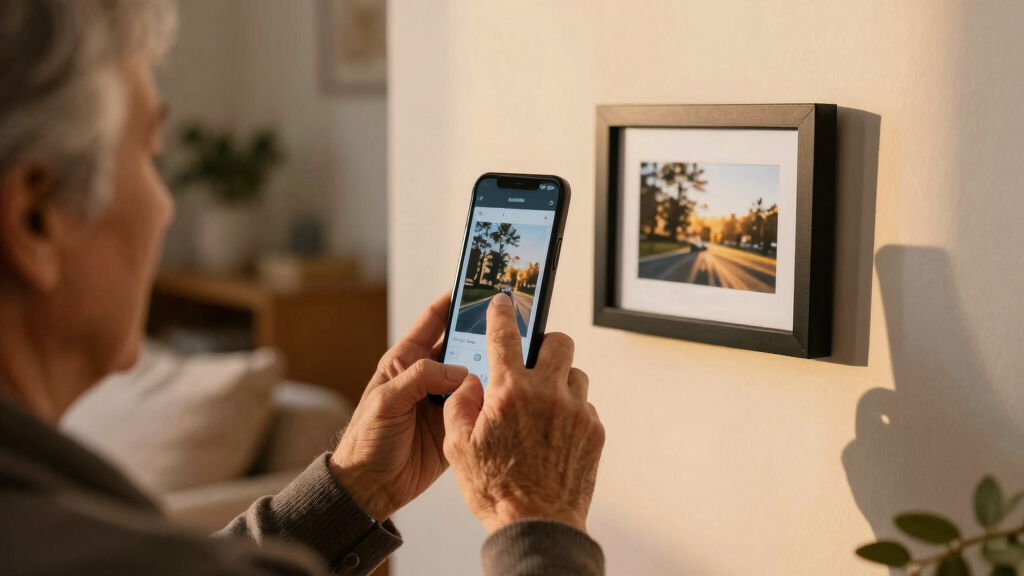
Modern frames turn photo sharing into a few taps. Use a companion app for instant updates, connect a cloud album for hands-off syncing, or fall back to Bluetooth and physical media when Wi-Fi is unavailable.
Four ways to move a memory
Start with the frame’s dedicated app. Cloud syncing is best for automation, while Bluetooth and USB or SD cards are dependable alternatives for offline use.
Companion app
Apps from brands such as Nixplay, Aura, and Skylight let you choose photos from your phone, create albums, add captions, and update the frame over Wi-Fi.
Cloud service
Link a supported Google Photos, Dropbox, or OneDrive album. New images can sync automatically, making this ideal for families and ongoing slideshows.
Bluetooth
Useful when internet access is unreliable and the frame supports Bluetooth. It is convenient for a few nearby photos but slower for large collections.
USB or SD card
Copy photos to physical media—often through a computer—then insert it into the frame. It adds steps but works without a network.
iPhone + Android
Most modern frame apps support both platforms. Follow the brand’s pairing instructions and confirm that both devices can reach the required network.
Use common formats
JPEG, PNG, and BMP are widely supported. Check the frame manual before sending unusual formats or exceptionally large files.
Send photos with the frame app
Brand interfaces differ, but the underlying process is remarkably consistent. Keep the frame powered on and follow its on-screen pairing prompt.
Install
Download the official companion app for your frame brand.
Connect
Put the phone and frame on the required Wi-Fi connection.
Pair
Enter the frame code or scan the pairing code shown on-screen.
Select + send
Choose photos or an album, review the crop, and tap send.
For a large first upload, send smaller groups rather than one enormous batch. This makes interrupted transfers easier to retry and reduces the impact of a weak Wi-Fi signal.
Match the transfer to the moment
Convenience rises with connectivity. Physical media remains the most network-independent option, but apps and cloud albums are easier to maintain day to day.
| Method | Speed | Convenience | Automation | Best for |
|---|---|---|---|---|
| Wi-Fi app | Fast | Very high | Some scheduling | Frequent updates and personalized albums |
| Cloud service | Auto | High | Continuous sync | Family sharing and always-fresh displays |
| Bluetooth | Slow | Medium | Manual | Quick, small batches without internet |
| USB / SD card | Manual | Low | None | One-time transfers and offline locations |
Make every photo fit the frame
A fast transfer is only half the job. Matching the display’s shape and resolution prevents awkward cropping, wasted storage, and soft-looking images.
- Resize images to the frame’s native resolution when practical.
- Crop around the main subject and keep faces away from edges.
- Use high-quality originals, especially on larger displays.
- Group photos into albums and remove unwanted duplicates.
- Keep the frame’s app and firmware updated.
A practical optimization scale
Automate your photo updates
Shared cloud albums can turn your frame into a living family timeline. Once linked, each approved addition can flow to the display with little or no repeated effort.
Create a dedicated shared album
Keep frame-ready images separate from screenshots and everyday camera clutter.
Link the album inside the frame app
Authorize only the account and collection the frame needs to access.
Enable sync or a refresh schedule
Choose automatic updates if supported, or set a predictable refresh interval.
Review privacy and album quality
Use a strong password, enable two-factor authentication, and remove irrelevant photos.
One connected path from camera roll to room
Common transfer questions
Connection quality, file size, frame compatibility, and account security are the four variables most likely to affect your experience.
Can iPhone and Android use the same frame?
Usually, yes. Most current companion apps support both platforms, allowing different family members to contribute to one frame.
What if Wi-Fi drops during a transfer?
Move the frame closer to the router, restart the network equipment, and retry with a smaller photo batch. Use USB or SD media if instability continues.
Are cloud-connected albums secure?
Use reputable services, unique passwords, two-factor authentication, and restricted sharing permissions. Review connected devices periodically.
Can the slideshow update itself?
Yes. Many connected frames support scheduled refreshes or automatic syncing from designated cloud albums and shared collections.
How to Use Apps for Quick Photo Transfers from Your Phone
Apps are the easiest way to send photos wirelessly. Most digital frames now come with dedicated mobile apps that connect over Wi-Fi. For example, Nixplay, Aura, and Skylight apps all allow you to select photos directly from your phone’s gallery and send them instantly.
To get started, download the app specific to your frame brand. Make sure your phone and the digital frame are connected to the same Wi-Fi network. Open the app, follow prompts to pair your device, and then select photos to send. It’s that simple—think of it as sending a text message, but to your digital photo wall.
For instance, with the Nixplay app, you can create albums, add captions, and set schedules for new photos to appear. The process takes less than five minutes, and your display updates immediately.
Popular right now

Ninja Foodi 10-Qt DualZone Smart XL Air Fryer, 6-in-1, DZ550

Bose QuietComfort Ultra Wireless Noise-Cancelling Headphones with Spatial Audio, Black

TCL QM64L 85-Inch QD-Mini LED 4K Smart Fire TV
As an affiliate, we earn on qualifying purchases.
How to Transfer Photos via Cloud Services — The Hands-Off Method
Cloud services like Google Photos, Dropbox, or OneDrive make updating your digital frame almost automatic. Upload your favorite photos to a shared folder or album, then connect your frame to that cloud account.
When you link your cloud account to your digital frame, any new photos added to the designated album or folder can automatically sync to the display. This setup reduces manual effort, ensuring your slideshow is always fresh without needing to reconnect or resend images each time. However, the tradeoff is that you rely on the stability of your internet connection, and there may be a delay depending on upload and sync speeds. This method is especially useful for busy households where constant manual updating isn’t practical, but it requires initial setup and occasional management to keep your albums organized and relevant.
Bluetooth or Physical Media — When Wi-Fi Isn’t an Option
If your digital frame doesn’t support Wi-Fi or apps, don’t worry. You can still transfer photos using Bluetooth or by using a USB flash drive or SD card. Bluetooth is slower and better suited for a handful of images, but it works if your frame supports it.
For example, sending a few photos via Bluetooth from your phone to a nearby frame is quick and convenient for immediate sharing, especially when internet connectivity is unreliable. Alternatively, transferring your images to a computer and then copying them onto a USB drive or SD card allows you to transfer larger batches without the need for wireless connectivity. This method is more manual, but it guarantees a secure transfer without network dependencies, making it suitable for environments with limited or no internet access. The tradeoff is that it involves extra steps and time, but it’s often the most reliable fallback for secure or offline scenarios.
Comparison Table: Wi-Fi, Apps, Cloud, and Physical Transfer
| Method | Speed | Convenience | Best For |
|---|---|---|---|
| Wi-Fi App | Fast | Very high | Frequent updates, personalized albums |
| Cloud Service | Automatic | High | Ongoing photo updates, family sharing |
| Bluetooth | Slow | Medium | Quick, small batches, offline sharing |
| USB/SD Card | Slow | Low | One-time transfer, no Wi-Fi needed |
Tips to Keep Your Photos Looking Great on the Frame
- Resize images to match your frame’s resolution for crisp display.
- Crop or edit photos to focus on the main subject, avoiding clutter.
- Use high-quality photos to prevent pixelation, especially on larger frames.
- Organize photos into albums for easy browsing and updating.
- Regularly delete unwanted images to keep the slideshow fresh.
For example, if your frame is 1920×1080 pixels, resize your images to that size before sending—your photos will look sharp and vibrant.
Automate Your Photo Updates for Effortless Sharing
If you want your digital frame to update automatically, connect it to a cloud service linked with your phone’s photos. Many frames support scheduled updates or auto-sync with shared albums.
For example, setting up a shared Google Photos album means every new vacation shot you add is ready to display without lifting a finger. It’s like having a personal slideshow that refreshes itself.
This feature is perfect for families wanting to showcase latest memories without manual hassle.