
TL;DR
Open a free Amazon Business account
Business pricing, bulk buying and tax-exempt orders.
Create a free accountAs an affiliate, we earn on qualifying purchases.
You can make voice calls with smart speakers like Alexa, Google, and HomePod without a phone plan. Setup involves linking accounts and contacts, but emergency calls are limited. This step-by-step guide shows you exactly how.
Imagine being able to call your grandma with just a simple voice command, no phone needed. Or instantly reaching a family member in another room, hands-free. That’s the magic of voice calling on smart speakers—easy, natural, and surprisingly versatile.
But setting it up isn’t always obvious. Each platform — Alexa, Google, and HomePod — has its quirks, requirements, and limitations. This guide walks you through each step, so you can start talking and stay connected with confidence.
Set up your contacts and verify your number in the companion app for seamless calling.
Use clear voice commands like ‘Call Mom’ to activate your calls—practice makes perfect.
Remember, smart speakers excel at quick chats but aren’t a substitute for emergency calls.
Multi-user profiles help each household member call their own contacts without confusion.
Troubleshoot Wi-Fi and permissions first if calls don’t go through smoothly.
Smart Home Guide — Hands-Free Calling
Voice Calling with a Smart Speaker
Call Grandma with a simple voice command — no phone needed. Reach family in another room, hands-free. Alexa, Google Nest, and HomePod each handle calling differently: this step-by-step guide covers setup, commands, call types, and the limits you must know.
The Essentials
Alexa · Google · Siri
incl. Drop In & broadcasts
iPhone handoff calling
dial 911 / 112 directly
Before You Start
Setup Essentials for All Platforms
Think of it like preparing a phone without a SIM card — linking contacts and verifying your number is the key that unlocks voice calling. Skip these, and you risk failed connections or calling the wrong “Mom.”
Connectivity
Stable Wi-Fi
Every call routes over the internet. A weak or congested network is the #1 cause of dropped or failed calls.
Companion App
App Installed & Signed In
Alexa app, Google Home app, or Apple Home app — with your Amazon, Google, or Apple account signed in.
Contacts
Contacts Synced
Grant contacts permission so the speaker recognizes names like “Mom” or “John” instead of making you spell out numbers.
Identity
Number Verified via SMS
Verification powers your caller ID. Unverified numbers can show as “Unknown,” so people may not pick up.
Hardware
Microphone Unmuted
The physical mute switch silently blocks everything. Check it first when the speaker seems to ignore you.
Household
Multi-User Voice Profiles
Alexa Voice Profiles and Google Voice Match recognize who is speaking — each person calls their own contacts, no confusion.
Step-by-Step Setup
One Guide per Platform
The steps differ significantly per ecosystem. Follow the column that matches your speaker — then test with a simple call.
Amazon Alexa
Echo DevicesDownload the Alexa app and sign in with your Amazon account.
Go to Communications → Contacts to sync your phone contacts.
Verify your phone number via SMS so contacts see a recognizable caller ID.
Enable “Alexa Calling and Messaging” in settings.
Confirm the Echo is on Wi-Fi and the mic is unmuted. Say “Alexa, who can I call?” to test.
Pro tip: Set up multi-user voice profiles so each family member reaches their own contacts — essential in shared households.
Google Nest
Google AssistantOpen the Google Home app and sign in to your Google account.
Link Google Voice or Google Meet in the app’s settings.
Sync contacts through Google Contacts or your phone.
Make sure the Nest speaker is on the same Wi-Fi network.
Test with “Hey Google, call Mom”, then adjust privacy settings for who can call or be called.
Note: Calls route through Google Meet — handy for video upgrades, but availability of plain outbound dialing varies by region.
Apple HomePod
iPhone HandoffHomePod has no standalone calling — it acts as a speakerphone for your iPhone.
Use an iPhone on iOS 15 or later, connected to the same Wi-Fi.
Open the Home app, select your HomePod.
Enable “Personal Requests” so HomePod can access contacts and calling.
Say “Hey Siri, call Mom” — the call routes through your iPhone.
Keep in mind: This depends on your iPhone’s connection — ideal when the phone is charging or out of reach.
What’s Possible
The Different Types of Voice Calls
Not all “calls” are equal. Some are free platform-to-platform connections, others dial real phone numbers — and one connects instantly with no ringing at all.
| Call Type | Alexa | Google Nest | HomePod | How It Works |
|---|---|---|---|---|
| Device-to-Device | ✓Alexa-to-Alexa, free | ✗ | ✗ | Free calls between Echo devices or Alexa app users — works like an internal walkie-talkie for quick household check-ins. |
| Phone Number Dialing | ✓Free in US/CA/MX | ~Region-dependent, via Meet | ~Via iPhone handoff | Call real landlines and mobiles. International and premium-rate numbers are generally excluded or may incur charges. |
| Drop In (Intercom) | ✓Alexa only | ✗ | ✗ | Instant connection — no ringing or answering. Restricted to approved contacts/devices; review privacy permissions carefully. |
| Announcements / Broadcast | ✓ | ✓ | ✓Intercom feature | One-way voice message sent to all speakers in the home — “Dinner’s ready!” without dialing anyone. |
| Video-Callable | ~Echo Show devices | ✓Google Meet | ✗ | Google’s Meet integration lets a voice call become a video meeting — versatile for casual chats and work calls alike. |
| Emergency Services | ~Paid Alexa Emergency Assist (US) | ✗ | ~Only via iPhone | Most speakers cannot reliably dial 911/112. A smart speaker is never a substitute for a phone in an emergency. |
By the Numbers
Platform Capability at a Glance
Alexa offers the widest calling toolkit. Google has consolidated calling under Meet, and HomePod relies entirely on your iPhone.
Supported Call Modes per Platform
Emergency-Calling Reliability Spectrum
The Call Chain
From Setup to “Hello?” in Six Links
Every successful call travels the same chain. If a call fails, walk it backwards — the break is almost always in the first three links.
Companion App
Install & sign in
Contacts Synced
Permission granted
Number Verified
SMS caller ID
Wi-Fi Stable
Mic unmuted
Voice Command
“Call Mom”
Connected
Hands-free chat
Speak Up — But Stay Safe
Core Commands & the Emergency Caveat
Practice makes perfect: clear, natural commands get the best recognition. One command you should never rely on, though, is a call for emergency help.
Commands to Practice
“Alexa, call Mom.”“Alexa, answer / ignore / hang up.”“Hey Google, call [name].”“Hey Siri, call [name] on speaker.”“Alexa, drop in on the kitchen.”Not a Substitute for a Phone
Smart speakers excel at quick chats — but emergency calling is their biggest limitation.
- 911/112: most speakers cannot reliably dial emergency services directly.
- Alexa Emergency Assist: a paid US subscription that reaches an urgent-response agent — not the same as dialing 911.
- HomePod: emergency calls only work through the paired iPhone on the same network.
- Always keep a charged phone within reach for genuine emergencies.
When Calls Don’t Go Through
Troubleshoot Wi-Fi & Permissions First
Most failures trace back to the first three links of the call chain. Check these before anything else.
Symptom 01Contacts not syncing
Fix: Reopen the companion app and re-grant contacts permission, then re-sync. Without it, you’ll be spelling out numbers.
Symptom 02Wrong person called
Fix: Duplicate names confuse the assistant. Rename contacts distinctly (“Mom Mobile”) and set up per-user voice profiles.
Symptom 03Caller ID shows “Unknown”
Fix: Your number isn’t verified. Complete SMS verification in the app so recipients see a number they trust.
Symptom 04Poor call quality
Fix: Move the speaker closer to the router, reduce network congestion, and keep it on the same Wi-Fi as your phone.
Symptom 05“Calling isn’t supported on this device”
Fix: Some older or third-party Alexa devices lack calling. Check the device’s feature list or use the Alexa app instead.
Symptom 06Feature suddenly missing
Fix: Platforms change fast — Google narrowed free dialing in several regions. Update the app and firmware, then re-check settings.
What You Need Before You Start: Setup Essentials for All Platforms
Before making your first call, ensure your smart speaker is ready. You need a stable Wi-Fi connection, the companion app installed, and your account signed in. Also, your contacts must be synced, and your phone number verified where applicable.
Think of it like preparing a phone — without the SIM card, you can’t dial out. With a smart speaker, linking your contacts and verifying your number acts as the key to unlocking voice calling. This preparation matters because it ensures your device can identify you and your contacts accurately, preventing miscalls or failed connections. For example, if your contact list isn’t synced, you might accidentally call a different ‘Mom’ or ‘John,’ leading to confusion or privacy concerns. Proper setup streamlines your calling experience, making it more reliable and secure.
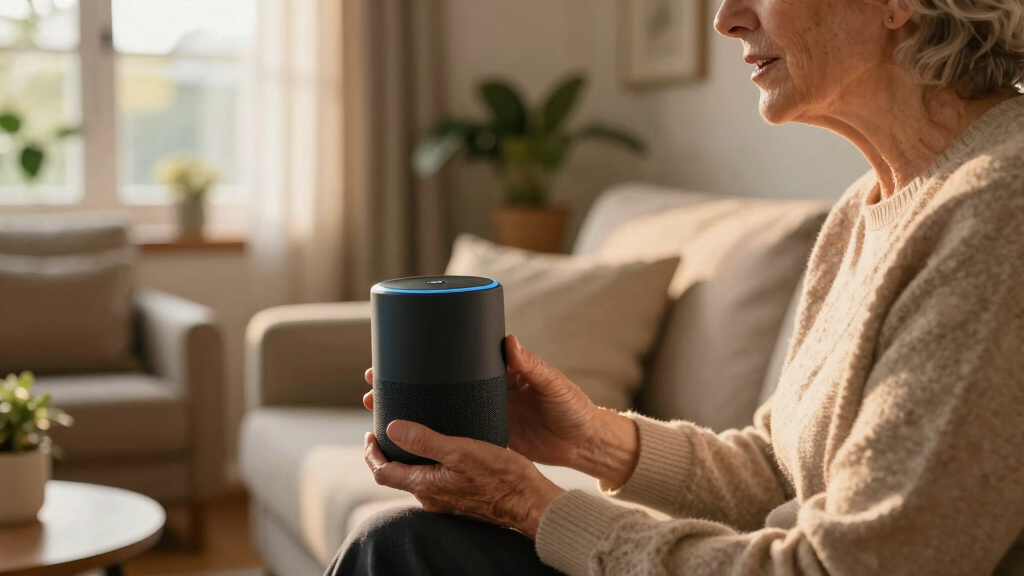
Amazon Alexa smart speaker with voice calling
As an affiliate, we earn on qualifying purchases.
As an affiliate, we earn on qualifying purchases.
How to Set Up Voice Calling on Alexa — Step-by-Step
- Download and open the Alexa app. Sign in with your Amazon account.
- Go to ‘Communications’ and tap ‘Contacts’ to sync your phone contacts. This step allows Alexa to recognize the names and numbers you frequently call, making voice commands more natural and efficient. Without this, Alexa might not understand who you mean or could suggest the wrong contact, leading to frustration or accidental calls.
- Verify your phone number via SMS — this helps display your caller ID and authenticate your account. A verified number ensures your contacts see a recognizable caller ID, which can influence whether they pick up or ignore the call. For instance, unverified numbers might show as ‘Unknown,’ reducing trust and increasing missed connections.
- Enable ‘Alexa Calling and Messaging’ in settings.
- Ensure your Echo device is connected to Wi-Fi and microphone is unmuted.
- Say, “Alexa, who can I call?” to test.
Once set, you can call by saying, “Alexa, call Mom,” or “Call John on mobile.” This voice activation transforms your device into a hands-free communicator, similar to having a personal assistant who’s always ready to connect you. The benefit is especially evident in situations like cooking or working where hands are busy, but you need to reach someone quickly.
Pro tip: Use Alexa’s multi-user profiles so each family member can call their contacts without confusion. This feature is essential in shared households, as it respects individual privacy and contact lists, preventing accidental calls to the wrong person.
Google Nest smart speaker for hands-free calling
As an affiliate, we earn on qualifying purchases.
As an affiliate, we earn on qualifying purchases.
How to Set Up Voice Calling on Google Nest — Easy Steps
- Open the Google Home app and sign in to your Google account.
- Link Google Voice or Google Meet in the app’s settings. Connecting these services allows your Nest device to initiate calls through familiar platforms, which is particularly useful if you already use Google services for communication, such as Gmail or Google Calendar. For example, scheduling a call through Google Calendar can remind you to call a friend, and your Nest can initiate it with a simple voice command.
- Sync your contacts through Google contacts or your phone’s contacts. This synchronization ensures your voice commands recognize familiar names, reducing miscommunication. If you don’t sync contacts, you might have to spell out names or use numbers, which is less convenient and more error-prone.
- Make sure your Nest speaker is on the same Wi-Fi network.
- Test by saying, “Hey Google, call Mom.”
- Adjust privacy settings to control who can call or be called.
Google’s calling is integrated with Google Meet, so some calls route through that platform, which is handy for video calls or international numbers. This integration means you can seamlessly switch from a simple voice call to a video meeting, making it versatile for both casual chats and professional meetings. However, be aware that some features might have regional restrictions or require additional setup, like installing updates or enabling certain permissions, which can impact your overall experience.
Apple HomePod with voice call capabilities
As an affiliate, we earn on qualifying purchases.
As an affiliate, we earn on qualifying purchases.
How to Make Calls on HomePod — The iPhone Handoff Method
HomePod doesn’t have standalone calling. Instead, it acts as a speakerphone for your iPhone. To set it up, ensure your iPhone is on iOS 15 or later and connected to the same Wi-Fi.
Open the Home app, select your HomePod, and enable ‘Personal Requests.’ This feature allows your HomePod to access your contacts and call capabilities, essentially turning it into a hands-free extension of your iPhone. If your iPhone’s contacts are up to date and Siri is enabled, you can make calls just by voice, similar to how you would on your phone—say, “Hey Siri, call Mom,” and the call is routed through your iPhone, which acts as the calling device. This setup is particularly useful when your phone is charging or out of reach, but you want to stay connected. Keep in mind that this method depends on your iPhone’s connection and settings, so maintaining proper configuration ensures smooth operation.
As an affiliate, we earn on qualifying purchases.
Understanding the Different Types of Voice Calls — What’s Possible?
| Call Type | Supported Platforms | How It Works |
|---|---|---|
| Alexa-to-Alexa | Amazon Echo devices | Free calls between Echo devices or Alexa app users — works like an internal walkie-talkie. This feature is great for instant communication within your household or office, allowing quick check-ins without dialing a number. However, it’s limited to Alexa-to-Alexa interactions, meaning you can’t call traditional phones or outside numbers using this method. The tradeoff is privacy and speed—it’s perfect for internal communication but not for reaching external contacts. |
| Phone Number Dialing | Alexa, Google, HomePod (via iPhone) | Call actual phones, landlines, or mobile numbers — some supported regions free, others may incur charges. This method extends your smart speaker’s capabilities to reach out to anyone, but it requires account linking and region-specific services. For example, calling a mobile in another country might involve international charges, so understanding your plan and the service’s regional support helps you avoid unexpected costs. |
| Drop In | Amazon Alexa only | Instant connection—no ringing or answering—used like an intercom, with privacy controls. Drop In can be used to check on family members or communicate between rooms instantly, which is useful in emergencies or for quick updates. But it requires explicit permissions and can be a privacy concern if misused, so setting strict controls is essential. |
| Video/Voice via Google Meet or FaceTime | Google, Apple | Primarily for video calls, but voice-only options exist when paired with compatible apps. This allows richer interaction, such as seeing a loved one’s face or sharing screens. The tradeoff is the need for compatible devices and apps, and potential privacy considerations when sharing video streams. These options are ideal for more personal or professional interactions where visual cues improve communication. |
Knowing the differences helps you pick the right method for each situation, like a quick check-in or a long chat. Recognizing these nuances ensures you choose the most effective and cost-efficient way to connect, avoiding frustration or unexpected charges.
How to Make Voice Calls — Your Go-To Commands for Each Platform
- Alexa: “Alexa, call Mom,” or “Alexa, hang up.” These commands are straightforward but understanding their implications helps you use them more effectively. For example, calling ‘Mom’ assumes your contacts are correctly labeled and synced; otherwise, Alexa might prompt for clarification or misinterpret your command. Consistent naming and voice profiles can reduce errors and make calls more reliable.
- Google: “Hey Google, call John.” This simple command leverages your contact list, but similar to Alexa, accuracy depends on proper contact sync and recognition. Using specific names or nicknames you’ve assigned can improve accuracy, especially in noisy environments or with multiple people with similar names.
- HomePod: “Hey Siri, call Mom on speaker.” Siri’s understanding depends on your contacts being correctly set up and your iPhone being nearby. Using precise commands like ‘on speaker’ ensures the call routes correctly. Practicing these commands in your environment helps reduce miscommunication, especially when multiple people use the same device.
These commands aren’t just about convenience—they shape how effectively you stay connected. Clear, consistent phrasing minimizes misunderstandings, and practicing helps you become comfortable with hands-free calling, making your interactions smoother and more reliable in daily life.
Troubleshooting Common Issues — Quick Fixes for Smooth Calling
If your contacts aren’t syncing, double-check permissions in the app. For instance, if you’ve recently changed your phone number or contact names, sync again and verify the details. Duplicate names can cause wrong calls, so cleaning up your contact list by merging duplicates or renaming entries helps avoid accidental calls. Call quality issues often stem from Wi-Fi turbulence—restart your router, ensure your device is close to Wi-Fi, and avoid interference from other electronics. For example, if your voice sounds muffled or cuts out, moving closer or reducing network congestion can improve clarity.
If caller ID shows as ‘Unknown,’ verify your number and contact info in the app. Some older devices might lack calling features; check your device’s capabilities and update software if needed. For instance, an outdated app version or firmware might prevent proper registration, leading to failed calls or missing caller ID information.
Finally, if calling is unsupported, it might be regional or device-specific. Consult your platform’s support resources for detailed troubleshooting. Understanding these limitations helps set realistic expectations and guides you toward alternative solutions, like using your phone directly or updating your device settings.
Emergency Calls? Here’s What You Need to Know
Most smart speakers can’t reliably call emergency services like 911 or 112. Amazon’s Alexa Emergency Assist is a paid subscription service that connects you to a response agent, but it’s not a substitute for your phone in a real emergency. This service is useful in scenarios where you might not have immediate access to your phone, such as when your hands are full or you’re in a different room, but it’s not a replacement for dialing emergency numbers directly.
Google and Apple also limit direct emergency calling due to safety and legal reasons, requiring manual dialing through your mobile device. Always keep your mobile phone handy for urgent situations—your smart speaker is a helpful supplement but should not be relied upon solely in emergencies. For example, in a fire or medical crisis, quick access to traditional emergency services can be life-saving, and smart speakers are best used as additional communication tools rather than primary solutions.
This is a key point—never rely solely on your smart speaker if you need immediate help. It’s a helpful tool, not a replacement, and understanding its limitations ensures you’re prepared for real emergencies.
Frequently Asked Questions
Can a smart speaker call 911 or emergency services?
Most smart speakers can’t reliably call emergency services like 911. Amazon’s Alexa offers a paid Emergency Assist feature, but it’s not a replacement for your phone. Always keep your mobile nearby for urgent needs.
Do I need a phone plan for my smart speaker to call?
No phone plan is needed for Alexa or Google calls—your internet connection handles everything. For HomePod, your iPhone does the calling, so a phone plan is still required.
Does the person I call need a smart speaker too?
No. For calling phone numbers, they don’t need a smart speaker—just a phone. But for Alexa-to-Alexa calls, both parties must have Echo devices or the Alexa app.
Are voice calls free?
In most regions, domestic voice calls are free on Alexa and Google. International or premium calls may cost extra. Always check your provider’s policies for specifics.
How do I stop my speaker from calling the wrong person?
Use unique contact names and set up voice profiles if available. Confirm the contact details in your app to avoid misdialed calls caused by duplicate names.
Conclusion
Making voice calls on a smart speaker transforms the way you stay connected—hands-free, natural, and instant. But it’s not quite the same as a phone, especially for emergencies. Use it wisely, and it becomes a powerful tool for everyday communication.
Imagine a future where calling Grandma is just a voice away, no matter where you are. That’s the promise of smart speaker calling—simple, smart, and always ready to help you connect.
Flea & tick season Picks
flea and tick prevention
As an affiliate, we earn on qualifying purchases.