
TL;DR

Turn quiet afternoons into listening time
- Thousands of audiobooks, podcasts and originals
- Listen on your phone, tablet or Echo — also offline
- Cancel anytime
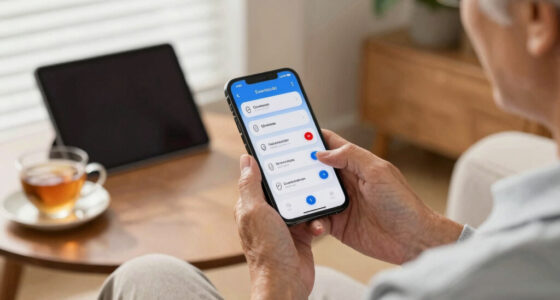
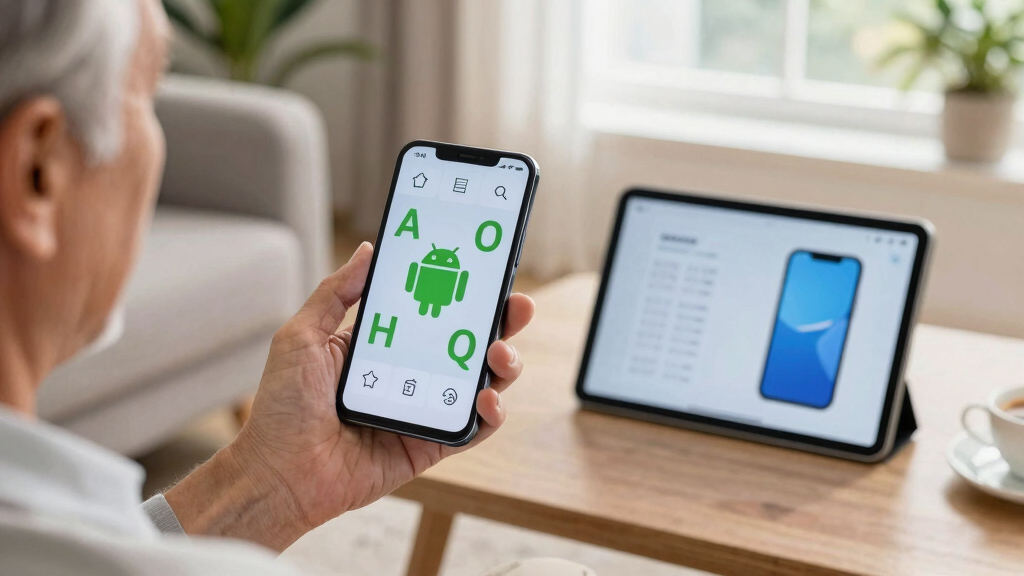
Making an Android phone simpler for a senior means reducing complexity with larger icons, easy navigation, and voice assistance. These tweaks boost independence and reduce frustration, transforming a confusing device into a helpful tool.
When you hand a smartphone to a senior, it often feels like giving them a device from a different planet—small icons, complex menus, endless notifications. But making an Android phone simpler isn’t about stripping features; it’s about tailoring it to what they need most. Imagine a phone with big, bright icons, voice control at their fingertips, and fewer distractions. That’s what this guide is for.
In the next few minutes, you’ll learn concrete ways to transform a standard Android into a senior-friendly device. Whether you’re helping a grandparent stay connected or making your own phone easier to manage, these practical tips will make the tech less intimidating and more empowering.
Choose a senior-friendly launcher with large icons and simple navigation.
Increase font and icon sizes to make content easier to see and read.
Limit notifications to prevent overwhelm and confusion.
Use voice commands to simplify calling, searching, and controlling the device.
Set up emergency and safety features for peace of mind.
How to Pick a Launcher That Makes the Phone Easier to Use
Android launchers are the homescreen interface. Choosing the right one can turn a cluttered, confusing phone into a simple, streamlined device. Think of it as swapping a busy road for a wide, well-marked highway.
Popular options like Big Launcher or Simple Launcher replace complex menus with large, easy-to-tap icons. For example, Big Launcher offers a home screen with oversized buttons for calling, messaging, and emergency contacts. These launchers are designed to prioritize essential functions, reducing visual clutter and making navigation more intuitive. This is especially important for seniors who may have dexterity or vision challenges, as it minimizes the chance of accidental taps or missed options.
Choosing the right launcher also impacts how easily they can adapt to the interface. Some launchers allow customization of icon size, colors, and layout, which means you can tailor the experience further based on individual preferences. Keep in mind that while these launchers improve usability, they might limit access to some features or apps, so it’s essential to strike a balance between simplicity and functionality.
To install a launcher:
- Go to Settings > Apps & notifications > Default apps.
- Tap on Home app or Launcher.
- Select the senior-friendly launcher you’ve installed.
Once set, the new interface is ready to go. It’s like giving your loved one a friendly, easy-to-read map instead of a maze.
Popular right now

Dyson V8 Cyclone Cordless Vacuum

Bose QuietComfort Ultra Wireless Noise-Cancelling Headphones with Spatial Audio, Black

TCL QM64L 85-Inch QD-Mini LED 4K Smart Fire TV
As an affiliate, we earn on qualifying purchases.
Boost Visibility with Big Text and Clear Colors
Making the screen easier to read is key. Android offers simple ways to increase font size and modify display settings. But beyond just enlarging text, understanding why these changes matter helps ensure they’re effective. Larger text reduces eye strain and makes it easier for seniors with diminished eyesight to read messages, labels, and instructions without frustration. High contrast and color adjustments further improve clarity, especially in different lighting conditions or for users with color perception issues.
To do this, go to Settings > Accessibility > Font Size. Drag the slider to make text larger—typically 24 or 26 points provides a significant boost in readability. Then, navigate to Display > Font Size and Display Size to adjust icons and overall content size. This ensures that not only text but also icons and interface elements are more visible and easier to tap accurately.
Choosing the right size involves balancing visibility with screen real estate; overly large fonts might reduce the amount of information visible at once, which can be confusing. It’s advisable to test different sizes with the user to find a comfortable balance. Additionally, enabling high contrast modes or color inversion can be especially helpful for users with specific visual impairments, making the interface more accessible and reducing the need for squinting or searching for items.
Simplify Notifications and Alerts to Reduce Overwhelm
Too many notifications can be overwhelming, especially if they keep buzzing or flashing. Simplifying notifications isn’t just about turning them off—it’s about understanding their importance and the impact they have on the user’s experience. Excessive alerts can cause stress, distract from important tasks, or even lead to app abandonment if the device feels chaotic. By limiting notifications to only essential ones—such as calls, messages, and emergency alerts—you create a calmer, more focused environment for the senior.
In Settings > Notifications, you can turn off or mute non-essential app alerts. For instance, social media, news, or game notifications can be disabled entirely. You can also customize notification types for each app to show only banners or silently alert, reducing visual clutter. Additionally, enabling vibration or visual cues like camera LED flashes can be helpful for users with hearing impairments or in noisy environments, ensuring they notice important alerts without being overwhelmed by constant noise or flashing lights.
This approach not only reduces sensory overload but also helps the senior focus on what truly matters. It’s a tradeoff—less information might mean missing some updates, but it significantly enhances comfort and reduces stress. Regularly reviewing notification settings ensures the device remains tailored to changing needs or preferences.
Preload Only the Essential Apps and Hide the Rest
Clutter is confusing. Removing or hiding unnecessary apps creates a clean, simple interface. Think of it as decluttering a workspace so your loved one can focus on what matters. But beyond just decluttering, this process helps prevent accidental taps on unfamiliar or unnecessary apps, reducing frustration and potential misuse.
Most Android phones allow you to disable apps you don’t need, which removes them from the app drawer and prevents accidental opening. Long-press the app icon, then select ‘Disable’ or ‘Uninstall’ if possible. For apps you want to keep but hide from the home screen or app drawer, using a launcher that supports hiding apps can be very effective. This minimizes visual clutter and simplifies the interface further, making it less intimidating for seniors unfamiliar with technology.
Deciding which apps to hide depends on the user’s needs. Typically, you’d keep essential communication tools like dialer, messaging, camera, and emergency contacts visible. Social media, games, or third-party apps that don’t serve immediate needs can be hidden or removed. This focused approach helps reduce the risk of accidental taps, misnavigation, or confusion, creating a more predictable and manageable device experience.
Teach Voice Commands That Make Calling and Searching Easy
Voice commands turn a complex device into a hands-free helper. Explaining why they matter helps emphasize their value. Speaking ‘Hey Google, call my daughter’ or ‘Open my medication reminder app’ allows seniors to operate their phones more independently, especially if manual dexterity or vision is limited. Voice commands reduce the cognitive load of navigating menus, which can be especially beneficial for those unfamiliar with technology or with cognitive impairments.
To activate Google Assistant, say or tap the microphone icon. Encourage practicing simple, routine commands like making calls, sending texts, or opening specific apps. Repetition builds familiarity and confidence, making the device feel more approachable. Demonstrate how to correct misinterpretations—like repeating commands or clarifying names—to prevent frustration and improve accuracy.
However, it’s important to recognize the tradeoffs. Voice recognition can sometimes misinterpret commands, leading to unintended actions or privacy concerns if sensitive information is spoken aloud. Teaching proper usage—such as speaking clearly and in quiet environments—helps mitigate these issues. Additionally, setting up voice match or personalized voice profiles can improve accuracy and ensure commands are recognized reliably. Overall, voice commands are a powerful tool, but should be introduced with understanding of their limitations and proper guidance.
Set Up Safety Features So They Can Reach Help Anytime
Safety features make a phone not just easier but also more secure. Enable quick access to emergency contacts or location sharing. Understanding why these features matter can help you prioritize them effectively. For seniors, especially those living alone or with health concerns, quick access to help can be lifesaving. Setting up these features ensures that, in a moment of need, help is just a tap or a few button presses away. It also provides peace of mind for caregivers and family members.
In Settings > Security & Location, set up a simple PIN or fingerprint lock to prevent accidental or unauthorized use while still allowing quick access when needed. Add emergency contacts directly into the Phone app’s Emergency or SOS settings, and teach the senior how to activate emergency mode—often by pressing the power button multiple times or using a dedicated emergency button on some devices. For example, some Android devices support an emergency dialer that can be accessed from the lock screen without unlocking the device, ensuring help can be summoned even if the senior cannot unlock the phone.
While these safety features are vital, they can also introduce complexity. Overly complicated security setups or too many steps to activate emergency modes might frustrate users. The key is to keep procedures simple and to practice regularly, so the senior is confident in using them when needed. Balancing security with ease of access is critical; the goal is to make help accessible without creating barriers that discourage use.
Frequently Asked Questions
How can I make my Android phone easier for my elderly parent or grandparent to use?
Focus on large icons, simplified menus, and voice commands. Use a senior-friendly launcher and turn on accessibility features like magnification and high contrast. Keep only essential apps visible to reduce confusion.What are the best apps or tools for simplifying an Android phone?
Apps like Big Launcher, Simple Launcher, and Google Assistant are great. Also, explore built-in accessibility options—like font size, magnification, and sound amplification—to enhance usability.How do I increase text size and improve visibility on an Android device?
Go to Settings > Accessibility > Font Size. Adjust the slider until text is comfortable to read. For icons and overall display, check Display > Font Size and Display Size.Can I hide or remove apps that are confusing or unnecessary?
Yes, either uninstall or disable apps through Settings > Apps. If your device supports custom launchers, you can also hide apps from view, reducing clutter.What safety features should I set up for a senior’s phone?
Add emergency contacts, enable location sharing, and set up quick-access SOS buttons. Make sure the lock screen is simple—PIN or fingerprint—and teach them how to activate emergency features quickly.Conclusion
Turning an Android phone into a senior-friendly device isn’t about dumbing it down. It’s about customizing it to fit their needs—big, clear, and simple. Think of it as giving them a friendly, easy-to-understand map for their digital world.
Start small, test often, and keep their comfort in mind. With a few tweaks, you’ll help your loved ones stay connected and confident—no tech frustration required.