
TL;DR

Turn quiet afternoons into listening time
- Thousands of audiobooks, podcasts and originals
- Listen on your phone, tablet or Echo — also offline
- Cancel anytime
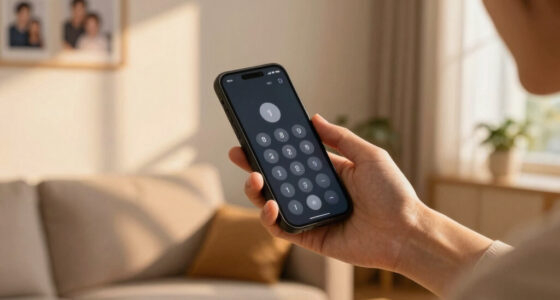
Setting up an iPhone for an older adult involves customizing accessibility features, organizing apps, and enabling safety tools. This guide walks you through each step to make the device user-friendly and secure.
Imagine handing your loved one an iPhone and watching them struggle with tiny icons, confusing menus, or overwhelming notifications. It’s a common scene. But with a few thoughtful tweaks, you can turn that device into a friendly, easy-to-use tool.
This guide breaks down exactly how to set up an iPhone for an older adult—step by step. You’ll learn how to make the screen clearer, simplify navigation, and add safety features that provide peace of mind. Getting this right can help your loved one stay connected, safe, and confident with technology.
Prioritize accessibility: Larger text, VoiceOver, Magnifier make the device easier to see and hear.
Organize the home screen so only essential apps are front and center, reducing confusion.
Customize notifications and sounds to prevent overload and distraction.
Set up safety features like Medical ID and Emergency SOS for quick access in emergencies.
Create a simple, step-by-step guide and offer ongoing support to build confidence.
Start with Accessibility: Making the Screen Easier to Read and Use
Accessibility options are the backbone of an age-friendly iPhone. They turn a complex device into an intuitive tool. For example, increasing text size, turning on bold fonts, or enabling VoiceOver can dramatically boost readability and ease of navigation.
Here’s what to do:
- Open Settings and tap Accessibility.
- Switch on Larger Text and adjust the slider to your preferred size. Larger text helps those with visual impairments or age-related vision decline read content comfortably without straining their eyes.
- Enable Bold Text for clearer characters. Bold fonts improve contrast and legibility, making reading easier for users with visual challenges.
- Turn on VoiceOver if your loved one benefits from a screen reader. VoiceOver reads aloud what’s on the screen, which is invaluable for users with visual impairments or those who find it difficult to navigate visually.
- Activate Magnifier for a quick zoom feature—useful for reading tiny print or examining small objects. Magnifier essentially turns your iPhone into a portable magnifying glass, helping users see details more clearly in everyday situations.
Implementing these features makes the device more accessible, but it’s important to test each one to see which combination best suits your loved one’s needs. While these features significantly improve usability, they also come with potential tradeoffs. For instance, enabling VoiceOver or Magnifier can sometimes clutter the screen or require learning new gestures, which might initially confuse some users. Therefore, gradually introducing these options and observing how your loved one adapts can optimize their experience. The goal is to reduce frustration caused by small fonts or confusing navigation, thereby fostering independence and confidence in using the device.
Popular right now

Ninja CREAMi 7-in-1 Ice Cream Maker, NC299AMZ

Dyson Ball Animal 3 Upright Vacuum

Breville Bambino Espresso Machine, Brushed Stainless Steel (BES450BSS)
As an affiliate, we earn on qualifying purchases.
Organize the Home Screen for Simplicity and Quick Access
The home screen should become a friendly, clutter-free space. Place only the most-used apps on the first page—like Phone, Messages, Camera, and Health. Remove or hide apps that might cause confusion or aren’t relevant.
For example, if your loved one mainly uses calls and photos, keep those front and center. Use folders to group less-frequent apps, so the home screen stays tidy and predictable.
Here’s a quick tip: press and hold any app icon, then select ‘Remove App’ or ‘Edit Home Screen’ to move and organize apps easily.
Organizing apps thoughtfully reduces cognitive load, making it easier for older adults to find what they need quickly. Overloading the home screen with too many icons can be overwhelming, leading to confusion or frustration. By limiting initial options and grouping less-used apps, you create a more manageable and less intimidating environment. This organization not only simplifies navigation but also enhances confidence, as users can quickly locate essential functions without sifting through clutter. However, it’s important to consider individual preferences; some users may want quick access to specific apps, so balancing simplicity with personalization can yield the best results. A well-organized home screen supports a smoother user experience, encouraging more frequent and confident use of the device.
Adjust Notifications and Sounds to Minimize Overload
Too many notifications can be overwhelming for older users. Customize alerts for only essential apps—like emergency contacts or health updates. Silence or turn off non-urgent alerts.
In Settings, go to Notifications. Select each app and choose ‘Allow Notifications’ wisely. Setting alert tones to clear, loud sounds, and increasing volume if needed helps ensure important alerts are heard promptly.
Also, consider enabling Focus modes—these help block distracting notifications during specific times, like bedtime or appointments. Focus modes allow you to create a tailored environment that minimizes unnecessary interruptions, fostering a calmer experience for the user. This not only prevents alert overload but also helps the user focus on important tasks or rest without being disturbed by irrelevant notifications. Proper notification management can significantly improve the overall usability and safety of the device, as it reduces the chances of missing critical alerts while avoiding constant interruptions that can cause frustration or anxiety.
Set Up Emergency and Safety Features for Peace of Mind
Safety features like Emergency SOS and Medical ID are game-changers. They allow your loved one to quickly call for help or share critical health info with first responders.
To set this up, open the Health app, tap Medical ID, and fill in details like allergies, medications, and emergency contacts. Enable ‘Show When Locked’ so it’s accessible even if the phone is locked.
Activate Emergency SOS by going to Settings > Emergency SOS. Turn on ‘Auto Call’ and familiarize your loved one with the side button presses needed to trigger it. Understanding how to activate these features can be life-saving, especially if your loved one is unable to communicate during an emergency. The Medical ID provides first responders with vital health information quickly, potentially saving lives. The effectiveness of these features depends on your loved one’s awareness and ability to use them under stress; therefore, practicing the activation process can increase the likelihood of a successful emergency response. Ensuring these features are set up and your loved one knows how to use them offers peace of mind and enhances safety.
Choose Simple Security Settings for Peace of Mind
Security shouldn’t be complicated. Use Face ID or Touch ID for quick, secure access—no need to remember complex passcodes. If biometric options aren’t available, pick a simple, easy-to-remember passcode.
Set up Find My iPhone in Settings > Your Name > Find My. It helps locate the device if lost. Reviewing privacy settings is also crucial; restrict app permissions to only what’s necessary. This reduces potential confusion and data sharing concerns, making the device safer and less intimidating. When security features are overly complex or inconvenient, older users may avoid using them altogether, risking safety. Conversely, overly simplistic security can compromise privacy. Balancing ease of access with protection involves choosing straightforward options that the user can reliably remember and operate, such as biometric authentication or simple passcodes, while maintaining essential privacy controls. This approach ensures the device remains secure without becoming a barrier to regular use, fostering trust and independence.
Create a Quick-Start Guide and Offer Ongoing Support
Once everything is set, write down simple instructions—like how to call emergency contacts, turn on the flashlight, or adjust volume. Use plain language and include step-by-step tips.
For example, a cheat sheet might say: ‘To call Mom, tap the green Phone icon, then select Mom from Favorites.’
Remember, patience and ongoing support matter. Check in regularly, answer questions, and keep the device updated with the latest software for new features and security patches. This ongoing support not only helps maintain the device’s functionality but also reinforces your loved one’s confidence in using it. Regular check-ins allow you to address emerging issues, update settings as needed, and ensure the device remains secure and easy to operate. Simple guides serve as quick references, empowering your loved one to handle common tasks independently, which ultimately enhances their safety and comfort with technology over time.
Frequently Asked Questions
How can I make my iPhone easier for an older adult to use?
Focus on enabling accessibility features like Larger Text, VoiceOver, and Magnifier. Organize the home screen with only essential apps, and reduce unnecessary notifications for a calmer experience.What are the best accessibility features for seniors?
VoiceOver, Magnifier, Larger Text, Hearing Aid Compatibility, and AssistiveTouch are highly recommended. They help improve visibility, hearing, and ease of navigation.How do I set up emergency contacts and safety features?
Use the Medical ID in the Health app to store emergency info and enable Emergency SOS in Settings. Teach your loved one how to trigger emergency calls quickly if needed.Can I customize notifications to be less overwhelming?
Yes, go to Settings > Notifications to tailor alerts for each app. You can turn off non-essential notifications and use Focus modes to manage when alerts appear.What if my older adult forgets their passcode or has trouble with security?
Use biometric options like Face ID or Touch ID for easier access. For security, set a simple passcode and keep recovery options handy in case of lockout.Conclusion
Adjusting an iPhone for an older adult isn’t about making it complicated. It’s about making technology approachable and safe. With a few simple tweaks, you turn a device that might seem daunting into a trusted helper.
Start small—focus on accessibility and safety first—and watch your loved one gain independence and confidence. Remember, your patience and support are the biggest tools in this process. A friendly, accessible iPhone can open new worlds for someone ready to connect and explore.