TL;DR

Turn quiet afternoons into listening time
- Thousands of audiobooks, podcasts and originals
- Listen on your phone, tablet or Echo — also offline
- Cancel anytime
You can now make video calls without a smartphone using smart TVs or dedicated devices like Amazon Echo Show or Facebook Portal. These solutions offer larger screens, easier interfaces, and improved privacy, making remote connection more accessible for everyone.
Imagine chatting face-to-face with loved ones on a 55-inch screen instead of squinting at a tiny phone display. That shift is now possible thanks to new TV-based solutions and dedicated devices designed specifically for video calling.
Many people overlook these options, assuming smartphones are the only way to connect visually. But with recent technological leaps, you can skip your phone altogether. Whether you’re seeking a larger view, simpler controls, or just want a dedicated gadget to stay in touch, the options are more diverse than ever.
Smart TVs with apps or external devices like Facebook Portal and Echo Show turn your TV or space into a large, easy-to-use video call station.
Setup for these devices is straightforward: connect, install or launch apps, and position your camera and mic.
Larger screens improve visual clarity and make conversations more natural, especially for seniors or visually impaired users.
Privacy features like camera shutters, mute buttons, and regular updates are vital for secure, private calls.
The trend points toward smarter, more secure devices with AI features like auto-framing and voice control, making virtual connection effortless.
Video Calls Without a Smartphone: TV-Based & Dedicated Device Options
Chat face-to-face with loved ones on a 55-inch screen instead of squinting at a tiny phone display. Smart TVs and purpose-built devices like Amazon Echo Show and Facebook Portal make remote connection more accessible for everyone — larger screens, simpler controls, stronger privacy.
How to Set Up a TV or Device for Video Calls in 3 Simple Steps
Setup is straightforward: connect, install or launch your apps, and position the camera and microphone. Even non-technical users can get up and running in minutes.
Connect to Wi-Fi
Link your smart TV or external device to a stable internet connection — the foundation of smooth, lag-free calls.
Launch the App
Open Zoom, Skype, Teams, Messenger or WhatsApp from your TV’s menu, then sign in and choose a contact.
Position Camera & Mic
Pair an external webcam if needed, aim the camera at your seating spot, and test audio before dialing in.
Three Routes to Smartphone-Free Video Calling
Many people assume smartphones are the only way to connect visually. Recent technological leaps prove otherwise — here are the main alternatives.
Smart TVs with Native Apps
Many modern models from Samsung and LG include cameras, microphones, and preloaded apps like Zoom or Teams. Launch the app from the TV menu — it’s as simple as choosing a contact. Not all models are equal: check for app support and camera compatibility before buying.
Purpose-Built Devices
Facebook Portal, Echo Show, and Nest Hub Max come with cameras, mics, and simple interfaces. Portal’s camera tracks your movements and supports Messenger, WhatsApp, and Zoom. Echo Show pairs with Alexa voice commands — ideal for kitchens and bedrooms.
Set-Top Boxes & Tablets
Streaming devices like Apple TV and Roku can support video calling via compatible apps when paired with a webcam and microphone. Dedicated calling tablets such as the Lenovo Tab series offer a portable standalone alternative.
Smart TV Apps vs. External Devices — Which Is Better?
| Feature | Smart TV with Built-In Apps | External Devices (Portal, Echo Show) |
|---|---|---|
| Setup Ease | ~ Varies. Some models support apps directly; others need external webcams or firmware updates. Native app support reduces peripherals and troubleshooting. | ✓ Simple. Plug-and-play: connect Wi-Fi and follow prompts. Designed to minimize setup time with intuitive interfaces. |
| Screen Size | ✓ 40″ – 75″+. Immersive and natural, ideal for group calls and family gatherings — though it demands space and budget. | ~ 8″ – 15″. Portable and placeable anywhere. Quick to reposition between rooms for casual, on-the-go calls. |
| Video Quality | ✓ HD or 4K. Sharper facial expressions and details, especially for group conversations and shared content. | ~ HD, often 1080p+. Up to 13 MP cameras with wide-angle lenses and stabilization reduce eye strain. |
| Privacy | ✓ Common controls. Physical covers and mute buttons on camera-equipped models add a tangible layer of security. | ✓ Dedicated controls. Shutters and mute buttons are standard; regular firmware updates patch vulnerabilities. |
| Cost | ~ Included with TV. Camera accessories add cost, but it’s minimal versus the overall TV investment — cost-effective if you already own one. | ✓ $50 – $300. Affordable entry point with dedicated support, voice control, and smart-home integration built in. |
Why Bigger Screens & Smarter Devices Win
The dedicated video calling device market has expanded rapidly, accelerated by pandemic-era remote communication needs. AI features like auto-framing and voice control are now driving the next wave.
From Sofa to Screen in One Flow
Everything You Wanted to Ask
Can I make video calls on my TV without a smartphone?
Yes — with smart TVs that support apps, or external devices like Amazon Echo Show and Facebook Portal plugged into your setup.
What equipment do I need?
A compatible smart TV or external device, a camera (built-in or external), a microphone, and a stable internet connection.
Are these devices senior-friendly?
Many are designed with user-friendly interfaces, voice commands, and large screens — accessible for all ages and mobility levels.
How secure are private conversations?
Most offer camera shutters and mute buttons. Regular firmware updates are recommended to patch security vulnerabilities.
How Smart TVs Turn Your Living Room Into a Video Calling Hub
Smart TVs are no longer just screens for streaming movies—they can support video calls directly. Many models now come with built-in cameras, microphones, and preloaded apps like Zoom, Skype, or Microsoft Teams.
For example, a recent Samsung or LG smart TV might have a camera built into the bezel or support external webcams. Setting it up involves connecting to your Wi-Fi, pairing your camera (if external), and signing into your favorite app. It’s as simple as launching the app on your TV’s menu and choosing a contact.
Picture this: you’re sitting comfortably in your favorite chair, a large, bright screen showing your grandkids’ smiling faces. No more squinting at tiny screens or juggling multiple devices. Plus, voice commands through built-in assistants like Alexa or Google Assistant make starting calls effortless.
However, not all smart TVs support these features out of the box. Check if your model has app support and camera compatibility before making a purchase or attempt a retrofitted setup with an external webcam and microphone.
Understanding the capabilities of your smart TV is crucial because not all models are equal. Some may support only streaming apps, while others integrate full video calling functions. The choice impacts your setup complexity and the quality of your calls—investing in a model with native support can save you time and frustration, ensuring a smoother experience. This also means you can avoid additional devices or complicated configurations, making the entire process more seamless and reliable.
Popular right now

Hisense 65-inch U6 Pro Mini-LED 4K UHD Smart Fire TV

Ninja Foodi Dual Zone Smart XL Air Fryer, 10 Qt, 6-in-1, Black (DZ550)

Vitamix 5200 Professional-Grade Blender, 64 oz. Container, Black
As an affiliate, we earn on qualifying purchases.
External Devices That Turn Any TV Into a Video Call Machine
If your TV isn’t smart or lacks built-in calling features, external devices can bridge the gap. Devices like the Facebook Portal, Amazon Echo Show, and Google Nest Hub Max are purpose-built for video calling. They come with cameras, microphones, and simple interfaces designed for quick setup.
For instance, the Facebook Portal offers a sleek 10-inch or 15-inch screen with a high-quality camera that tracks your movements. It connects via Wi-Fi and supports popular apps like Messenger, WhatsApp, and Zoom. Setting it up involves plugging it into your TV’s HDMI port, connecting to Wi-Fi, and following simple prompts. This straightforward process ensures even non-technical users can get up and running quickly.
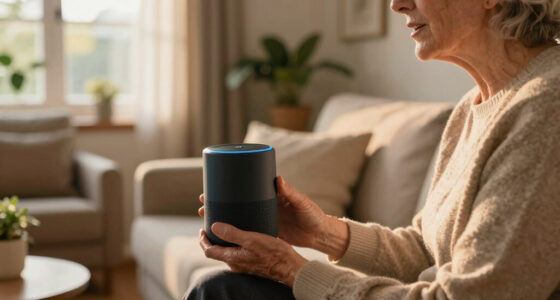
Similarly, the Amazon Echo Show 8 or 10 can connect to your Wi-Fi network and support Alexa commands for calling or messaging. Their smaller screens may seem less impressive, but they excel in versatility and ease of use, especially in places like kitchens or bedrooms. The compact size means less clutter, yet their integration with voice control makes initiating calls effortless, which is especially valuable for seniors or those with mobility issues.
This approach transforms your ordinary TV or space into a dedicated video calling station without the need for extensive upgrades or complex setups. It allows you to customize your environment based on your needs—whether a large, immersive experience or quick, casual conversations—offering flexibility and convenience that can significantly enhance your communication habits.
Comparison: TV-Based Apps vs. External Devices — Which Is Better?
| Feature | Smart TV with Built-in Apps | External Devices (Facebook Portal, Echo Show) |
|---|---|---|
| Setup Ease | Varies; some models support apps directly, others need external webcams or firmware updates. The ease of setup depends on the manufacturer’s design and your familiarity with technology. A model with native app support simplifies the process, reducing the need for additional peripherals and troubleshooting, which can be crucial for less tech-savvy users. | Generally simple; plug in, connect Wi-Fi, and follow quick steps. These devices are designed for plug-and-play operation, minimizing setup time. Their intuitive interfaces and dedicated support make it easier for users to start calling without extensive configuration, but they may require some initial learning curve for features like camera positioning or app linking. |
| Screen Size | Usually matches your TV, from 40” to 75” or more. This offers an immersive experience, making conversations feel more natural and engaging, especially during group calls or family gatherings. However, larger screens also demand more space and can be more expensive. | Small to medium screens, typically 8-15 inches. These are portable and can be placed anywhere, providing flexibility. While they don’t match the size of a TV, their portability allows for quick repositioning and use in different rooms, making them ideal for casual or on-the-go calls. |
| Video Quality | HD or 4K, depending on TV model. Higher resolutions deliver sharper images, which matter for facial expressions and details during calls. Investing in a 4K TV can improve the experience significantly, especially for group conversations or viewing shared content. | HD, often 1080p or better, with some supporting 4K. While smaller screens may not benefit as much from ultra-high resolution, quality still impacts clarity and overall call experience. Good video quality reduces eye strain and makes interactions more lifelike, which is vital for emotional connections. |
| Privacy | Cameras may be built-in; physical covers and mute buttons are common. These features are essential for peace of mind, as they allow users to quickly disable cameras or microphones during sensitive moments. The physical shutter adds a tangible layer of security that digital controls alone can’t provide. | Most have dedicated privacy controls, like shutters and mute buttons. Physical privacy features are increasingly standard, giving users confidence that they can control when and how their video and audio are transmitted. Clear, accessible controls are crucial for building trust and ensuring security during private conversations. |
| Cost | Usually included with a smart TV purchase. The added cost of apps or camera accessories varies but is often minimal compared to the overall TV investment. This makes it a cost-effective solution if you already own a compatible TV. | $50 to $300, depending on features. External devices can be affordable or premium, offering options for different budgets and needs. The tradeoff involves considering additional setup complexity versus the benefits of dedicated hardware designed solely for video calling. |
Choosing between the two depends on your existing setup and how much you value larger screens versus simplicity. If you already own a smart TV that supports calling apps, this can be the most straightforward option. Conversely, a dedicated device may offer more privacy controls and portability, making it better suited for users prioritizing security and flexibility.
How to Set Up a TV or Device for Video Calls in 3 Simple Steps
- Connect your device to your Wi-Fi network. Whether it’s your smart TV or a dedicated gadget, a stable internet connection is key to quality calls and uninterrupted service. Poor connectivity can lead to lag, pixelation, or dropped calls, so ensuring a reliable Wi-Fi setup is essential for a satisfying experience.
- Install or launch your preferred video calling app. For smart TVs, this might involve downloading from an app store or pre-installed options. For external devices, follow the manufacturer’s instructions to set up and link your accounts. Proper setup ensures you have access to features like contacts, call history, and privacy controls, which are vital for smooth operation.
- Position your camera and microphone. Use built-in cameras or attach external webcams, and test the audio quality by making a test call. Proper positioning ensures your face is well-framed, and audio is clear, reducing frustration during actual conversations. Testing ahead of time helps troubleshoot issues and guarantees a more natural interaction.
That’s it. With just a few easy steps, you can turn your TV into a dedicated video calling station, making it easier than ever to connect visually with loved ones or colleagues. Taking the time to set up properly ensures a seamless experience, encouraging more frequent and meaningful interactions.
Why Larger Screens Make Video Calls More Enjoyable
Nothing beats the feeling of seeing someone’s face on a big, bright screen. Larger displays reduce squinting, improve clarity, and make conversations feel more natural. This isn’t just about aesthetics—it’s about enhancing emotional connection and reducing fatigue during long calls.
For example, during a family gathering, a 55-inch smart TV showing grandma’s smiling face makes everyone feel closer. The bigger picture allows facial expressions and gestures to be more easily seen, which are key cues for understanding emotions and maintaining engagement. This can lead to more meaningful interactions, especially when physical proximity isn’t possible.
Additionally, bigger screens help those with visual impairments or age-related sight issues by enlarging images and text, making content more accessible. This inclusivity fosters a sense of community and ensures that everyone can participate comfortably in virtual conversations.
So, if you’re tired of small screens and pixelated faces, upgrading to a larger display could significantly improve your virtual interactions, making them resemble real-life conversations more closely and fostering a sense of presence and warmth.
Keeping Your Video Calls Private and Secure
Privacy isn’t optional when it comes to video calls. Devices with built-in cameras and microphones often include physical covers, mute buttons, and clear privacy settings. Regularly updating your device’s firmware also patches security flaws.
For example, many gadgets now offer a physical shutter for the camera or a dedicated mute button. These features allow you to quickly disable the camera or microphone when privacy is needed, preventing accidental or malicious access. LED indicators that show when the camera is active add an extra layer of reassurance, making it obvious when your device is listening or watching.
Be cautious about sharing your Wi-Fi password or leaving devices unattended. Using strong, unique passwords for your network and enabling two-factor authentication adds extra layers of security. This reduces the risk of unauthorized access or hacking, especially if you’re using devices connected to sensitive accounts or personal information.
Remember, a simple flip of a shutter or muting your device can keep prying eyes away during private chats. Maintaining good security habits ensures your conversations stay confidential, giving you peace of mind while connecting virtually.
Future Trends: Smarter, Easier, More Secure Video Calling Devices
The future of TV-based and dedicated video calling devices looks bright. AI-powered features like auto-framing, voice activation, and smart noise cancellation are becoming standard, significantly enhancing user experience. These innovations not only improve call quality but also make devices more intuitive and accessible for all users.
Cameras will get sharper, with 4K and wider lenses, making conversations clearer and more lifelike. This will help capture facial expressions and gestures better, fostering more natural and engaging interactions. Privacy controls will become more intuitive, with physical covers, smart alerts, and user-friendly interfaces that reassure users about their security.
Multi-user support and group calls will be more seamless, allowing families and teams to connect more effortlessly. Imagine a device that automatically highlights the speaker, adjusts lighting, and mutes background noise with just a voice command—these features will make virtual gatherings feel more like real-life interactions.
As these technologies evolve, they will become more affordable and accessible, encouraging wider adoption and making virtual communication more inclusive, secure, and enjoyable for everyone.
Frequently Asked Questions
Can I make video calls on my TV without a smartphone?
Yes. If your TV supports apps or has built-in cameras, you can make calls directly. Alternatively, external devices like Facebook Portal or Amazon Echo Show can turn any TV into a video calling station, all without a smartphone.What equipment do I need to set up a TV-based video calling system?
You’ll need a compatible smart TV or an external device, a camera (built-in or external webcam), a microphone, and a stable Wi-Fi connection. Many devices are plug-and-play, making setup quite simple.Are these devices user-friendly for seniors or non-tech users?
Absolutely. These solutions often feature large screens, simple interfaces, and voice commands that make starting and managing calls straightforward, even for those less familiar with technology.How secure are these devices for private conversations?
Most include privacy controls like physical camera shutters and mute options. Regular firmware updates also help patch security vulnerabilities, giving you peace of mind during sensitive chats.What are the main benefits of using dedicated devices over smartphones?
Larger screens, simplified operation, better audio and video quality, and dedicated privacy controls make these devices more comfortable and secure for frequent video calling, especially for family or group chats.Conclusion
Stepping beyond the smartphone opens up a world of bigger, clearer, and easier ways to stay connected. Whether through your smart TV or a dedicated device, you can turn any space into a virtual meeting spot that’s more natural and comfortable.
As technology keeps evolving, these options will become more accessible and intuitive. The key is choosing what fits your needs and making that first step toward more meaningful, face-to-face moments — on a screen that feels more like real life.