TL;DR

Turn quiet afternoons into listening time
- Thousands of audiobooks, podcasts and originals
- Listen on your phone, tablet or Echo — also offline
- Cancel anytime
The best phones for parents with tremors or stiff hands combine large, high-contrast displays, simple interfaces, and assistive features like voice control. Recent advancements make it easier to find a device that supports independence and ease of use, even on a budget.
Imagine trying to tap tiny icons on a phone when your hands shake or feel stiff. Frustrating, isn’t it? If your parent struggles with dexterity, choosing the right phone can make a real difference in their daily life. It’s about more than just brand or price — it’s about accessibility, comfort, and confidence.
This guide will walk you through what to look for and recent tech advances that can help your loved one stay connected without the hassle or stress. Let’s find a simple, supportive device tailored to their needs.
Prioritize large, high-contrast screens and big icons for better visibility.
Choose devices with tactile buttons, textured grips, or ergonomic designs to reduce hand fatigue.
Leverage built-in assistive features like voice control, magnification, and haptic feedback.
Compare options like iPhone and Android based on accessibility, customization, and budget.
Stay updated with new hardware and software advances that simplify device operation.
Independent connection · practical guide
Choosing a Phone for a Parent With Tremors or Stiff Hands
The right phone reduces the precision, pressure, and repetition needed for everyday tasks. Prioritize a clear screen, forgiving controls, voice access, secure grip, and a setup tailored to the person—not the brand.
Start with the person’s hardest movement
Observe what causes difficulty: precise tapping, gripping, pressing side buttons, swiping, or holding the phone steady. Then choose features that remove that specific demand.
Large, high-contrast display
Choose adjustable text, bold contrast, uncluttered screens, and icons large enough to hit without perfect aim.
Lightweight, secure handling
A textured case, finger loop, strap, or stand can be more important than the phone’s finish or camera system.
Voice and forgiving controls
Voice commands, longer touch duration, custom gestures, and accessibility shortcuts reduce precise finger work.
Clear confirmation
Haptic, visual, and spoken feedback helps the user know that a tap or command registered correctly.
Fast access to help
Set up emergency calling, favorite contacts, medical details, and one dependable route back to the home screen.
Simple setup and upkeep
Favor a system that a trusted helper can configure, document, update, and troubleshoot without disruption.
Try five tasks before comparing specifications
A showroom trial reveals more than a feature list. Let your parent work at their own pace, using the case and accessibility settings they would use at home.
Watch for fatigue, not just success. A task completed once may still be unsuitable if it requires repeated gripping, force, corrections, or concentration.
iPhone, Android, or a simplified phone?
Both major smartphone systems provide strong accessibility tools. The practical difference is often consistency versus customization—and who will handle the initial setup.
| Decision factor | iPhone | Android | Simplified phone |
|---|---|---|---|
| Built-in accessibility | ✓AssistiveTouch, Voice Control, VoiceOver, Magnifier | ✓Accessibility Menu, Voice Access, TalkBack, magnification | ~Fewer tools, but less interface complexity |
| Setup consistency | ✓Predictable across supported models | ~Menus and features vary by manufacturer | ✓Usually straightforward |
| Customization | ~Strong, controlled set of options | ✓Flexible layouts, launchers, widgets, and input tools | ✗Limited beyond core calling features |
| Budget range | ~Older and mid-range models reduce cost | ✓Broad choice from budget to premium | ✓Often lower upfront cost |
| Adaptive input | ✓Voice, switch, touch, and shortcut support | ✓Voice, switches, keyboards, and alternative input | ~Physical buttons may be the main advantage |
| Best fit | Polished tools with less variation | Tailored setup and wider price choice | Calling simplicity with tactile controls |
✓ strong fit · ~ depends on model or setup · ✗ usually limited
Reduce the demand for precision
This practical priority index ranks features by their likely ability to reduce fine-motor effort. It is a decision aid—not a clinical score.
Match the interface to the level of motor support needed
Phones are becoming more adaptable
Recent operating-system and accessory improvements make it easier to replace precise gestures with spoken, customized, or physically stabilized input.
Richer voice control
Modern systems can open apps, call contacts, dictate messages, navigate screens, and combine steps with less physical interaction.
Personalized commands
Custom phrases and shortcuts can turn repeated actions into a single spoken instruction or accessible button.
Adaptive accessories
Thick styluses, mounts, stands, loops, external keyboards, and switches provide alternatives to gripping and tapping.
Simplified interfaces
Focused modes and custom launchers can reduce visual clutter, accidental navigation, and cognitive load.
Buy for confidence, not maximum specifications.
A mid-range Android phone, an older supported iPhone, or a simplified tactile device can all be excellent choices. The winner is the one your parent can hold, understand, recover, and use repeatedly without stress.
Choose the least complicated device that reliably supports calling, messaging, emergency access, and the person’s daily routine.
How to Pick a Phone That’s Easy for Stiff Hands and Tremors
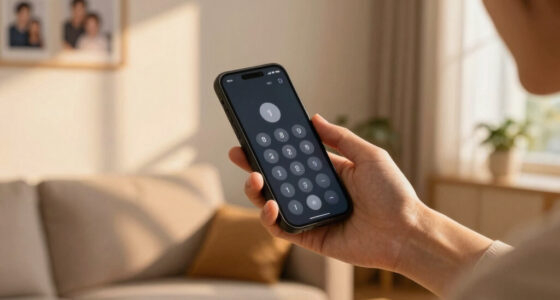
The first step is choosing a device that minimizes frustration. Look for phones with large, high-contrast screens and big icons. These help your parent see and tap more accurately. Simplified interfaces with fewer options also cut down on accidental presses.
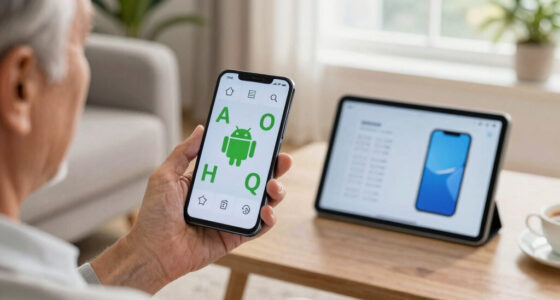
For example, an iPhone with its built-in accessibility features like AssistiveTouch allows users to perform complex actions with a single tap or custom button. Android phones also offer similar tools but require some setup. The goal: reduce the fine motor skills needed to operate the device confidently.
Understanding why these features matter is crucial. Large, high-contrast screens reduce visual strain and make it easier to distinguish icons, which is vital for users with impaired dexterity. Simplified interfaces prevent overwhelming the user with too many options, reducing the chance of accidental commands that can lead to frustration or unintended actions. Assistive technologies like AssistiveTouch or custom gestures compensate for limited finger mobility, enabling control without precise finger movements. However, one must weigh the convenience of these features against potential complexity in setup, especially for less tech-savvy users. The right choice balances ease of use with the level of customization needed to match your loved one’s specific motor challenges.
Popular right now

Ninja Foodi 10-Qt DualZone Smart XL Air Fryer, 6-in-1, DZ550

Vitamix Propel Series 750 Professional-Grade Blender, 4 Programs, Black

Breville Bambino Espresso Machine, Brushed Stainless Steel (BES450BSS)
As an affiliate, we earn on qualifying purchases.
Design Matters: Pick Ergonomic Phones and Accessories
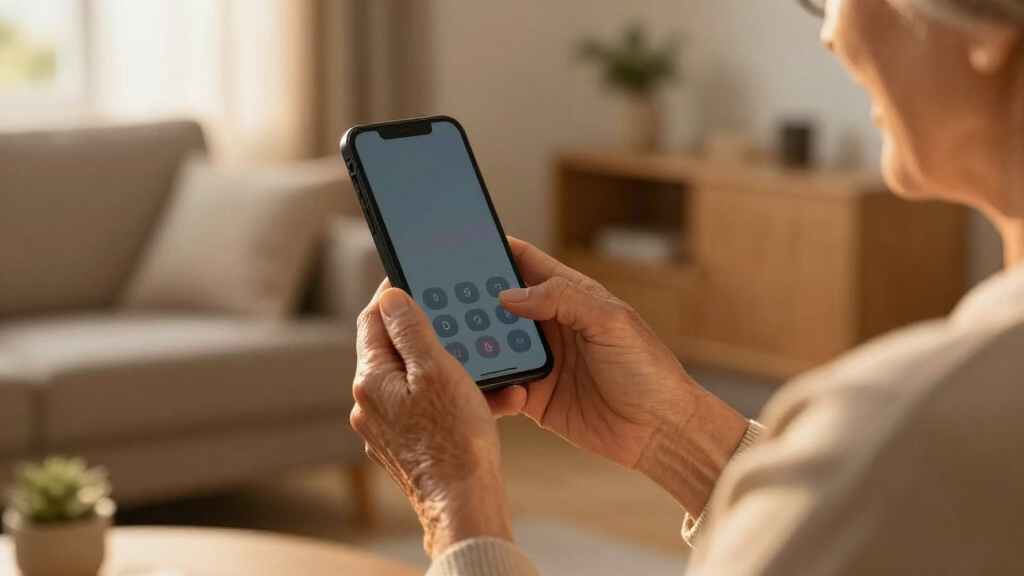
Phones with a larger, lightweight design help prevent hand fatigue. Think of a device that feels like holding a small, textured pebble rather than a slippery slab. Rubberized grips or protective cases with textured surfaces give extra security, reducing the risk of drops.
Buttons matter too. Some phones have oversized, tactile buttons that are easier to press. For example, a device with a prominent home or emergency button can be a lifesaver, especially if your parent has difficulty with small, flat buttons.
Choosing ergonomic design isn’t just about comfort; it directly impacts safety and independence. A heavier or poorly balanced phone can cause fatigue over time, leading to less frequent use or accidental drops. Textured grips and protective cases enhance grip security, reducing the risk of device damage and injury. Oversized tactile buttons reduce the need for precise finger placement, which is often challenging for users with stiff or trembling hands. This minimizes frustration and allows your loved one to operate the device more confidently and safely. When considering accessories, look for those that complement ergonomic design—like stands or holders that keep the device stable in hand or on surfaces. The tradeoff often involves balancing portability with stability; larger, sturdier devices may be less convenient to carry but offer better control and comfort, which are paramount for users with motor impairments.
Top Assistive Features That Make a Difference
Modern smartphones pack accessibility tools that turn frustration into independence. Voice control is a game-changer—your parent can open apps, dial numbers, or send messages just by speaking. The latest voice recognition systems from Apple and Google recognize commands with over 90% accuracy, even with background noise or tremors.
Other features include screen magnification, screen readers, and tactile feedback that confirms actions. These tools mean fewer missed taps and less strain on fragile hands.
Understanding why these assistive features matter is essential. Voice control allows users with limited fine motor skills to operate their device without the need for precise tapping, which can be difficult or painful. Screen magnification and readers help compensate for visual impairments or tremors that make reading small text challenging. Tactile feedback provides immediate confirmation that a command has been registered, reducing uncertainty and accidental inputs. The implications are significant: these features can dramatically extend independence, reduce frustration, and decrease reliance on caregivers. The tradeoff might involve some learning curve and initial setup time, but the long-term benefits in usability and confidence outweigh these challenges. Leveraging these features effectively can transform a smartphone from a complex gadget into an accessible, empowering tool.
Compare Popular Phones for Motor Impairments
| Feature | iPhone | Android |
|---|---|---|
| Accessibility Features | AssistiveTouch, VoiceOver, Magnifier | Customizable accessibility menu, Switch Access, Voice Control |
| Ease of Use | Intuitive, consistent interface | Highly customizable, can tailor to needs |
| Price Range | High-end to mid-range | Wide range, budget-friendly options available |
| Physical Design | Larger screen, sleek but lightweight | Varies, many with large screen options |
Both systems have strengths. Apple’s accessibility features are integrated and polished, providing a seamless experience that minimizes setup time. Android’s flexibility allows for extensive customization, which can be tailored to specific needs, but may require more initial configuration. When choosing, consider not only the features but also how much time and effort you’re willing to invest in setup and ongoing adjustments. Budget considerations also matter; while high-end models offer the latest features, mid-range or older models can still provide essential accessibility tools at a lower cost. The key is matching the device’s capabilities with your loved one’s specific motor challenges and your comfort with technology customization.
Latest Tech Advances Making Phones Easier for Stiff Hands
New developments focus on making phones more accessible. Voice recognition has improved so much that users can control their device almost completely by voice. Apple’s latest iOS updates include personalized voice commands, allowing users to customize commands for common tasks, which streamlines operation and reduces cognitive load. Google’s Assistant now understands complex, multi-step requests even with tremors, meaning your loved one can perform routines like calling, texting, or opening apps with fewer commands and less physical effort.
Physical hardware is also evolving. Some manufacturers now offer phones with large, clickable buttons or compatibility with adaptive styluses, which resemble thick pens and are easier to grip. These innovations are significant because they address the core challenge: enabling users to operate their devices comfortably despite limited hand mobility. The tradeoff may be that such specialized hardware can increase cost or reduce portability, but the gains in independence and ease of use are often worth it. These advances mean your parent can operate their phone more comfortably, with less fatigue and frustration, ultimately promoting greater daily independence.
Set Up and Support: Making It Work for Your Parent
Getting the device ready is easier than you think. Most smartphones have dedicated accessibility menus in settings. A quick setup of features like voice control, magnification, and shortcut buttons can transform a phone into a tailored tool.
Online tutorials, support groups, and professional help from assistive tech specialists make this process smoother. Remember, involving your parent in the setup boosts their confidence and comfort with the device.
Frequently Asked Questions
What is the easiest phone for a parent with tremors to use?
Many find iPhones easiest thanks to their polished accessibility features like AssistiveTouch and VoiceOver. However, Android devices with customizable options and switch access can also work well, especially if tailored to their needs.Are there phones specifically designed for people with limited hand mobility?
Yes, some devices and accessories are made for this purpose. These include simplified phones with larger buttons, and adaptive hardware like styluses or switch controls that make operation easier.Can voice control fully replace manual operation?
Voice control has come a long way and can handle most tasks. Still, some precise actions, like typing or tapping small icons, might require manual input, especially if tremors are severe.What features should I prioritize when choosing a phone?
Focus on large, clear displays, voice control, customizable accessibility settings, and ergonomic design. These features help your parent use the device comfortably and independently.Are affordable options available that still support good accessibility?
Absolutely. Many mid-range Android phones and older iPhone models include essential accessibility features at a lower cost, making them practical choices for many families.Conclusion
Selecting the right phone for a parent with tremors or stiff hands isn’t about bells and whistles. It’s about matching their needs with simple, thoughtful design and helpful features. With the right device, your loved one can stay connected, confident, and independent—everyday moments made easier.
Think of it as giving them a tool that adapts to their life, not the other way around. A small change today can unlock a world of ease and reassurance tomorrow.