
TL;DR

Turn quiet afternoons into listening time
- Thousands of audiobooks, podcasts and originals
- Listen on your phone, tablet or Echo — also offline
- Cancel anytime
Adding emergency contacts and ICE information on a senior’s phone ensures first responders can access critical details fast. Regular updates and understanding device features are key to safety.
Adding emergency contacts and ICE info is simple and can be done on both iPhone and Android devices with a few taps.
Regularly reviewing and updating this info ensures accuracy during emergencies, especially after health changes.
Modern smartphones and wearables now support seamless access to critical health data, even from the lock screen.
Third-party apps and devices can enhance safety, offering quick access and GPS tracking for seniors.
Making emergency info accessible and understandable is key—practice with your loved one to ensure they know how to view it.
Why Emergency Contacts and ICE Info Matter for Seniors
Emergency contacts and ICE (In Case of Emergency) info are crucial because they allow first responders to quickly reach family or caregivers if the senior can’t communicate. During a fall, stroke, or fainting spell, every second counts. If responders see a medical ID or ICE info on the lock screen, they gain immediate access to vital details like allergies, medications, or emergency contacts.
For example, a senior with diabetes might experience a hypoglycemic episode. If first responders know about their condition and have contact info for their caregiver, they can act faster and more accurately. Without this info, they might waste precious minutes searching for details or calling the wrong contacts, risking worse outcomes.
Keeping this info updated and accessible can be the difference between swift help and unnecessary delays. It also reassures families that their loved ones can be cared for confidently, even when they can’t speak for themselves.
Popular right now

Breville Bambino Espresso Machine, Brushed Stainless Steel (BES450BSS)
Vitamix 5200 Professional-Grade Blender, 64 oz. Container, Black

Dyson V8 Cyclone Cordless Vacuum
As an affiliate, we earn on qualifying purchases.
Step-by-Step: How to Add Emergency Info on iPhones and Androids
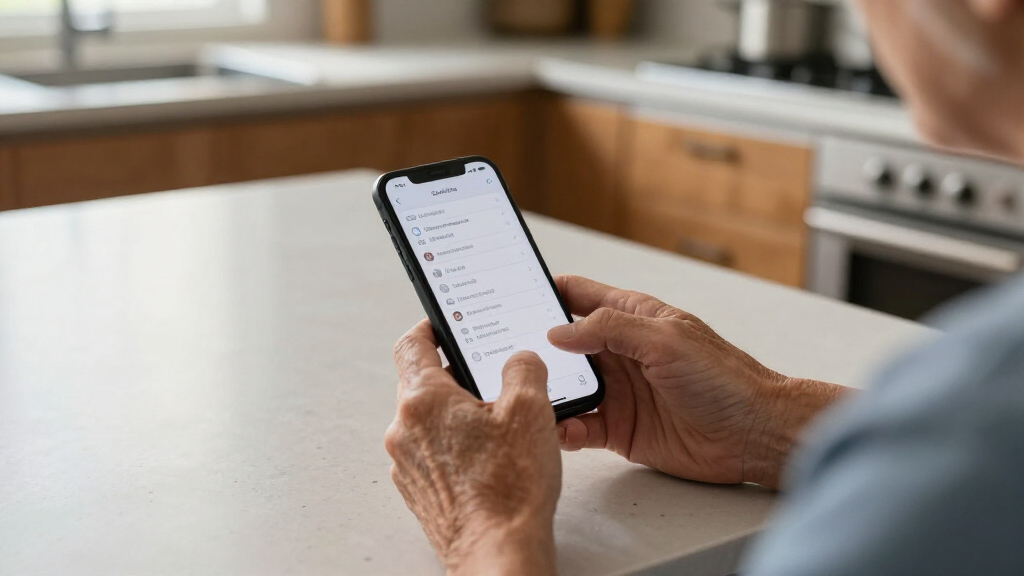
Adding emergency contacts and ICE info is straightforward once you know where to look. Here’s a clear process for both iPhone and Android users.
On iPhones:
- Open the Health app.
- Tap Medical ID in the bottom right corner.
- Tap Edit.
- Fill out critical info: name, date of birth, medical conditions, allergies, medications.
- Scroll to Emergency Contacts and add up to five contacts.
- Enable Show When Locked to make it accessible from the lock screen.
- Save your changes.
On Android Devices:
- Open the Contacts app or your device’s emergency info section (varies by model).
- Create a new contact named “ICE” or “Emergency Info”.
- Include key details: medical conditions, medications, allergies.
- In the contact options, set this as a priority or favorite if possible.
- Some phones support adding emergency info directly via Settings > Security or Emergency Information sections.
- Ensure the info is accessible from the lock screen.
For example, an Android user might create a contact called “ICE – Mom” with her phone number, allergies, and blood type, then mark it as a favorite for quick access.
Best Practices for Keeping Emergency Info Up-to-Date
Once you’ve added emergency contacts and ICE info, the work isn’t done. Regularly updating details ensures accuracy during a real emergency.
- Review medical info every 6 months or after any health change.
- Confirm emergency contacts are still reachable and close by.
- Update medications or conditions when needed.
- Test access—ask your senior to show you how to view their emergency info.
For instance, a senior might start a new medication or move to a different care home. Updating their phone info promptly keeps everything current.
Set reminders on your phone or calendar to review and update this info regularly. It’s a simple habit with big safety benefits.
Extra Tools and Apps to Make Emergency Info Even Easier
Beyond built-in features, there are apps and devices designed to streamline emergency info management. They can be especially helpful for seniors with cognitive challenges or memory issues.
- ICE Apps: Dedicated apps like “ICE – In Case of Emergency” allow you to create a profile with medical and contact info, accessible even if the phone is locked.
- Medical Alert Devices: Wearables like medical alert bracelets or smartwatches often have quick-access emergency buttons and store ICE info.
- Voice Assistants: Devices like Siri or Google Assistant can help seniors access or update their emergency info via voice commands.
For example, a smartwatch with a dedicated “Emergency” button can alert family or services with a single tap, even if the phone is out of reach.
How Recent Tech Advances Make It Easier Than Ever
Smartphones now integrate emergency info seamlessly into health apps and digital records. This means responders can access your loved one’s critical details with just a few taps or even voice commands.
For example, newer iPhones automatically link Medical ID info to the lock screen, visible without unlocking. Android devices are catching up with similar features, often supported by manufacturers’ security settings.
Additionally, third-party apps and wearable tech have added layers of convenience, especially for seniors who may forget to update or access their info manually. Voice-activated setup and updates are game-changers for ease of use.
According to an anonymous tech researcher, these innovations are making emergency preparedness more intuitive and accessible for older adults, reducing the chances of critical delays.
What You Should Do Right Now to Protect Your Loved Ones
Start today. Walk through your senior’s phone with them. Show how to access their emergency info and help add or update contacts. Making this a routine ensures it’s never forgotten.
Set a recurring reminder every 6 months to review and update details. Keep a list of current medications, allergies, and contacts handy. Consider adding emergency info toWearable devices or dedicated apps for extra safety layers.
Remember, a quick tap on a lock screen or a simple voice command can save precious minutes—possibly even a life. Taking these small steps builds a safety net you can trust.