
TL;DR

Turn quiet afternoons into listening time
- Thousands of audiobooks, podcasts and originals
- Listen on your phone, tablet or Echo — also offline
- Cancel anytime
Easy Mode is a simplified interface on smartphones that features larger icons and fewer menus, designed to make devices easier to use. Turning it on usually involves a few taps or voice commands, and it benefits seniors, beginners, and those with visual or motor challenges.
Ever pick up a smartphone and feel overwhelmed by the tiny icons, endless menus, and confusing options? You’re not alone. Many users find the default interface too cluttered or tiny, especially if eyesight isn’t perfect or fingers aren’t as nimble as they used to be.
That’s where Easy Mode steps in. It turns your smartphone into a simpler, more approachable tool — with big buttons, clear labels, and straightforward navigation. Whether you’re helping a parent get comfortable with their first smartphone or just want fewer headaches, Easy Mode can be a game-changer. In this guide, you’ll learn exactly what Easy Mode is, why it’s worth using, and how to turn it on in just a few steps.
Easy Mode simplifies your smartphone interface with larger icons and fewer options, making it more accessible.
Turning on Easy Mode usually involves a few taps in your device’s settings or a voice command.
Customization options allow you to tailor Easy Mode to your specific needs, improving confidence and independence.
Most devices support Easy Mode with slight variations in activation and features.
Using Easy Mode can significantly boost comfort and usability for seniors, beginners, or those with impairments.
What exactly is Easy Mode on your smartphone?
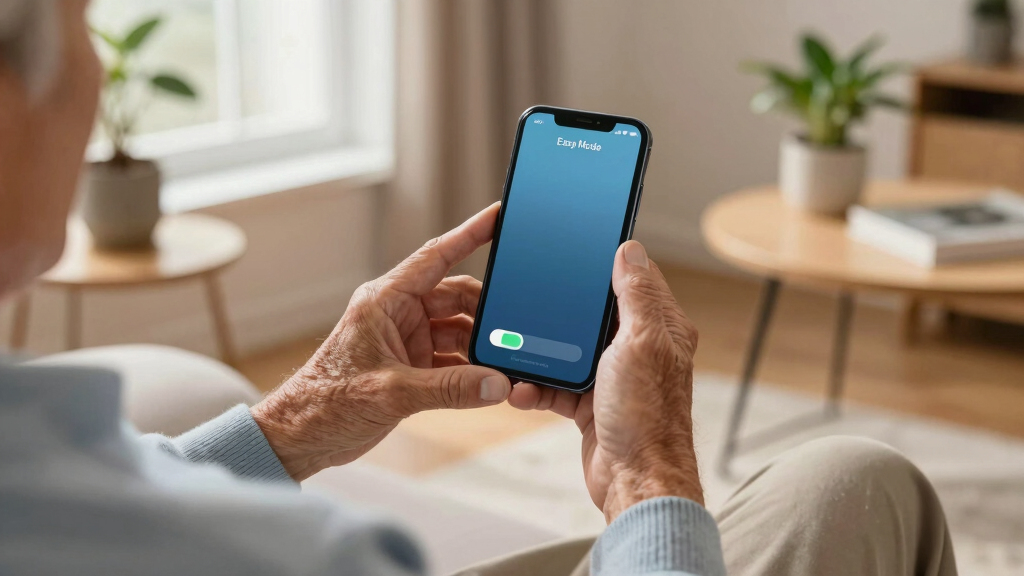
Easy Mode is a simplified version of your phone’s usual interface. Think of it as a friendly, uncluttered version of your device. It replaces your normal home screen with larger icons, simplified menus, and fewer options, making everything easier to see and tap.
Imagine trying to dial a number on a regular phone versus a big-button phone. Easy Mode is like that — designed for comfort and clarity. It often puts your most-used apps front and center, so you don’t have to hunt through menus or navigate confusing layouts.
For example, if you open Easy Mode on a Samsung Galaxy, you might see big, colorful icons for Calls, Messages, Camera, and Settings, all arranged neatly on a single screen. It’s perfect for anyone who finds standard interfaces overwhelming or hard to see.
Understanding why Easy Mode exists helps you appreciate its purpose: it reduces cognitive load and visual clutter, which can significantly improve your overall device experience. For individuals with visual impairments, larger icons mean less strain and fewer mistakes. For those with motor challenges, bigger touch targets reduce frustration and accidental taps. However, this simplicity comes with tradeoffs—some advanced features and customization options are limited, which might restrict power users but benefits those who prioritize ease over complexity. Recognizing these tradeoffs is essential because while Easy Mode simplifies your interaction, it may also mean sacrificing some control or access to advanced features that more experienced users rely on. This balance is crucial for making the most of the mode suited to your comfort level.
Popular right now

Ninja Foodi 10-Qt DualZone Smart XL Air Fryer, 6-in-1, DZ550

Vitamix Propel Series 750 Professional-Grade Blender, 4 Programs, Black

Breville Bambino Espresso Machine, Brushed Stainless Steel (BES450BSS)
As an affiliate, we earn on qualifying purchases.
How does Easy Mode make your smartphone simpler?
Easy Mode cuts through the clutter by prioritizing clarity and accessibility. It replaces your usual grid of tiny icons with large, colorful buttons that are easy to see and tap, which directly impacts your interaction speed and accuracy. This simplification isn’t just about aesthetics; it reduces decision fatigue, helping users focus on essential functions without distraction.
Imagine a busy kitchen: standard mode is like a full pantry — lots of options, but overwhelming. Easy Mode is like a tidy countertop — only the essentials in easy reach. This organization minimizes confusion, especially for users who may have difficulty distinguishing icons or navigating complex menus. It allows you to perform common tasks—calling, messaging, taking photos—more instinctively, which boosts confidence and independence.
Furthermore, Easy Mode often offers direct access to frequently used apps and functions, which can be customized based on your habits. This customization reduces the cognitive effort needed to find and launch apps, streamlining your daily interactions. For example, you might set your favorite contacts or apps to appear on the main screen, so you can reach them instantly without navigating through multiple menus. While this simplicity enhances usability, it also means that some advanced options, such as detailed settings or lesser-used features, may be hidden or unavailable, which could be a limitation for users needing more control. Understanding these tradeoffs helps you decide whether Easy Mode is right for you or if a more balanced approach with some simplified features but greater flexibility might be preferable.
Compare Easy Mode on different smartphones — which one suits you?
| Feature | Samsung Galaxy | Apple iPhone | LG or Others |
|---|---|---|---|
| Availability | Built-in, easy toggle | Accessibility settings, VoiceOver | Pre-installed or settings menu |
| Customization | High — icons, layout, contrast | Limited — mainly through accessibility | Varies — some allow app shortcuts and contrast adjustments |
| Ease of activation | Quick toggle or settings menu | Accessibility shortcut or settings | Depends on device, often via settings or quick menu |
Choosing the right Easy Mode depends on your device. Samsung offers a dedicated Easy Mode with big icons and simple menus, which is straightforward for most users. iPhones rely on accessibility features like VoiceOver and larger text to achieve similar simplicity, but these may require some adjustment to use effectively. Other Android brands may provide customizable options that allow you to tailor the interface further, balancing simplicity with some degree of control. Consider your comfort with technology, your specific needs, and the level of customization you desire when selecting the best option for you. The choice of Easy Mode impacts your overall experience because a mode that matches your familiarity and comfort level will make using your device more natural and less frustrating. Opting for a mode that aligns with your skills ensures you can navigate your device confidently, without feeling overwhelmed or restricted by unnecessary complexity.
Step-by-step: How to turn on Easy Mode on your smartphone
- Open your phone’s Settings app. This is usually represented by a gear icon.
- Look for options labeled “Display,” “Accessibility,” or “Ease of Use.” These sections contain the controls for simplifying your interface.
- Tap on “Easy Mode,” “Simple Mode,” or similar options (the exact wording varies by device).
- Switch it on — usually with a toggle or checkbox. Enabling this mode alters your interface to be more user-friendly.
- Optional: Customize what appears on your Easy Mode screen, like favorite apps or color schemes, to further tailor the experience to your needs.
For example, on a Samsung Galaxy, you go to Settings > Display > Easy Mode, then toggle it on. On an iPhone, you activate “Display & Text Size” in Accessibility and turn on “Larger Text” or “VoiceOver” for simplified controls. Remember, the process might vary slightly depending on your device model and software version, so consult your user manual or online support if you encounter differences. Following these steps ensures you activate Easy Mode correctly, which can significantly improve your ease of use and confidence with your device. The ability to quickly toggle between modes allows you to adapt your device to different situations, whether you need simplicity or full access to all features for more advanced tasks.
Quick tips to get the most out of Easy Mode
- Customize your main screen to include only your favorite apps — no clutter. This reduces decision fatigue and helps you find what you need faster, boosting your confidence in using the device. Simplifying your main screen ensures you focus on what matters most, making your interactions more efficient and less overwhelming.
- Use voice commands like “Hey Siri” or “Hey Google” to navigate hands-free. This can be especially helpful if you have difficulty tapping or holding the device, and it encourages independent use by reducing reliance on physical interaction.
- Adjust color contrast and font size for better visibility. These settings can reduce eye strain, help you read more comfortably, and prevent fatigue, which is especially important for users with visual challenges. Enhanced visibility options can make your device more accessible over longer periods of use.
- Learn how to switch back to standard mode quickly if needed. Knowing the toggle or shortcut ensures you can revert to a more feature-rich interface when desired, giving you flexibility and control over your experience.
- Practice using Easy Mode for a few days — it gets easier with familiarity. Consistent use helps you become more comfortable, build confidence, and discover new features or shortcuts that enhance your overall experience.
Frequently Asked Questions
Can I turn Easy Mode on and off easily?
Yes, most smartphones allow quick switching between Easy Mode and standard mode through settings or shortcuts. This flexibility helps you adapt your device as needed.Does Easy Mode work on all smartphones?
Easy Mode is available on many Android devices and some iPhones through accessibility features. Availability and features vary by brand and model.Will activating Easy Mode slow down my phone or drain the battery?
No, Easy Mode primarily changes the interface; it doesn’t affect performance or battery life significantly. It’s designed to make usage easier without impacting speed.Can I customize what appears on Easy Mode’s main screen?
Most devices let you choose which apps or shortcuts show up, giving you control over your simplified interface.Is Easy Mode suitable for everyone?
While it helps many, some advanced users might find it too limiting. It’s best suited for those seeking simplicity or with specific accessibility needs.Conclusion
Easy Mode isn’t just a feature; it’s a bridge to confident, independent smartphone use. With a few simple steps, you can turn your device into a friendly helper, not a confusing puzzle.
Next time your phone feels overwhelming, remember — a bigger, simpler interface is just a toggle away. Embrace it, and enjoy your device on your own terms.