
Use this guide to choose and set up a medical alert system for a senior, then test it so the senior and a caregiver know how to use it. It is for older adults, family members, and caregivers who are comparing systems or arranging a first setup. The steps take about 1–2 hours, not counting delivery; no technical experience is needed.

Turn quiet afternoons into listening time
- Thousands of audiobooks, podcasts and originals
- Listen on your phone, tablet or Echo — also offline
- Cancel anytime

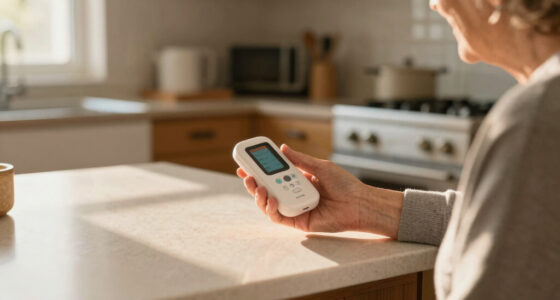
SecuLife Medical Alert Pendant for Seniors with Fall Detection, GPS Tracking, and Two-Way Calling
- ✔ Connectivity: 4G LTE cellular
- ✔ Alert features: Fall alerts and SOS calling
- ✔ Location: GPS, geofencing, and location history

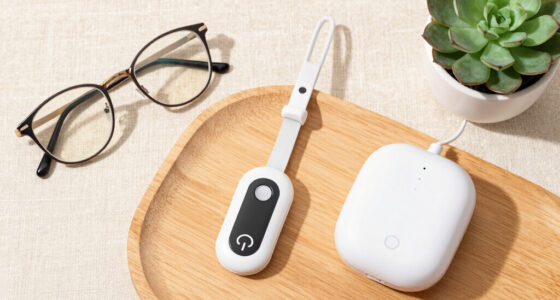
Wi-Fi Medical Alert System for Seniors with Call Buttons, Waterproof Wristband, Receiver, and LED Display
- ✔ Connection: Wi-Fi and wireless signaling
- ✔ Wi-Fi band: 2.4 GHz only
- ✔ Stated range: Up to 300 feet

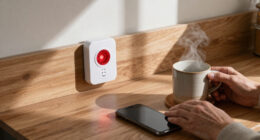
CallToU Caregiver Pager with 2 Wireless Call Buttons and 2 Receivers
- ✔ Included components: Two call buttons and two receivers
- ✔ Stated range: Over 500 feet in open areas
- ✔ Ringtones: 55
Difficulty: Beginner | Time: 1–2 hours, plus delivery and setup time
What You’ll Need
Tools & Materials:
- Phone or computer with internet access for comparing providers
- A list of medications, health conditions, mobility needs, and emergency contacts
- The senior’s home address and details about any gate or building access
- A payment method and, if needed, a caregiver who can help with setup
Knowledge:
- Basic familiarity with the senior’s daily routine and ability to use a phone or wearable button
- A general idea of whether the senior needs protection at home, away from home, or both
Ask the senior what they will be comfortable wearing and using. A system helps connect to assistance; it does not replace emergency services, medical advice, or a personal care plan. If there is an immediate medical emergency, contact local emergency services.
SecuLife Medical Alert Pendant for Seniors with Fall Detection, GPS Tracking, and Two-Way Calling
The SecuLife pendant is the most comprehensive pick here for someone who wants an alert device to travel with them. Its 4G LTE connection supports two-way calling, while GPS tracking, geofence alerts, and location history give selected contacts more context than either home-centered pager. Fall detection adds another alert path when the wearer may not be able to press the SOS button. This combination makes it the strongest fit for independent routines outside the house.That reach has a recurring cost: a monthly subscription is required, and the pendant needs charging. Battery life is described as up to six days, while the supplied product information also says an average of five days, so we would plan around the shorter figure until confirmed. Its IP67 rating is a more complete waterproofing specification than the Wi-Fi system’s waterproof wristband alone. Compared with CallToU, SecuLife is more useful away from home but less suitable as a simple caregiver-to-room alert system; it also should not be assumed to provide professional monitoring based on the details supplied.
Pros:
- Cellular two-way calling connects the wearer and selected contacts.
- GPS, geofence alerts, and location history support location awareness.
- Fall detection provides an additional way to trigger alerts.
- IP67 waterproof design is specified for everyday wear.
Cons:
- A monthly subscription is required.
- Battery-life information varies between up to six days and an average of five days.
- Charging and wearing a pendant are ongoing tasks.
Best for: Seniors who spend time away from home and want cellular calling, location sharing, and fall alerts for selected contacts.
Not ideal for: People who want a no-subscription device, dislike wearing and charging a pendant, or need confirmed professional monitoring.
Bottom line: Choose SecuLife when mobility and location features outweigh subscription and charging needs.
“Choose SecuLife when mobility and location features outweigh subscription and charging needs.”
Wi-Fi Medical Alert System for Seniors with Call Buttons, Waterproof Wristband, Receiver, and LED Display
For someone who spends most of the day at home, this system combines a receiver alarm and app-based notifications. Pressing a call button sounds a stated 110 dB alarm, and the receiver works without a monthly fee. Smartphone app alerts can be shared with others, giving family members a way to stay informed. Its stated wireless range of up to 300 feet may suit a compact home, though walls and layout can affect coverage.This is a home alert setup, not a portable cellular service like SecuLife. Its waterproofing is limited to the wristband remote, so buyers should check which components are exposed to splashes and avoid assuming the whole system is water-safe. Wi-Fi setup also requires 2.4 GHz, and SMS notifications require a subscription. Compared with CallToU, the app connection adds remote notification potential, while CallToU supplies two receivers and a longer stated open-area range. This pick makes sense when the receiver alarm is the priority and the household is comfortable with its network requirements.
Pros:
- Receiver alarm works without a required monthly fee.
- App notifications can be shared with others.
- Wristband remote is waterproof for shower use.
- Receiver alarm is listed at 110 dB.
Cons:
- SMS notifications require a subscription.
- Wi-Fi supports 2.4 GHz only.
- Only the wristband remote is specified as waterproof.
Best for: Seniors who spend most of their time at home and want a loud local alarm with optional app notifications.
Not ideal for: People seeking cellular coverage away from home, whole-system waterproofing, or SMS alerts without a subscription.
Bottom line: Choose this system for a home-centered alarm and app alerts, provided its Wi-Fi and component limits suit your setup.
“Choose this system for a home-centered alarm and app alerts, provided its Wi-Fi and component limits suit your setup.”
CallToU Caregiver Pager with 2 Wireless Call Buttons and 2 Receivers
CallToU’s two-button, two-receiver set is built around a simple household need: let a senior call for nearby assistance and give caregivers more than one place to hear it. The buttons can be worn with a neck strap or mounted, while receivers plug into outlets. With 55 ringtone options and five volume levels up to 110 dB, a caregiver can choose an alert that is easier to notice in a particular room. The buttons and receivers are described as waterproof and dustproof.The stated range of over 500 feet applies to open areas, so we would not treat it as a guarantee through a large or partitioned house. Unlike the Wi-Fi system, the supplied details do not mention smartphone notifications; unlike SecuLife, CallToU is not a cellular pendant for use away from home and does not list GPS or fall detection. Its strength is the straightforward multi-room caregiver arrangement, but receivers need outlet power. Choose it when caregivers are nearby and want multiple call points, rather than remote contact or location tracking.
Pros:
- Includes two wireless call buttons and two receivers.
- Offers 55 ringtones and five volume levels up to 110 dB.
- Buttons and receivers are described as waterproof and dustproof.
- Buttons can be worn with a neck strap or mounted.
Cons:
- Receivers must be plugged into electrical outlets.
- The stated 500-plus-foot range is for open areas.
- Product details do not list cellular calling, GPS, or app notifications.
Best for: Households where a caregiver is nearby and wants two call buttons and two receivers across the home.
Not ideal for: Seniors who need location tracking, cellular coverage outside the home, or app-based remote notifications.
Bottom line: Choose CallToU when multiple in-home alert points matter more than remote connectivity or wearable medical features.
“Choose CallToU when multiple in-home alert points matter more than remote connectivity or wearable medical features.”
As an Amazon Associate we earn from qualifying purchases.
Before You Start
Check whether the senior can hear and speak with an operator through the device or base unit, and whether they can press a button when help is needed. If not, ask providers about automatic fall detection, accessible controls, and procedures for responding when the user cannot speak. Fall detection can miss falls or trigger false alarms, so it should not be treated as a substitute for pressing the help button.
Do not rely on a system until it has arrived, is charged or plugged in, and has passed a test call. Confirm the provider’s test procedure before testing; some systems have a dedicated test mode.
Step-by-Step Instructions
Step 1: List the senior’s needs and routine
Write down where the senior spends time: at home, in the yard, walking nearby, driving, or visiting other locations. Note mobility concerns, fall history, hearing or speech needs, whether the senior lives alone, and how often someone checks in. Ask the senior which device they would actually wear, such as a pendant, wrist button, or mobile unit.
Tip:Include bathing and sleeping routines. Some devices are water-resistant and wearable in the shower; others are not. Check the product’s stated water rating.
Check: You have a short list of settings, support needs, and preferred device style to use when comparing options.
Step 2: Choose the coverage type
Select an in-home system if the senior mainly needs help at home and the base unit’s stated range covers the areas they use. Choose a mobile system if they need coverage away from home; check which cellular networks and locations it supports. Consider a combined system if both settings matter. Ask whether the system works during power or cellular outages and what backup features it has.
Tip:Do not assume a mobile device works everywhere. Coverage can vary indoors, in rural areas, and while traveling.
Check: The selected system covers the senior’s regular locations, and you know what happens if power or network service is interrupted.
Step 3: Compare providers and costs
Compare the monthly price, equipment fee, activation charge, shipping, cancellation terms, contract length, and any extra cost for fall detection or caregiver notifications. Ask whether equipment must be returned and whether charges continue during a temporary pause. Confirm the response center’s availability, how operators identify the user, and how they contact emergency services and listed contacts.
Tip:Ask for the full price in writing, including introductory rates and the amount charged after any promotion ends.
Check: You can explain the total expected cost, cancellation process, and basic response procedure before enrolling.
Step 4: Prepare emergency and contact details
Gather the senior’s full name, home address, apartment or gate access instructions, phone number, relevant medical conditions, allergies, medications, and preferred hospital if applicable. Choose emergency contacts who can answer calls and reach the senior. Ask each contact for permission, verify their phone numbers, and decide who has a key or access code.
Tip:Share only information the response center requests, and keep the same details available to the caregiver in a secure place.
Check: The information is accurate, and each listed contact knows they may be called.
Step 5: Order and register the system
Order the chosen device from the provider, then follow its registration instructions. Enter the senior’s name, address, access details, and contacts exactly as verified. Review the provider’s privacy terms and instructions for changing information. Save the account number, support number, and billing details where the senior or caregiver can find them.
Tip:Do not enter a caregiver’s address as the user’s location unless the senior actually lives there; an incorrect address can delay help.
Check: The provider confirms registration, and the account displays the senior’s correct location and contact details.
Step 6: Install and wear the device
Place an in-home base unit where the senior spends time and can hear its speaker, following the provider’s placement guidance. Connect it to power or the required service, and charge mobile equipment fully. Put the wearable button where the senior can reach it quickly and comfortably. Show the senior how to press it, how to speak to the operator, and how to charge or check the battery.
Tip:Keep the base unit away from enclosed cabinets and other locations that may block sound or signal. Do not leave a charging cable where it creates a trip hazard.
Check: The equipment powers on, the senior can reach the help button, and the base unit or device gives the expected ready signal.
Step 7: Test the alert and response process
Use the provider’s test mode or call its support line to arrange a test. Tell the operator it is a test before pressing the alert button. Confirm that the response center receives the signal, identifies the senior, reads the correct location, and can contact the agreed people. Ask how the operator would act if the senior did not answer. Record the test date and any instructions.
Tip:Do not place an unannounced test call to emergency services. Follow the provider’s testing instructions so a test is not mistaken for a real emergency.
Check: The provider confirms the alert arrived, the location and contacts are correct, and the senior can communicate with the operator or understands what to do if they cannot.
Step 8: Practice and maintain the setup
Have the senior practice wearing the device and pressing the button during a scheduled test. Explain that they should press it when they need help, then stay near the speaker or keep the mobile unit with them while the operator responds. Set a routine to charge the device, check its status, update contacts after changes, and test it at the interval the provider recommends.
Tip:Make the device part of the daily routine. A button left on a dresser cannot summon help when the senior is elsewhere.
Check: The senior can demonstrate how to call for help, and someone is assigned to check charging, contact details, and periodic tests.
Common Mistakes to Avoid
- Choosing an in-home unit without checking coverage where the senior walks or sleeps. — Compare the provider’s range guidance with the home layout, and test from commonly used rooms and areas.
- Buying a wearable the senior finds uncomfortable or difficult to operate. — Let the senior handle or try the device when possible, and confirm its button size, weight, fit, and charging routine.
- Assuming fall detection will identify every fall. — Treat fall detection as an added feature; keep the help button accessible and discuss a backup check-in plan.
- Entering an old address or unreachable emergency contact. — Verify the address, access instructions, and each contact’s number during registration and whenever circumstances change.
Troubleshooting
Problem: The base unit does not connect or gives a warning signal.
Solution: Check power and any required phone or network connection, then restart the unit using the manual. Contact the provider if the warning remains; do not count on the system until it passes a test.
Problem: The mobile device loses signal in a regular location.
Solution: Report the location to the provider and ask whether another network, device, or setup would provide coverage. Keep another way to call for help in that location until the issue is resolved.
Problem: The senior cannot hear the operator or the operator cannot hear them.
Solution: Move closer to the base unit or mobile device and check the volume and microphone openings. Ask the provider about accessibility options or a different device, then retest.
Problem: The device triggers a false alarm or the senior forgets to wear it.
Solution: Tell the response center what happened and ask how to cancel accidental alerts safely. Review fit and charging habits, and place a reminder near the senior’s usual dressing or medication routine.
What Success Looks Like
The system is registered to the correct person and location, powers on and is charged, and reaches the response center during a provider-approved test. The senior can access and use the alert button, the response center has current contacts and access instructions, and the senior or caregiver knows how to maintain and test the equipment.
Next Steps
Keep the provider’s support number and account details accessible. Recheck the setup after a move, change in health or mobility, new caregiver, or change to emergency contacts. Follow the provider’s recommended test schedule, charge mobile equipment as directed, and contact the provider when a device fails a test or no longer fits the senior’s needs.
Frequently Asked Questions
Does Medicare pay for a medical alert system?
Coverage depends on the plan and circumstances, and many standard plans do not pay for a standalone alert subscription. Ask the insurer or benefits administrator about the specific device and service before enrolling.
Should the senior choose a pendant or wrist button?
Choose the style the senior can wear consistently and press reliably. Compare comfort, button size, water resistance, and how each option is charged or maintained.
Can a medical alert system call emergency services automatically?
Many systems connect first to a response center, where an operator assesses the alert and contacts emergency services or listed contacts according to the situation and provider procedure. Confirm the process with the provider.
How often should the system be tested?
Follow the provider’s schedule and testing method. Test after installation and after equipment, location, or account changes, and contact support if a test does not connect.